

A job is rarely one file. On the Approvals page you can send a whole range to its reviewers in one email each, add the corrected files of many artworks in one go, and drop a folder of PDFs on the list to have each one matched to the artwork it belongs to. Open Approvals
However a proof was sent, it keeps its own approval: its own link, reminders, comments, decision and history. Only the first email is shared.
Share several artworks#
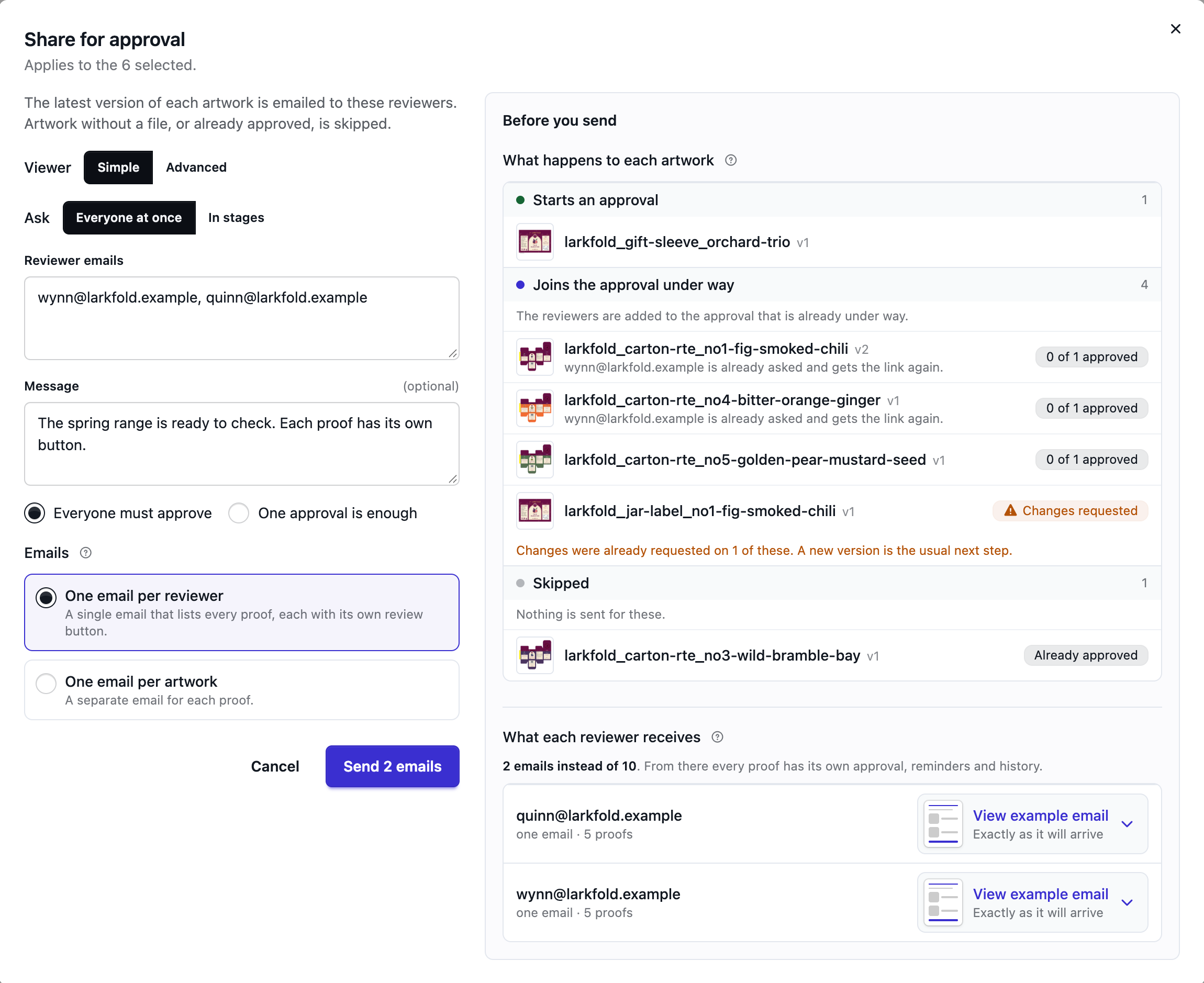
- Tick the artworks on the list (see The Approvals dashboard) and choose Share in the bar above it.
- Choose the viewer, who approves (Everyone at once or In stages), the reviewers and an optional message.
- Under Emails, choose how the reviewers hear about it.
- Read Before you send beside the form: what happens to each artwork, and what each reviewer receives. Then send. The button says how many emails go out.
One email per reviewer, or one per artwork#
- One email per reviewer sends each reviewer a single email that lists every proof: its thumbnail, name and version, and its own Review button. Each button is that reviewer's personal link to that proof. Five artworks for two reviewers is two emails.
- One email per artwork sends each reviewer a separate email for each proof: ten emails for the same share.
A reviewer who ends up with a single proof gets the usual Approval request either way. Both emails can be reworded under Settings → Emails (see Emails and branding).
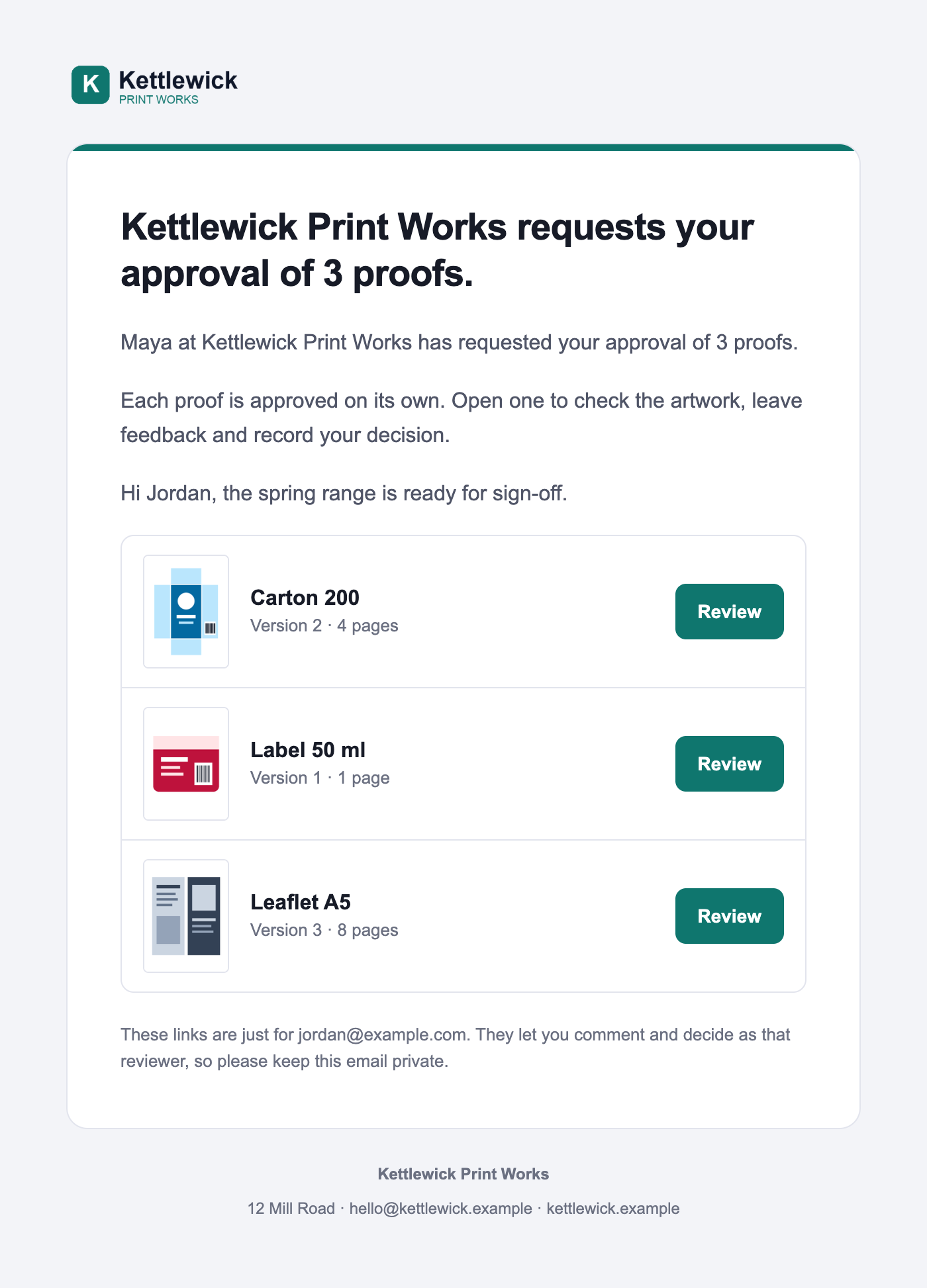
What each reviewer receives#
Before you send lists everyone the share touches, with what they get: one email with so many proofs, separate emails, or nothing for now. Click View example email beside a person to read their email exactly as it will arrive, with your logo, colour, wording and message, and Hide example email to close it again. The total above the list counts the emails, and what it would have been with one email per artwork.
Approvers of a later stage are listed too. They are not emailed now: each is asked about a proof when the stage before it has approved that proof.
Artwork that is already out for approval#
A version has one approval at a time (see Reviewers: invitations and identity). What happens to each artwork says, before you send, what the share does to each ticked artwork. The artworks are listed under what happens to them, one line each: its small preview, name and version, and where its approval stands now, such as 1 of 2 approved, Stage 1 of 2 (Customer) or Changes requested. A long list shows its first few artworks and Show all.
| It says | When | What happens |
|---|---|---|
| Starts an approval | Nobody was asked to approve this version yet | The reviewers become its approvers. |
| Joins the approval under way | You chose Everyone at once and Everyone must approve, and the version is out for approval | The reviewers are added to it. In a staged approval they join the stage that is deciding now. Decisions already made stay. |
| Replaces the approval under way | You chose In stages, or One approval is enough, and the version is out for approval | The approval under way ends and the new one starts. Decisions made so far no longer count; a staged approval's link stops working. |
| Skipped | No file yet, already approved, or nobody left to ask | Nothing changes. The reason is shown. |
When reviewers join an approval, three cases keep people from being asked twice:
- Someone who already decided on that version is not asked again. The proof is left out of their email.
- Someone who was asked and has not decided gets the link again, and their card says so.
- Someone who is an approver of another stage of that artwork's staged approval is left out. The others still join.
When one of these applies to an artwork, the line under its name says who it is.
When an approval is replaced, the people who were asked before and are not asked again are listed as no longer asked. Tick Email the people who are no longer asked… to send them the Approval cancelled email, one per artwork. Someone the new approval asks again is not told: they simply get the new request.
Joining an approval where changes were already requested marks the artwork Changes requested with a warning, since a new version is the usual next step there.
New versions of several artworks#
- Tick the artworks that have a corrected file and choose New versions in the bar.
- Drop the PDFs on the dialog, or click to choose them. Each file is matched to one of the ticked artworks by its file name.
- Check the list (see below), add a note on what changed where it helps, and upload.
A file that matches none of the ticked artworks is set to Skip this file: choose the artwork it belongs to, or leave it out. Two files cannot become a version of the same artwork in one go.
Email the new versions to their previous reviewers is ticked to start with, as on a single upload (see Artwork versions). A few minutes after the upload each reviewer gets one email that lists all their new versions: what each replaces, your note on what changed, and what that reviewer decided on the version before. A reviewer only sees the proofs they were asked to approve, and one with a single new version gets the usual New version email. Choose One email per artwork to send them separately. Untick the box to add the versions without emailing anyone. A staged approval starts over at its first stage either way it is emailed.
Drop PDFs on the list#
Drag PDFs from your computer onto the Approvals page, anywhere on the list. Nothing is added yet: the dialog first works out what each file is, and asks what to do with it.
- A file named like the file of an existing artwork is offered as its next version.
- A file that is already there is set to Skip this file.
- A file no artwork has is offered as a new artwork with its first version. Choose its customer in the dialog, and tick Share the new artwork right after the upload to go straight to sharing it.
Each row shows the file, What we found (the artwork it belongs to and how the file compares with its latest version) and What to do. Change What to do on any row before uploading: add it as a version, make a new artwork, or skip it. Files that are not PDFs, or are larger than 200 MB, are left out and named.
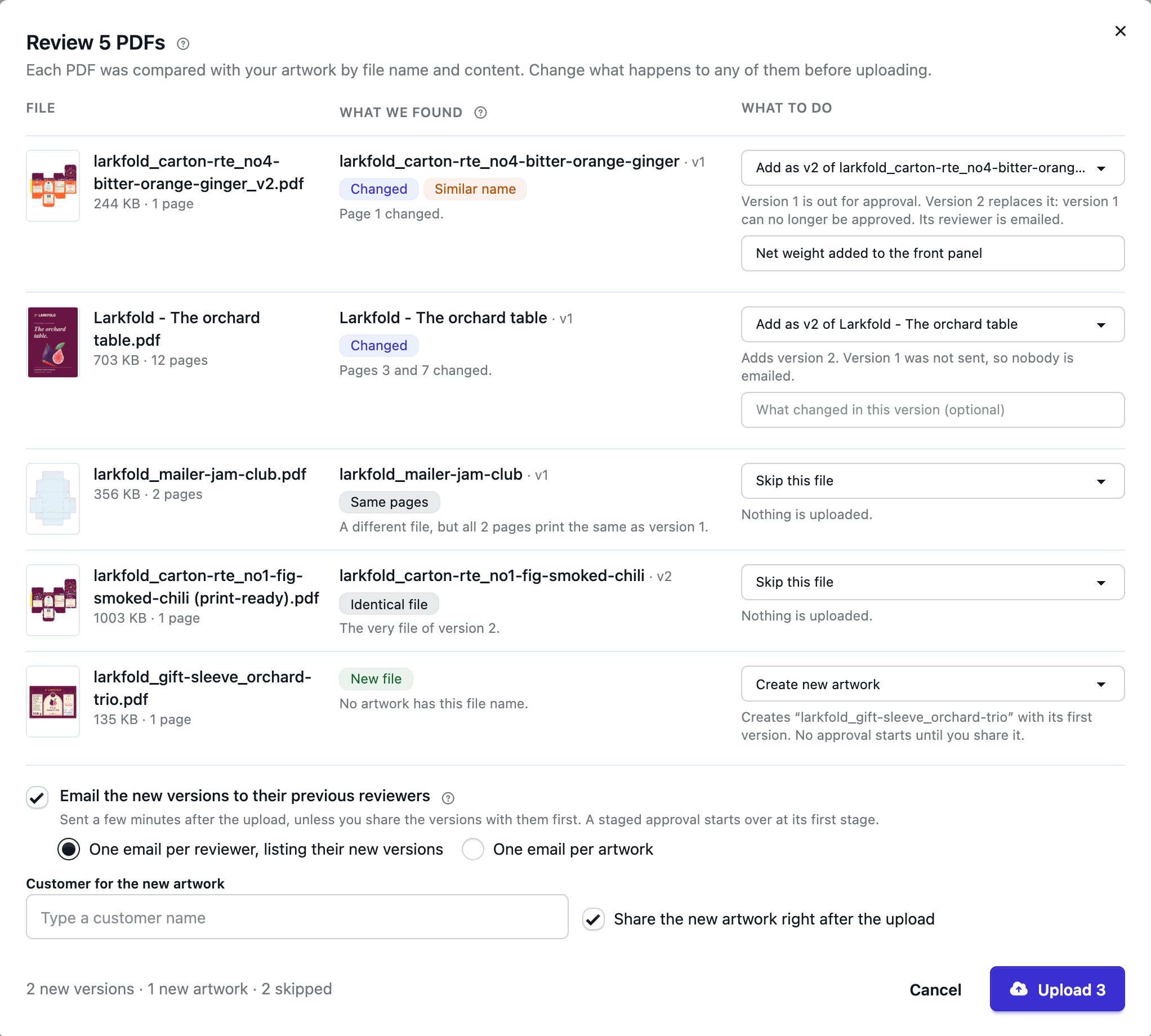
Every file has a picture of its first page beside its name, with its size and page count, so you can tell the files apart at a glance. Point at the picture to see it larger, or click it to see the page at full size. The pictures are drawn in your browser: nothing is uploaded for them.
How a file is checked#
| Check | How | Result |
|---|---|---|
| File name | Compared with the file name of every version of your artwork. | An exact match is used as it is. A name that differs only by a round marker, such as _v2, -rev3, (1) or final, shows Similar name for you to confirm. |
| Same file | The file's checksum is worked out in your browser and compared with the stored versions before anything uploads. | Identical file when it is the latest version's very file; An earlier version's file when it matches an older one. Both are set to skip. |
| Listed twice | The checksums of the dropped files are compared with each other. | Listed twice on the second copy of the very same file, which is set to skip so it is uploaded once. |
| Same pages | A different file with a matching name is sent once to be compared with the latest version, page by page. It is not kept. | Same pages when every page prints the same (a re-export changes the file but not the artwork), and it is set to skip. Otherwise Changed, naming the pages that differ. |
The page check reads what each page draws: its size, content, fonts, images and colours. Dates, document information and how the file is compressed don't count. It never guesses: when it cannot show that two pages are the same, it says Changed, and a file it cannot read or that takes too long says Changed file without page numbers. Annotations such as sticky notes are not part of the comparison.
When two artworks have a file with the same name, the one worked on last is offered first and the other is in the list under What to do.
Things to know#
- Up to 200 artworks, or 200 files, can be handled at a time.
- A changed file is sent twice: once to compare its pages, and again when you upload. Large files take a moment.
- The pictures in an email are small previews. They stay visible in an email already sent after its proof link is closed, and disappear when the artwork is deleted (see Emails and branding).
- Everything here is in the API too: see Approvals API and Approvals API.