

Proof links normally start with AutomatePrint's address. With a domain of your own, your customers open
https://approve.example.com/… instead: your name in the address bar and in every email. Team administrators set
it up under Approvals → Settings → Domain. Open Approvals
You need a domain you own and access to its DNS settings, usually at the company you registered the domain with.
1. Choose a subdomain#
Pick a name in front of your domain that says what it is for: approve.example.com, proofs.example.com. It has
to be a subdomain. The bare domain (example.com) and www normally belong to your website and cannot be used.
Type it into Domain and choose Add domain.
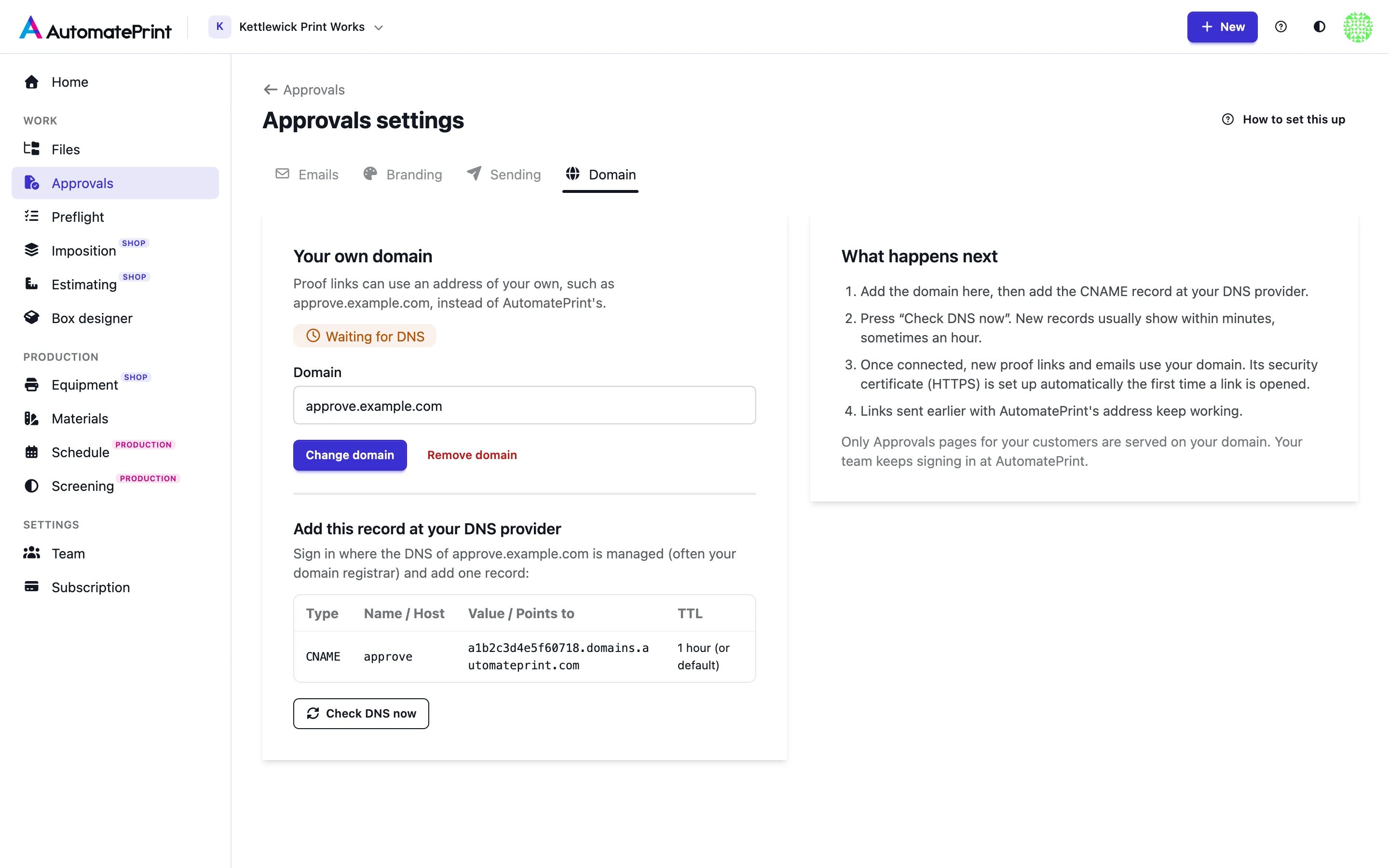
2. Add the DNS record#
The page now shows one record to create. It is made for your team: the value contains a code that only your team has.
- Sign in where your domain's DNS is managed and open its DNS records.
- Add a record with these values, copied from the page:
- Type:
CNAME - Name (also called Host): the first part of your subdomain, such as
approve. Some providers want the full name,approve.example.com. - Value (also called Points to or Target): the long name shown under Value / Points to.
- TTL: one hour, or the provider's default.
- Type:
- Save the record.
If your DNS provider offers a proxy or "orange cloud" for the record, switch it off for this record (DNS only). The certificate cannot be issued through a proxy.
3. Check and connect#
Back on the Domain tab, choose Check DNS now. A new record usually shows within a few minutes and can take up to an hour. Until then the page says no CNAME record was found; nothing is wrong, check again later. AutomatePrint also looks again by itself once a day.
| Status | What it means |
|---|---|
| Waiting for DNS | The domain is saved but its CNAME record has not been found yet. Links still use AutomatePrint's address. |
| Connected | The record points at AutomatePrint. New proof links and emails use your domain. |
| DNS no longer points here | A domain that was connected lost its record. Links use AutomatePrint's address again until the record is back; links already sent with your domain do not open meanwhile. |
Once the status is Connected:
- new proof links, the links in the Share dialog and the links in emails to reviewers use your domain;
- the first time someone opens a link on your domain, its security certificate (HTTPS) is requested and installed automatically, which takes a few seconds once. It renews by itself;
- links you sent earlier with AutomatePrint's address keep working, and so does the same link on either address.
What your domain shows#
Only your team's proof pages are served on your domain: the proof, its comments, decisions and files. A link belonging to another AutomatePrint team does not open there. Your team keeps signing in at AutomatePrint, and the links in emails to your own team point there too, because that is where you are signed in.
Someone who visits the bare address, without a proof link, sees a short page with your company name.
A browser remembers a reviewer for one address at a time, so your domain and AutomatePrint's address count as two browsers. Someone who reviewed your proofs at AutomatePrint's address enters their email address once more the first time they comment or decide on your domain. On a link where they already commented from the other address without an invitation, they are asked to carry on there or to be invited. A personal link from an invitation identifies them straight away on either address (see Reviewers: invitations and identity).
Change or remove the domain#
- Change domain saves a new name and starts over at step 2 with a new check. The record's value stays the same.
- Remove domain disconnects it. New links use AutomatePrint's address again.
Warning: Links already sent with your domain stop opening
A link is tied to the address it was sent with. After you remove the domain, or delete its DNS record, reviewers who still have an email with your domain in the link cannot open it. Send them the link again from the Share dialog. If a record disappears by accident, the status becomes DNS no longer points here after a few daily checks; restore the record and choose Check DNS now.