

On a conventional press each ink goes down separately, and the plates never line up perfectly. Traps overlap touching inks very slightly, so this small misregistration leaves no white gaps between them. The Trapping tab adds traps to the print-ready file as a layer of their own, checks that they close the gaps, and switches them on or off for the press. The artwork itself never changes.
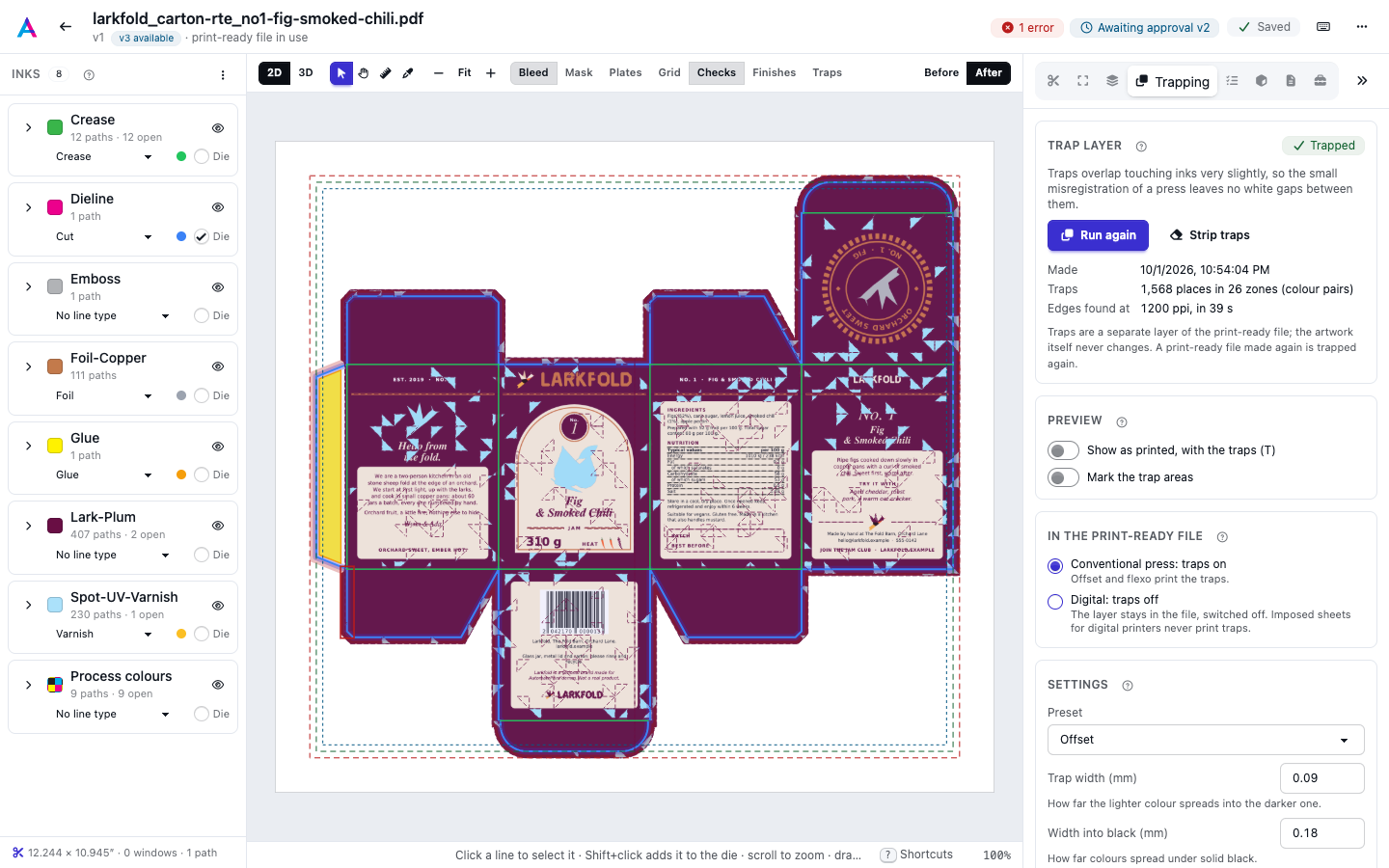
Trapping works on PDF artwork. How wide the traps are and which way they go is set on Trapping settings and inks.
Run trapping#
Choose a preset (Offset or Flexo; see Trapping settings and inks) and press Run trapping (Run again once the file has traps). Trapping runs in the background and takes a while on a large page: the tab shows Waiting for a worker…, then Trapping and checking the traps…, and you can keep working meanwhile.
When it's done, the traps are in the print-ready file (one is made from the original if there is none yet), and the tab lists:
- Made: when;
- Traps: how many places were trapped, in how many zones (colour pairs);
- Edges found at: the resolution the edges were found at, and how long it took.
Warnings follow, such as hairlines too thin to trap, or small objects that got narrower traps so they aren't swallowed. A file that other software already trapped (it says so in the PDF, or carries trap annotations) is not trapped again.
Digital (no traps) makes no traps: digital presses print in register. Choosing it switches traps already in the file off.
Conventional or digital press#
In the print-ready file says whether the traps print: on for offset and flexo, off for digital presses.
- Conventional press: traps on. Offset and flexo print the traps.
- Digital: traps off. The trap layer stays in the file, switched off. Imposed sheets for digital printers never print traps.
Until you choose, this follows the job: traps off when the job's run type is digital, on otherwise. It can't be switched while trapping runs.
Preview the traps#
Two switches show the traps on the page: as printed, or as marked areas. Traps are fractions of a millimetre, so zoom in to see them.
- Show as printed, with the traps (or T, or Traps in the toolbar) draws the page as printed, with overprint simulated, so the traps look as they will on press. Varnish, foil and spot inks also look as they print there, not as in the normal view.
- Mark the trap areas colours where ink was added (a spread, fuchsia) and where ink was taken away (a keepaway, teal).
The misregistration check#
Every run checks its own traps. Shift each plate by sets how far out of register the check assumes the press is: ± 25, 50 (the default), 75, 100 or 150 µm, or Do not check. The choice is used by the next run.
The check renders up to three 30 mm (about 1.2 in) areas where the most traps are, at 1200 ppi, with each plate shifted in eight directions, and counts the paper that shows between inks with and without the traps. The tab then says Passed or Gaps left, how many pixels of paper showed before and after, and shows each area as a heat map:
- blue: a gap without traps;
- red: a gap the traps leave;
- amber: a trap too wide, or going the wrong way.
Click an area to see it large, then Show on the page to zoom there.
Trap zones#
Trap zones lists one zone per pair of touching colours, such as a spot colour against black. A place is one run of touching edges. Click a zone to zoom to its first place. When a page has very many zones, only the largest are listed.
Strip the traps#
Strip traps removes the trap layer from the print-ready file after you confirm, and the file is no longer trapped when it's made again. Adding traps back means running trapping again.
When the traps no longer match#
The header and the tab show Traps out of date when the traps no longer match:
- The settings or the inks changed since the traps were made (a new preset, a parameter, an ink's kind or density, a line type that changes an ink's kind). Run trapping again to use them; settings never re-run trapping by themselves.
- The print-ready file was made again (new bleed, renames, boxes). It has no traps then, so a new run starts on its own: the chip says Traps out of date — re-running.
Revert to original on the Bleed tab forgets the traps. When a run fails, the chip says Trapping failed, or Last run failed when traps from an earlier run are still in the file.