

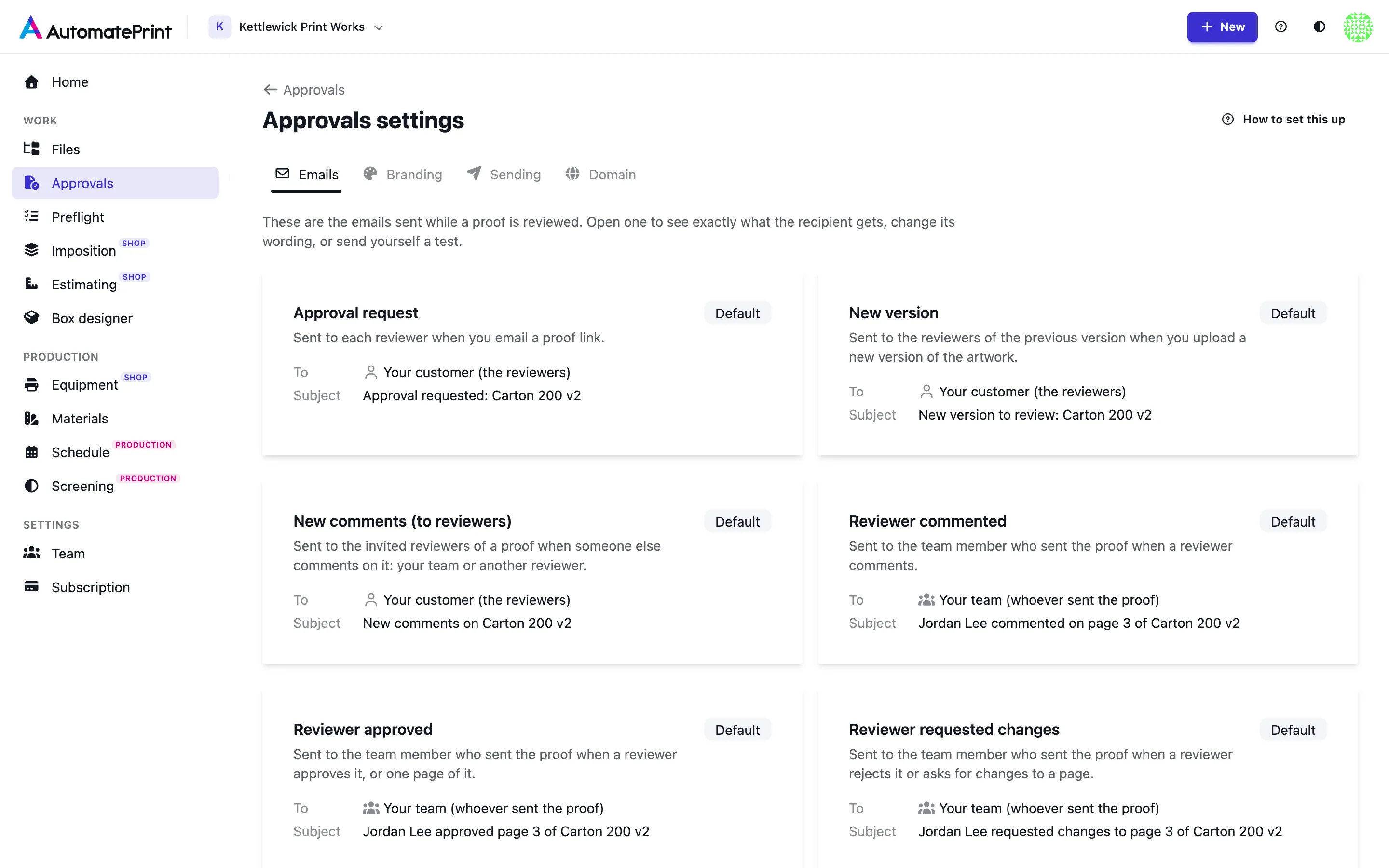
A review sends email in both directions: your customer is asked to approve, hears about new versions and new comments, and your team hears about every comment and decision. Team administrators choose how those emails look and read under Approvals → Settings. Open Approvals
The emails of a review#
| To | When it is sent | Default subject | Can be switched off | |
|---|---|---|---|---|
| Approval request | The reviewers | Sent to each reviewer when you email a proof link. | Approval requested: {artwork} v{version} | No |
| New version | The reviewers | Sent to the reviewers of the previous version when you upload a new version of the artwork. | New version to review: {artwork} v{version} | Yes |
| New comments (to reviewers) | The reviewers | Sent to the invited reviewers of a proof when someone else comments on it: your team or another reviewer. | New comments on {artwork} v{version} | Yes |
| Reviewer commented | Your team | Sent to the team member who sent the proof when a reviewer comments. | {reviewer} commented on {where} | Yes |
| Reviewer approved | Your team | Sent to the team member who sent the proof when a reviewer approves it, or one page of it. | {reviewer} approved {where} | Yes |
| Reviewer requested changes | Your team | Sent to the team member who sent the proof when a reviewer rejects it or asks for changes to a page. | {reviewer} requested changes to {where} | Yes |
| Review complete | Your team | Sent once every approver of a multi-page proof has decided on every page. | Review complete: {result} | Yes |
Who gets what:
- Reviewers are the people you emailed a proof link to. Only addresses your team invited get email. Someone who opens a link and types an address when commenting is never emailed, so a link cannot be used to send mail to a stranger.
- Your team means the team member who last emailed that proof link. A link nobody emailed goes to the member who uploaded the version, then the artwork's creator, then your team's administrators.
- Nobody is emailed about their own action. When you comment on a proof you sent, the reviewers hear about it and you don't.
Two of the emails to reviewers wait a moment before they go out:
- New comments collects everything written on a proof link in the last couple of minutes into one email per reviewer, so a reviewer placing ten comments sends the others one email, not ten. It quotes each comment with its author and page. Other reviewers' addresses are masked, and your team's comments carry your company name.
- New version goes to the invited reviewers of the previous version a few minutes after the upload. They become approvers of the new version and get their own personal link to it. Reviewers you invite to the new version yourself in the meantime are not emailed twice. The upload dialog lets you leave it out for one upload (see Artwork versions).
In a staged approval (see Staged approvals) the Approval request goes to one stage at a time, and each invitation names its stage.
Every email is written to the artwork's history with its recipients and outcome: see History and notifications.
Change the wording#
Open an email on the Emails tab. The form is on the left, and the right side shows the email with example data, exactly as it will arrive. The preview follows as you type.
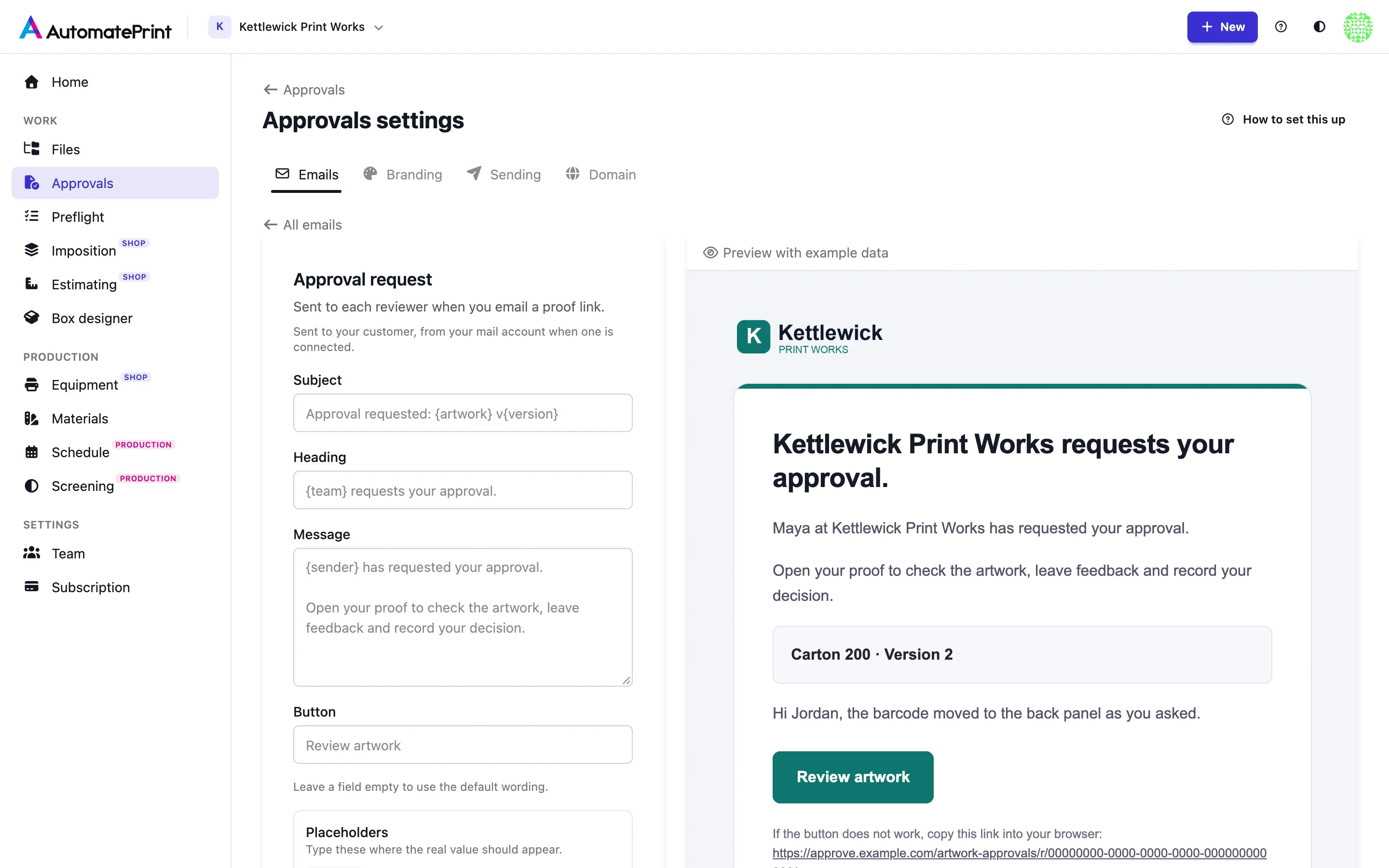
- Change the Subject, Heading, Message or Button. A field you leave empty keeps the default wording, shown in grey.
- Use placeholders where the real value belongs, such as
{artwork}or{sender}. The form lists the ones that email understands and refuses a placeholder it does not know. - Choose Save. Use default wording puts the email back as it was.
| Placeholder | Stands for | Available in |
|---|---|---|
| {team} | Your company name | Every email |
| {artwork} | The artwork's name | Every email |
| {version} | The version number | Every email |
| {proof} | Artwork and version, such as “Carton 200 v2” | Every email |
| {sender} | Who sent the proof, such as “Maya at Acme Print” | Approval request, New version |
| {reviewer} | The reviewer's name or email address | Reviewer commented, Reviewer approved, Reviewer requested changes |
| {where} | The proof, with the page when it is about one page | Reviewer commented, Reviewer approved, Reviewer requested changes |
| {result} | The outcome, such as “Carton 200 v2 approved” | Review complete |
Some parts of an email are not wording and always appear: the artwork and version line, the note you type when you send a proof, quoted comments, the approval progress counts, and the line telling a reviewer that their link is personal. A subject you type in the Share dialog for one proof wins over the subject you set here.
Switch an email off#
Every email except Approval request has a Send this email switch on its page. Switched off, the email is not sent and nothing is retried later. The Emails tab marks it Off.
Note: New version emails are on by default
Uploading a new version of an artwork whose previous version was sent to reviewers emails those reviewers, unless you untick Email the new version to the previous reviewers in the upload dialog. If you prefer to send every new version yourself from the Share dialog, switch New version off.
Logo, colour and footer#
The Branding tab sets what every email to your customers looks like.
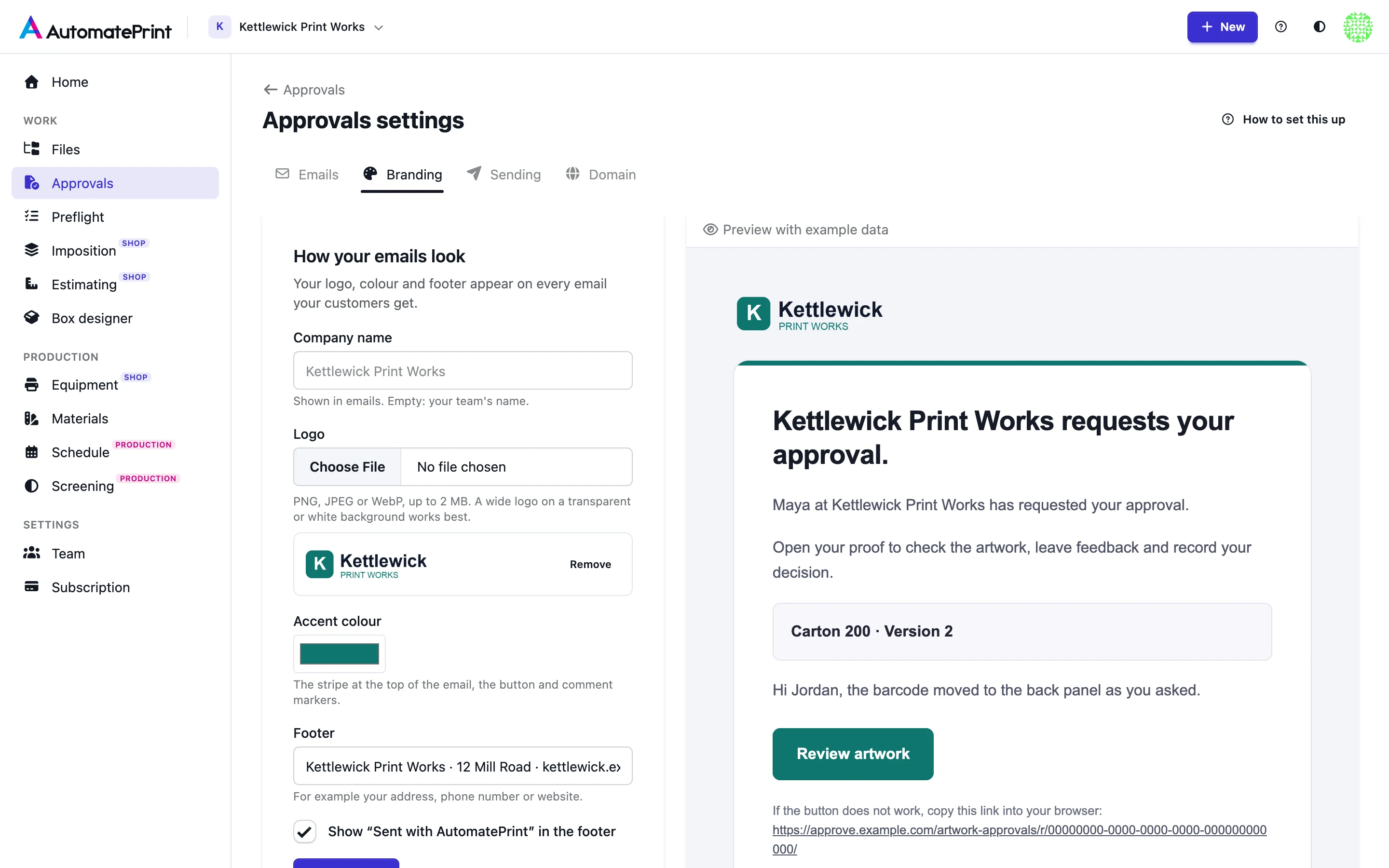
- Company name is shown at the top when you have no logo, in the footer, and wherever an email says
{team}. Empty means your team's name. - Logo takes a PNG, JPEG or WebP of up to 2 MB. It is shown 48 pixels high at the top of the email, so a wide logo on a white or transparent background works best.
- Accent colour colours the stripe at the top, the button and the bar beside quoted comments. The button text turns dark or white to stay readable on your colour.
- Footer is one line under your company name, for example an address, phone number or website.
- Show “Sent with AutomatePrint” in the footer adds or removes that line.
Emails to your own team use the same look.
Send yourself a test#
On any email's page, type an address under Send a test to and choose Send test. The test is that email with the wording currently in the form (saved or not) and example data, sent the way your customers get it: from your own mail account when one is connected (see Send proof emails from your own address), otherwise by AutomatePrint in your name.
Open the test in the inbox and check three things: the sender name and address, your logo and colour, and that the button stands out. The line under the button tells you whether your mail account or AutomatePrint sent it. A team can send up to 30 test emails an hour.