

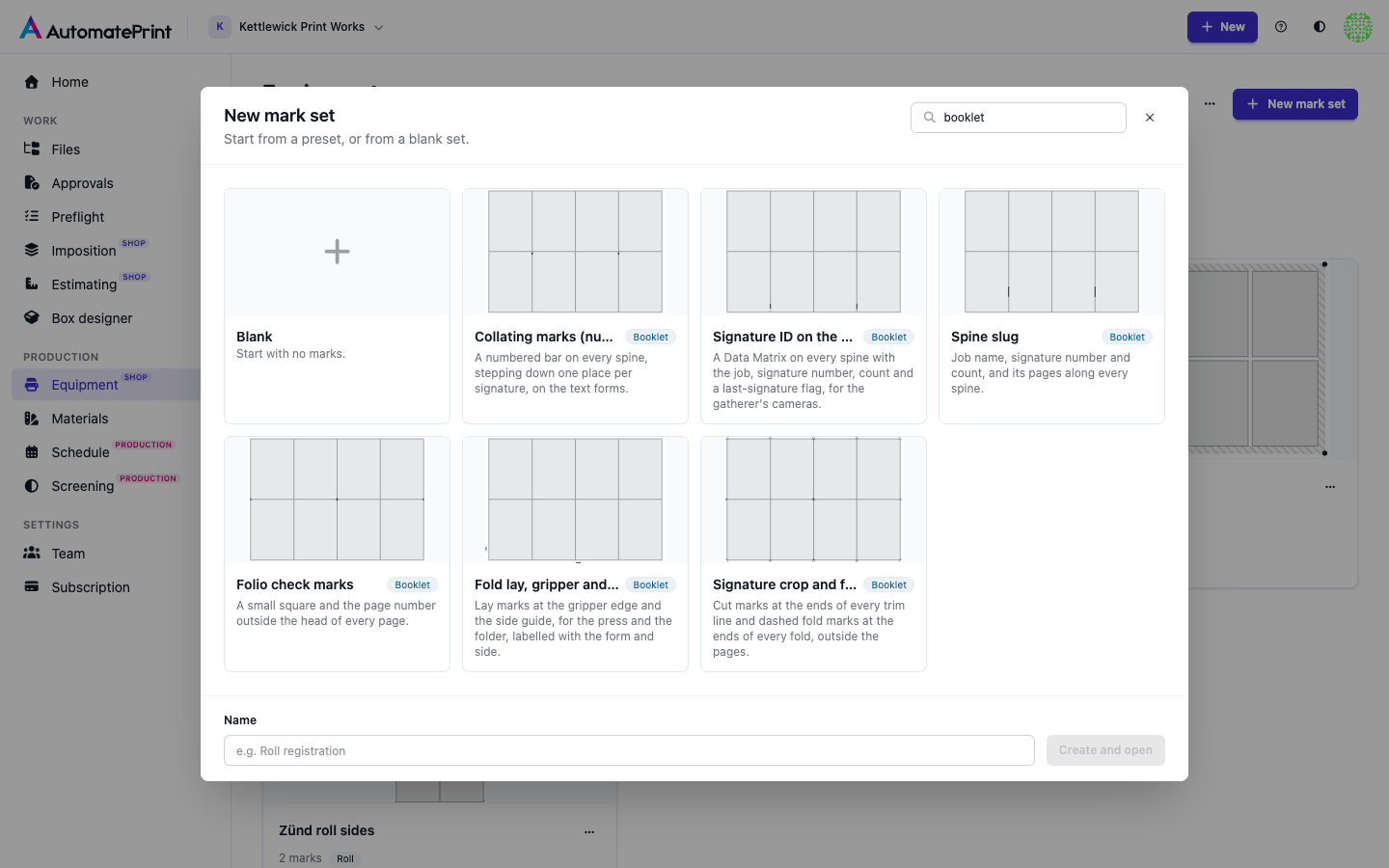
Six presets put the marks a bindery checks onto every booklet press form, each one a mark set built on signatures, pages and lines: they follow the signatures wherever the plan puts them, on every form and both sides.
Add a preset#
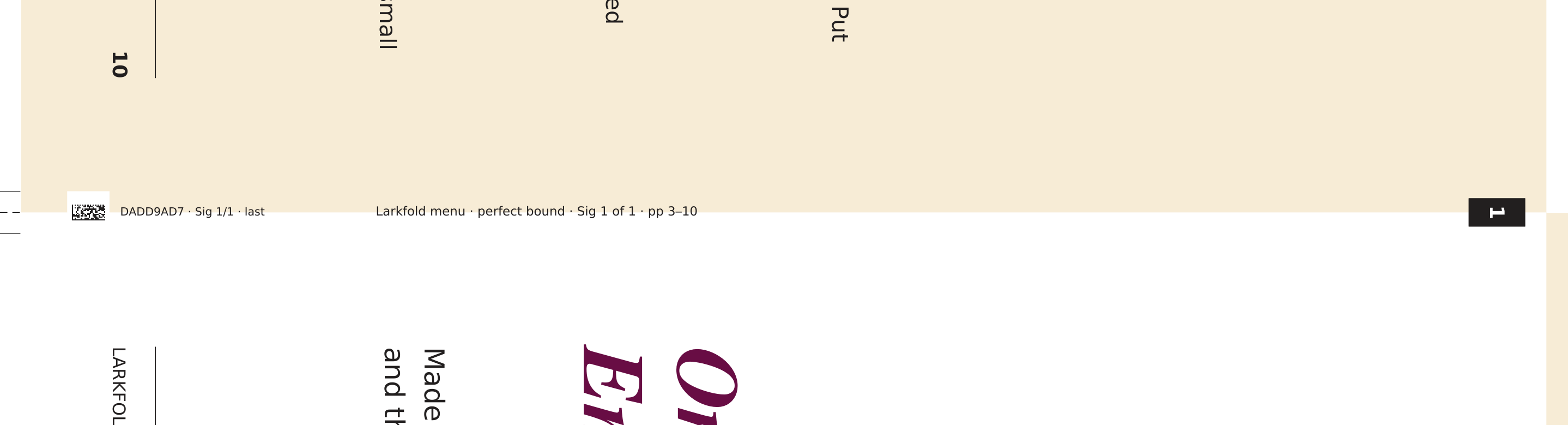
In the booklet's marks editor, open Add a mark set… and pick one under Booklet presets. The preset becomes a set of the job's own (Preset, this job), so you can change any mark without touching other jobs. To use one on many booklets, start a set from the preset in the marks library (its card says Booklet) and apply it with a rule, for example on every perfect-bound booklet.
The presets#
| Preset | What it prints |
|---|---|
| Collating marks (numbered) | A 4 × 8 mm black bar across every spine, stepping 8 mm down from the head end per signature, with the signature number knocked out of it, on the text forms only. A gathered book shows a staircase on its back; a missing or doubled signature breaks it. |
| Signature ID on the spine | A 5 mm Data Matrix on every spine, 4 mm from the foot end, encoding the job's reference, the signature number, the signature count and a last-signature flag, such as 3F2A91C4.03.12.0, for the camera on a gatherer or binder that checks each signature. Beside it, the same in words: 3F2A91C4 · Sig 3/12. It never moves with creep. |
| Spine slug | {{ job.name }} · Sig {{ signature.number }} of {{ signature.count }} · pp {{ signature.page_range }} along every spine, 70 mm from its foot end. |
| Folio check marks | A 1.5 mm square and the page number just outside the head and face corner of every page, cut off where they would run into a page. |
| Fold lay, gripper and side guide marks | A line at the middle of the gripper edge and one at the side guide, 40 mm in from the gripper, in registration ink, each with a small label (GRIPPER · Form 2 F), for the press and the folder that lays the sheet on the same edges. |
| Signature crop and fold marks | A 5 mm cut mark beyond each end of every trim line and a dashed fold mark beyond each end of every fold, 3 mm clear of the pages, on every plate. |
A preset's marks use booklet values and print with the job's real
data in the press forms PDF. job.ref is the booklet's short reference: the first 8 characters of its id.
Tip: Turn off the generated marks a preset replaces
The booklet's own bindery marks (Settings › Marks: crop, fold, collating marks) still print. When you use the collating or crop and fold preset, turn the matching generated marks off, or the sheet gets both.
Changing a preset's marks. Select a mark in the marks editor:
- Code 128 instead of Data Matrix: pick it under Code for a reader that wants a linear code; turn the mark 90° so its bars run across the spine.
- Collating staircase: the step, the bar length and where it starts are under Collating mark in the selected mark's settings (see Booklet marks on signatures, pages and lines).
- Positions along the spine: the offset from the foot end. With many signatures on a short spine, move the slug down or the code up so they clear the collating staircase.
Cut marks and fold marks#
Cut marks and Fold marks in Add a mark go on every cut or fold line of every signature: a short tick beyond each end of the line, outside the pages, in registration ink. Select one to set its Length, its Gap from the trim and, for fold marks, a Dashed or Solid line. Repeat on every filters the lines:
- fold lines: Spine folds or Cross folds (not the spine), besides first, last, odd, even and numbers;
- cut lines: Trims (the signature's edges), its head, foot and face trims, or Cuts between pages, the gutter cuts between pages that are trimmed apart.
A trim line where two pages meet on a fold (the spine of a saddle-stitched signature) is a fold, not a cut, so it gets a fold mark only. Clip: Never into the pages cuts a tick short where it would run into a neighbouring signature's page.
A colour bar with the job's inks#
A Colour bar on a booklet press form has a patch for each spot colour in the booklet's PDF after the process
steps: its Separation and DeviceN inks, with the alternate colour the PDF gives them, up to 12. Technical inks (die
lines, cut contours, registration All, None) get no patch. Untick Add the job's spot colours on the bar in
the marks designer to leave them out. The marks editor draws the patches in the alternate colours; the press forms
PDF prints each on its own separation.
Lay marks on each side#
The gripper and side guide follow the pass that prints each side. On a back that is tumbled (head to foot, as Perfecting or a tumbled sheetwise back), the sheet goes in by its other end: the gripper mark moves to the top of the back as drawn and the side guide to its right, so each mark sits where that pass is laid. A work-and-turn or work-and-tumble form has one plate for both sides, so its marks print where each pass lays the sheet. The side guide is the left edge as the side is printed; for a press that pulls to the right, attach the mark to the sheet's right margin.
Previews and the JDF#
The marks designer shows a booklet set on Preview on › Booklet: a made-up 32-page A5 book, perfect bound in 8-page signatures, with sample values. On a sheet, roll or 1-up preview, booklet values show as samples and a note says the marks show on a booklet press form.
In a JDF package, preset marks are drawn into the marks file with the rest of the marks, one flattened mark object per side: the signature ID code and collating marks aren't separate JDF mark objects yet.