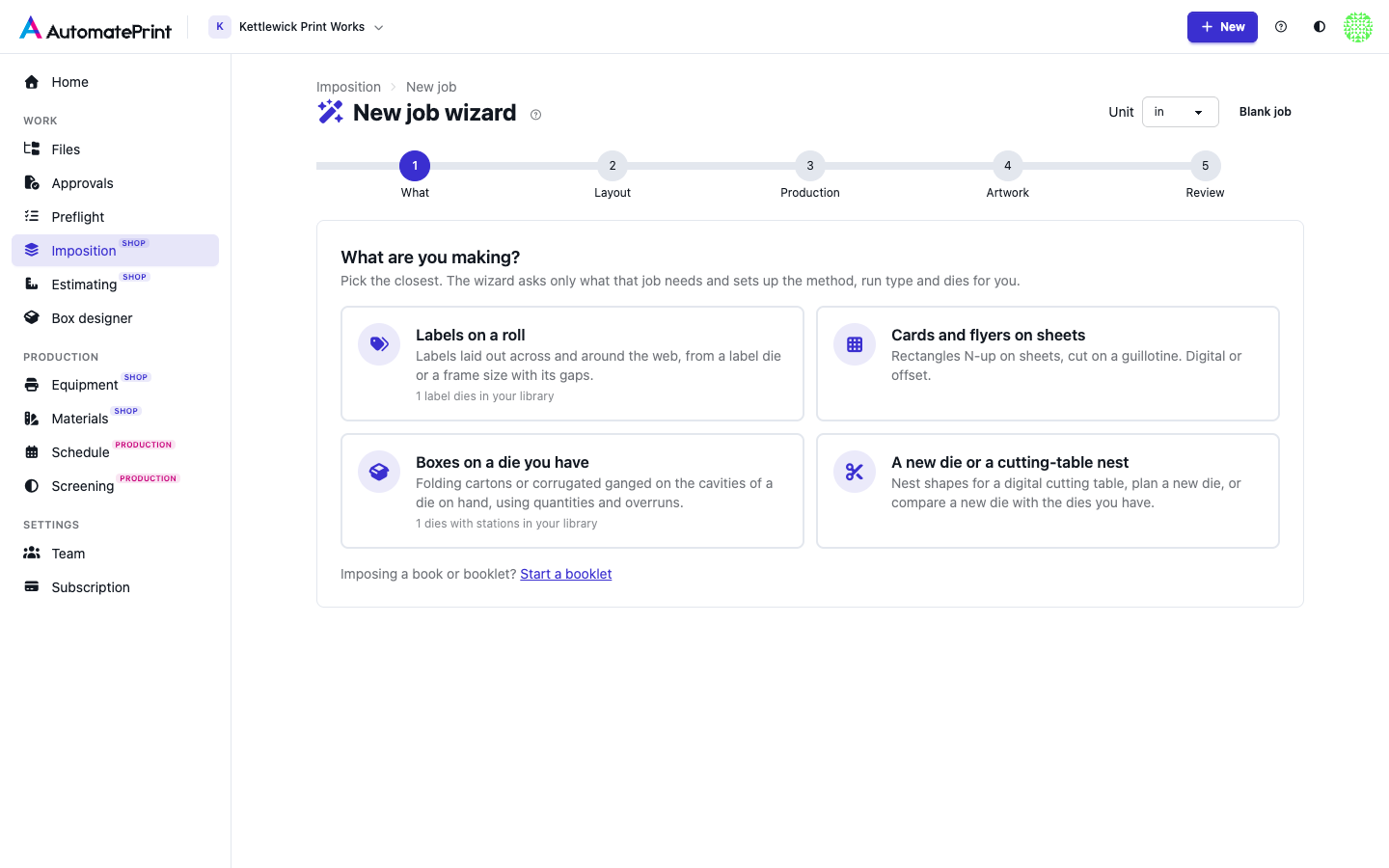
New job on the Imposition page opens a wizard. It asks what you're making, then only the questions that kind of job needs, and creates an ordinary job with the right method, run type and die settings. The job opens in the workspace, ready to Run; everything the wizard set can be changed there. Blank job (top right of the wizard) opens the plain New job dialog instead (see Jobs and artwork).
Pick what you're making#
The first step has four cards:
| Card | The job it creates |
|---|---|
| Labels on a roll | A roll job with label lanes: lanes, frames and rolls. Its Run nests Strips, one label wide. |
| Cards and flyers on sheets | A sheet job, N-up (guillotine), with shared cuts or a gap. Digital or offset. |
| Boxes on a die you have | An offset sheet job on a die from your library: Use a standing die, or Compare when you also price a new die. |
| A new die or a cutting-table nest | A True shape nest for a cutting table (digital), or an offset job that plans a new die: New die only, or Compare with the dies you have. |
Then come Layout, Production, Artwork and Review. Back keeps what you typed; the unit list at the top converts every length. Each step checks its fields before Next.
Labels on a roll#
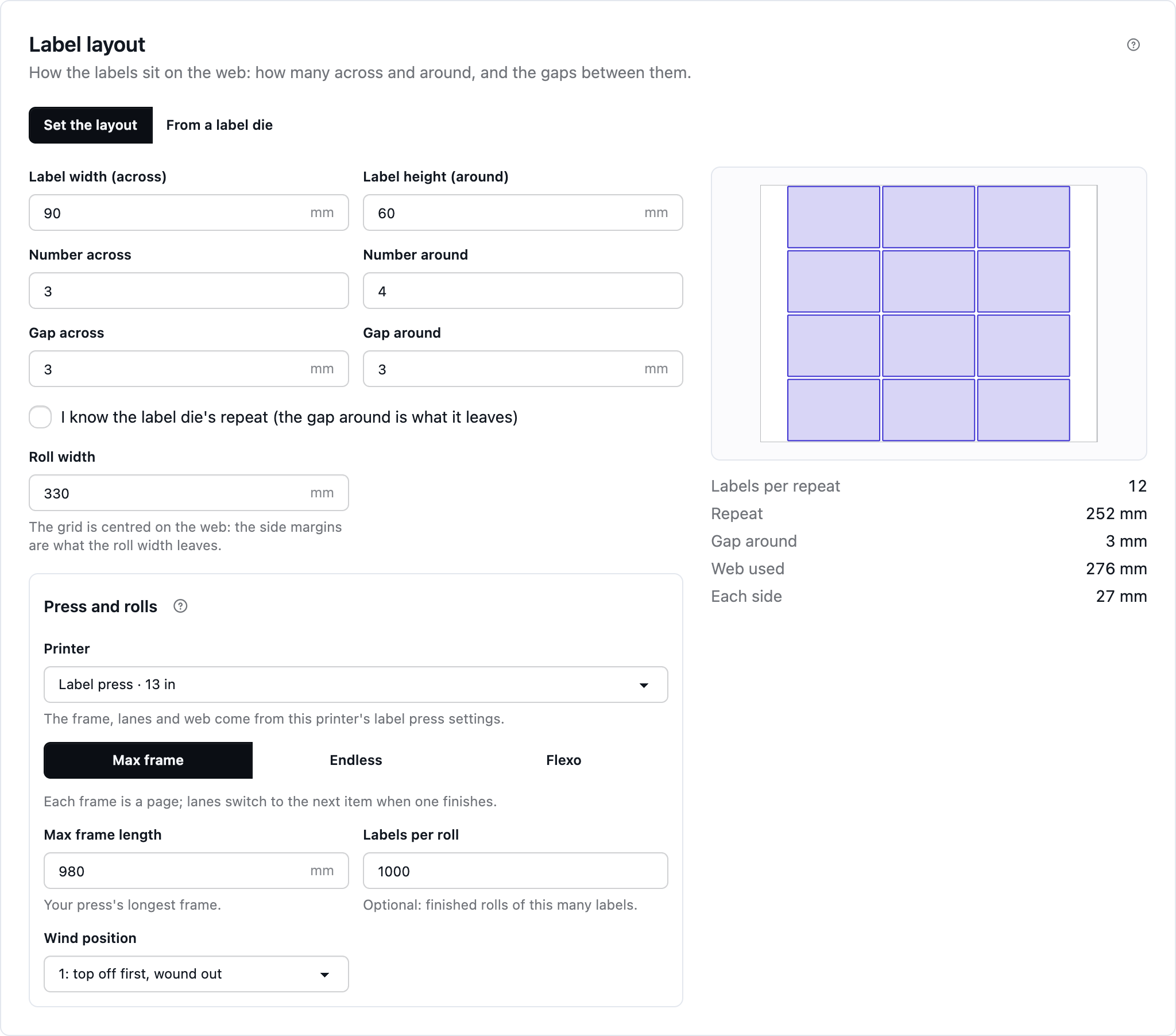
A label layout is how many labels sit across the web and around it, with a gap between them each way. Type it, or choose From a label die to fill it from a die in your library (its size, counts, gap across and repeat); change any value for this job.
- Label width (across) and Label height (around): the finished label.
- Number across and Gap across.
- Number around, and either the Gap around, or, with I know the label die's repeat (or on a flexo press), the Repeat (die or plate): the gap around is then what the repeat leaves (repeat ÷ around − label height).
- Roll width: it starts at your label press's widest web, else your roll printer's print width. The grid is centred, so each side margin is what the roll width leaves.
The drawing beside the fields shows the web to scale, with the repeat as a dashed line, and the numbers: labels per repeat, repeat, gap around, web used and each side.
Press and rolls sets up the job's label lanes: the Label press, Max frame (a digital press, with the Max frame length), Endless (a digital press without a frame limit) or Flexo (the plate repeat goes in Repeat (die or plate)), the Labels per roll and the Wind position. The wizard picks your default label press, and its frame and frame length fill in; choosing another fills them in again. More lanes than its slitter cuts, labels across wider than it prints, or a roll wider than its web, is an error. When the job is created, Label lanes opens instead of the workspace: which item runs down which lane, the frames to print and the rolls, with the frames PDF.
In the workspace, Run nests the job as Strips with lanes down the roll, one label wide and capped at the number across, the gap across between lanes and the gap around between labels. When the gap across is the smaller one it uses bands across the roll instead. Labels aren't rotated. In the Artwork step, Cut every file at the label size gives every item the layout's size as its cut, so the grid stays exact; untick it when your files carry their own die line for a shaped label. Example: 3 × 2 in labels, 4 across and 6 around with 0.125 in gaps fill a 12.375 in web with a 12.75 in repeat; 1,000 labels need 250 rows, about 44.3 ft of roll.
Cards and flyers on sheets#
Give the sheet size and margins, and choose what goes between the pieces: Shared cuts (pieces butt, one cut separates two neighbours) or A gap between pieces (with the spacing you type). In Production, pick Digital (a printer; every item gets its exact quantity) or Offset (a press, Over %, Under %, Most forms (plates) and costs). The job uses N-up (guillotine), so every artwork must be a rectangle.
Boxes on a die you have#
Pick a die with stations from your library: each card shows its cavities ("6-up"), across × around, type, status and the sheet it was made for, which fills the sheet size. Then:
- Also price a new die: plans this die and new dies side by side (the Compare policy). Leave it off to use this die only (Use a standing die).
- Fill empty stations with extra copies of an item already on that form, within its overrun.
- Where the cut lines come from (a die with one shape): Each file's own die lines, matched to the stations, or The die's single-up for every item, for print-only files without die lines.
In Production, set the press, Die-cutter, Over %, Under %, the most forms (empty: Auto, the cheapest count) and the costs. The run spreads each item's quantity over the stations and forms within its overrun, as described in Standing dies and new tooling.
A new die or a cutting-table nest#
Choose how the pieces will be cut:
- Digital cutting table: no die. Pieces are nested True shape on sheets or a roll for a knife, router or laser; pick the Cutter in Production.
- Build a new die: plans steel-rule dies with as many ups as fit (and any sizes in New die ups to try, such as "8, 10, 12"), priced from your rate card.
- Compare with dies on hand: plans new dies and every die you have that fits.
To decide between running on a die you have and building a new one, choose Compare (here, or Also price a new die on the die path). After the run, Solutions shows the options side by side, the die on hand and each new die, with forms, printed sheets, press money, the die charge, die-cutting and the total, and the bar above sums it up ("Standing die D-2001 6-up wins by 353.48"). Comparing needs press money: a Sheet cost, and a press that prices its plates or an Extra cost per form. Without them, Production and Review say so and the options aren't ranked on cost.
Artwork, quantities and Review#
Add files from your computer or Choose from Files. Quantity applies to every item unless a row has its own. You can also skip artwork and add it in the workspace. Review lists the job in words (media, method, run type, dies, equipment, overruns, pieces) and what to do next. Create job and open it creates the job, adds the files with their quantities and opens the workspace. If a file can't be added, the job is still created and Open the job takes you there.
The Dies tab#
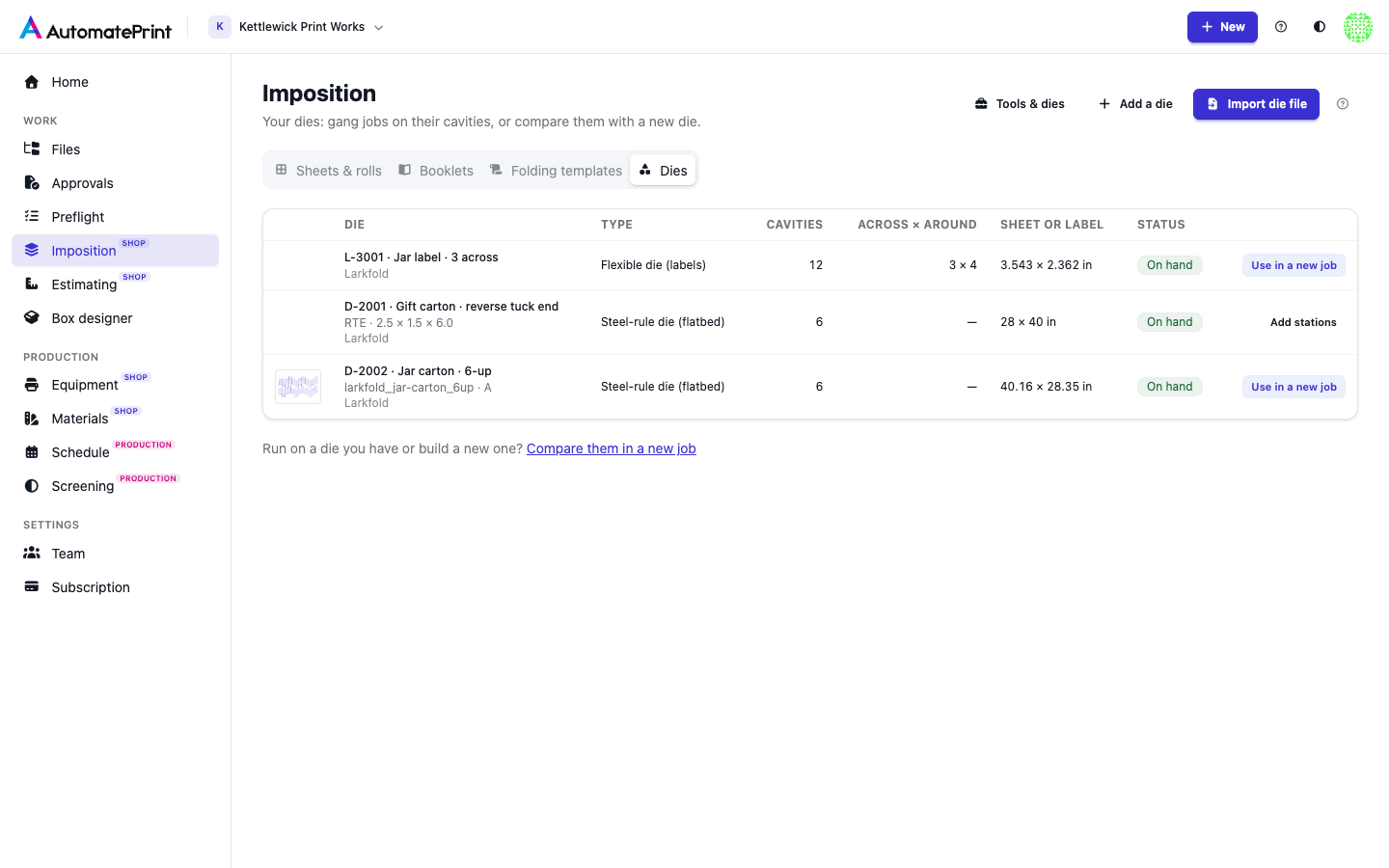
The Dies tab, next to Sheets & rolls, Booklets and Folding templates, lists your dies with their station drawing, Cavities, Across × around, the sheet or label size and status. From it:
- Import die file opens the die import (see Importing dies).
- Add a die adds a tool by hand; its page opens to fill in sizes, counts and gaps.
- Use in a new job opens the wizard with that die: a label die on the labels path, any other die on the die path. A die without stations shows Add stations, which opens its page to attach its file.
- Compare them in a new job opens the wizard on the new die path.
Each die links to its page in Tools & dies, where you edit it.