

Text and barcodes in marks are templates: PO {{ job.reference }} · Sheet {{ sheet.number }}/{{ sheet.count }}
prints PO PO-000123 · Sheet 2/3 on the second of three sheets. The values come from the job, the layout, the
equipment and the order data you or your order system add.
What you can print#
In the designer, type { in a text or barcode field (or press + Data) to pick a field. Each one shows a sample,
and fields a mark can't use (a copy number on a sheet-wide mark) are greyed with the reason.
| Group | Examples |
|---|---|
| Order | job.external_id (order number), job.customer, job.reference (PO), job.due_date, job.meta.<field> |
| Job | job.name, job.ref, job.quantity, job.media.type, job.url |
| Sheet | sheet.number, sheet.count, sheet.key (the sheet code), sheet.cut_file, sheet.link, sheet.items |
| Roll and bed | bed.number, bed.count, roll.position |
| Item | item.name, item.external_id (order line), item.quantity, item.meta.<field>, item.approval.version |
| File | file.name, file.version, file.path, file.kind, file.pages, file.<property> (see below) |
| Copy | piece.copies_label (such as 13–16), piece.copy, piece.serial, piece.data.<field> |
| Equipment and people | printer.name, printer.mode, cutter.name, user.name |
| Date and time | now, today |
Filters format values: {{ job.customer | upper }}, {{ sheet.number | pad: 3 }},
{{ job.due_date | date: 'DD MMM' }}, {{ job.meta.po or job.reference or '—' }}. Dates and times use your team's
time zone, then your profile's, then your browser's.
Order data on a job#
On the workspace's Production tab, the Order card holds the customer, due date and priority, and below them:
- Order number: your system's id for the order, unique in your team (
job.external_id). Using a number another job has shows which job has it. - Reference (PO): the customer's PO or reference (
job.reference). - Order fields: your own fields (
job.meta.<field>). The fields your team declared come first with their labels; any other key your order system sent follows. Add one with a name (letters, digits and underscores) and a value.
Changing order data never makes a layout out of date: the marks pick it up at the next export.
Items and copies#
Select an artwork on the Parts tab and open Item data:
- Order line: the line id in your order system (
item.external_id), unique in the job. - The item's own fields (
item.meta.<field>), declared ones first. - Per-copy data: one row per copy, such as serial numbers or names. Upload CSV… reads a CSV with a header
row of field names; row 1 prints on copy 1 as
piece.data.<field>. Download CSV gives the rows back: values starting with=,+,-or@get an apostrophe in front so spreadsheets don't read them as formulas, and uploading the file again takes it off. A warning says when there are fewer rows than copies, or rows that will never print. - Item marks: the job's item-mark sets, which you can turn off for this item. Sets added for this item only (on the artwork page) are listed too; they show on the item preview but don't print on layouts yet.
Items from Files#
An item whose artwork is a file in Files (uploaded to the job, or chosen from Files) brings that file's details, for marks on each copy:
| Field | Prints |
|---|---|
file.name |
The file's name in Files, such as Postcard A.pdf |
file.version |
Its version number, such as 3 |
file.path |
Its folders and name, such as Customers / C-102 / Postcard A.pdf |
file.kind |
Its type: pdf, image, vector… |
file.pages |
Its number of pages |
file.<property> |
Each of your team's file properties, such as file.customer |
The picker lists them in the File group, with your properties under their own labels, and Fields shows them
under Built-in fields. They are text, so filters and fallbacks work as usual:
{{ file.customer or job.customer }}.
The values are read from Files when you export, and the export history keeps what was printed. Other items have no
file values: a mark that prints one follows its missing-value rule (see
Missing values). For these items, item.file_name is the name the file was uploaded under, the
same name the item shows (or the print-ready file's, once one is made). file.name is its name in Files now, so the
two differ after the file is renamed in Files, or when an upload was saved as Postcard A (2).pdf because the
name was taken.
Declared fields#
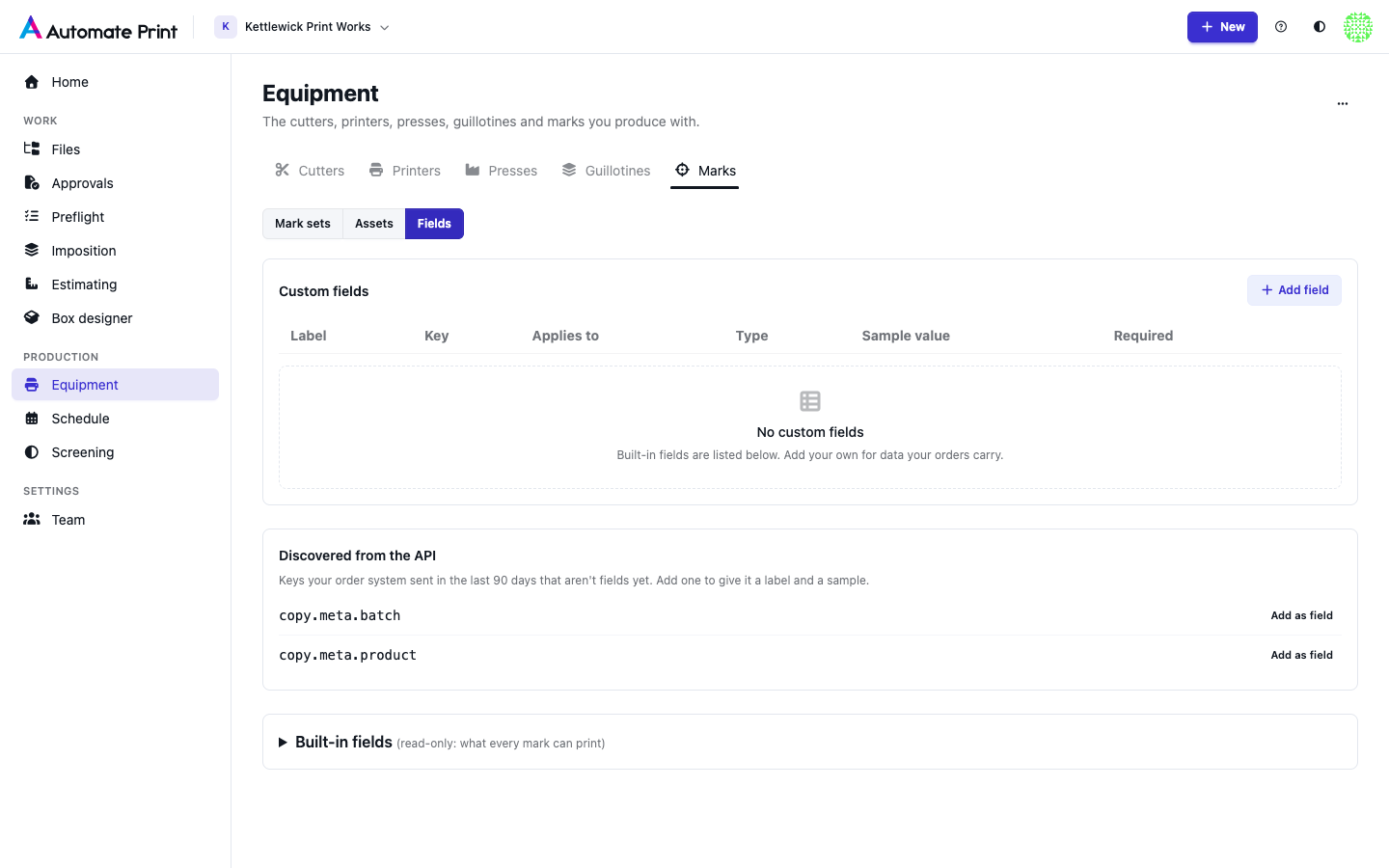
Under Equipment › Marks › Fields, team admins declare the fields your orders carry: a scope (job, item or copy), a key, a label, a type (text, number, date, yes / no, list or link), a sample and whether it is Required. Declared fields get their label and sample in the designer and the workspace. Discovered from the API lists keys your order system sent in the last 90 days that aren't fields yet.
A required field that is missing is shown on the job, returned as a warning by the API, and stops an export only when a mark actually prints it.
Missing values#
Each mark decides what a missing value does: leave it blank (a warning), hide that mark, or stop the export (the default for barcodes and cut-file names, so a code never prints half an order number).
Conditions#
A mark's When is a condition on the same fields: job.media.type == 'roll', job.meta.rush,
printer.name contains 'Wide'. Conditions on the media, the method, the run type, the printer or the cutter are
decided before nesting, so a roll-only mark doesn't reserve space on sheets. Conditions on order data are decided at
export.