

Open a job in Imposition and choose the Marks tab on the right. It shows the mark sets that apply to this job, the job's data, and the problems on the layout in the viewer. The tab shows ⚠ and a count while there are problems.
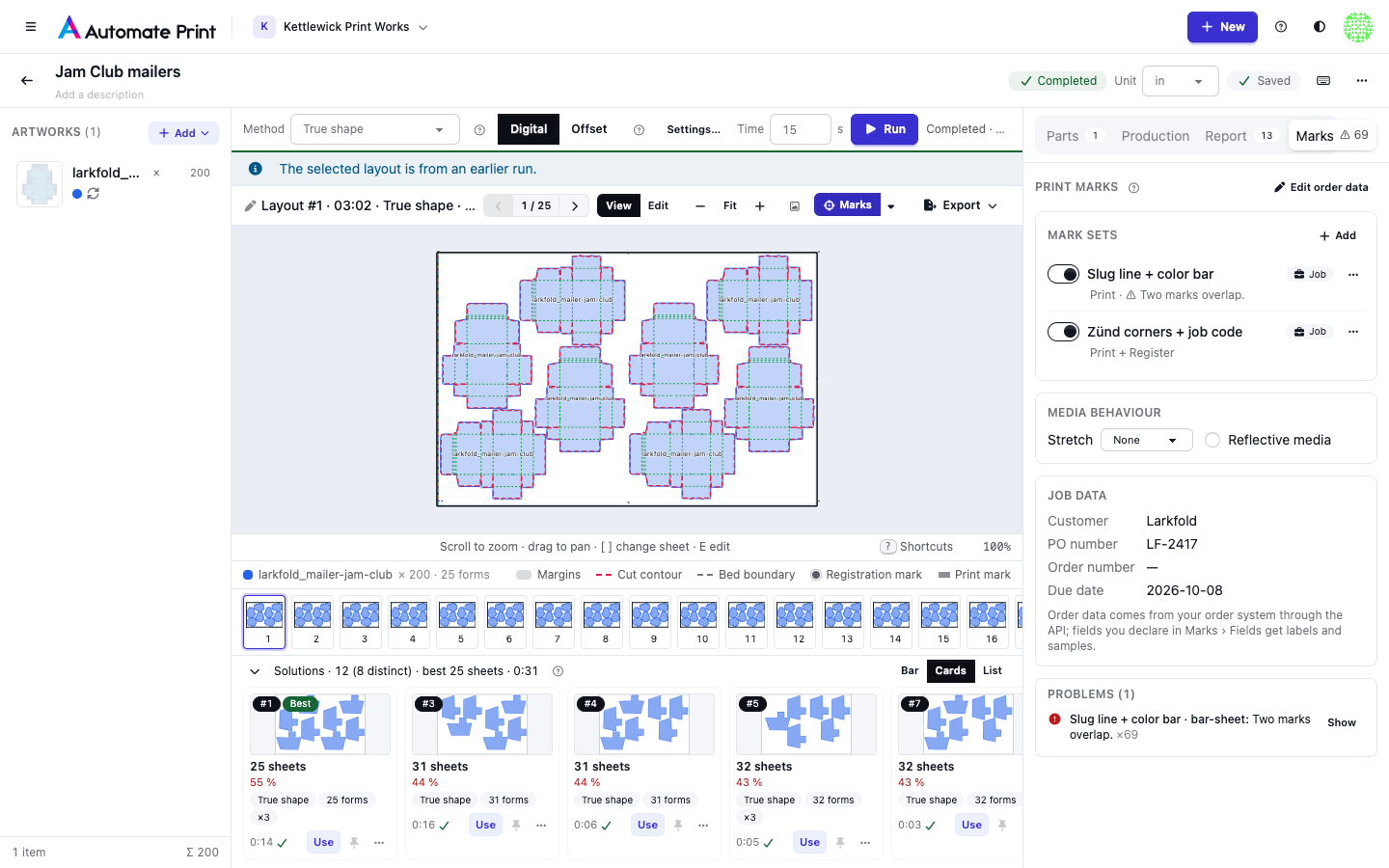
Mark sets on the job#
Each set shows where it comes from (★ Team, ✂ Cutter, 🖨 Printer or Job), a toggle and a one-line summary: how many marks, what they output, and the first problem. + Add puts another set from your library on this job. The ⋯ menu has:
- Edit in designer (preview on this job): the designer opens with this job's layout as its preview.
- Customize for this job: a copy of the set for this job only; the library set stays as it is. Reset to library drops the copy.
- Show only this set: the viewer draws that set alone; Only: … in the toolbar shows every set again.
- Remove from this job or Turn off for this job.
A suggestion appears when something is likely missing, for example registration marks for a camera cutter or a slug line for an order with a PO. Apply adds a set from the matching preset; Dismiss hides it for this job.
Media behaviour tells the marks about the media. Stretch (none, low or high) is a field mark sets can use. On low or high stretch the Marks tab suggests Zünd flexible: through the layout, which places registration dots through the free space as well as along the sides. For rigid material, Zünd rigid: outside every 5 ft places dots on the outside of the layout only. Reflective media checks registration mark sizes against the cutter's sizes for reflective media.
See the marks on the layout#
The viewer draws the marks over the layout. Marks in the viewer toolbar (or M) shows or hides them, and its menu picks the layers: print marks, registration marks, item marks, keep-outs (reserved space, hatched) and problems only. The legend adds registration mark, print mark, keep-out and mark problem swatches. Sheet thumbnails show the marks too.
Hover a mark to see its set, its name and its text. Click it to open the Marks tab with its set highlighted; double-click it to open the designer on this job and sheet. In Edit mode the marks fade and never get in the way of moving pieces.
Reserved space and running again#
Marks that reserve space change what the nest may use, so adding, removing or turning off such a set says "Reserved space changed: run again to update the layout." and the layout shows Out of date: run again. Text, data and marks that don't reserve space never make a layout out of date. See Rolls, beds and lanes.
Problems#
The Problems card lists each problem once with a count, errors first, never by colour alone. Show opens the sheet it is on and highlights the set. The same problems appear as notices above the layout before you run, with Open Marks.
Exports#
With marks on the job, the Export menu shows how many marks the imposed PDF gets (+ 15 marks) and how many registration marks the cut file carries. For a layout with several sheets, Sheet N only downloads the shown sheet's cut file (PDF, DXF or CF2) named from its sheet code, which is what a camera cutter that scans a code per sheet needs (see Cutter registration and job codes). After a download, a notice says how many marks the file holds and the first warning, if any.
What the export checks#
Before writing a file, every mark is checked. These stop the export, and Marks block this export lists them with Show and Open the Marks tab; no file is saved:
- a mark outside the media;
- a registration mark or a code on a piece (other marks on a piece only warn);
- a mark on a more important mark, unless it is allowed to overlap;
- fewer registration marks on a bed than the set requires, or a keep-out with a piece in it;
- a code that doesn't decode, is too small or has no quiet zone;
- registration marks in the cut file that don't match the printed ones;
- a value a drawn mark needs that is missing, such as an empty order number in a barcode;
- a set that needs a particular cutter on a job without one.
Everything else, such as a mark pattern that looks the same turned 180°, is a warning: the file exports and the warning travels with it. Team admins can turn a blocking check into a warning for the team through the API (see Marks API).
Registration time#
On the Production tab, the cut-time breakdown shows Registration (30 marks × 1.5 s) for a layout whose marks are resolved: the registration marks it really has, times the cutter's time per mark. Otherwise it says Registration (estimated from the cutter), from the cutter's Registration marks per bed.
Warning: Totals still use the cutter's estimate
The cut-time total, the cutting price and the Report still count Registration marks per bed. Only the Registration line of the breakdown uses the marks the layout really has.