The Schedule plans any job, imposed here or not. This page is about the ones that aren't: how to add them one at a time or many at once, how to change a job and its steps once it is on the board, and the ticket you can print for it.
Where jobs come from#
- Imposition: choose a solution and the job arrives in the tray with its steps and times. Its name, customer, due date and priority stay Imposition's.
- New job: typed on the board. Its details are yours to edit.
- Import jobs from a CSV: a spreadsheet or an export of your own system.
- The API:
POST orders/for one job,POST orders/import/for many; see Schedule API.
A job that isn't imposed shows a Manual badge in its panel and its own reference (your job number) on the board, instead of an imposition job number. Its steps are timed on the machines' setup and speed (see Machines and capabilities), so they are marked ≈ until you give a step a time yourself.
Add a job by hand: New job#
New job at the top of the board (or in the empty tray) opens the dialog. Only the name is needed; the rest helps:
- Job number: your own reference, such as
J-1001. The board, the ticket and the station show it, a scan finds the job by it, and a later import or API call with the same number updates this job instead of adding another. - Customer, Due date and time, and a Quantity with its unit (pieces, sheets, m², plates, impressions or linear metres), so each machine can time its step.
- Steps: pick a route card (each shows its steps, such as Print › Cut › Pack; the Default one is chosen for
you), or Build my own. It starts with a first step (Print) and shows the steps one per row, joined by arrows,
each with a machine and a time in minutes if you know them (an empty time is estimated from the machine). The
arrows on a row move it earlier or later. The Add a step box at the bottom suggests the usual next step
("e.g. Cut"): press Add Cut, choose another from its list, or type a step of your own, such as
Grommets. A step of your own that no machine does yet waits in the tray until a machine can: Add a machine gives one the capability (see Machines and capabilities). - Save these steps as a route, under your own steps, keeps them under a name so the next job can pick them as a card. A saved route is a template: it is only used when someone picks it, never chosen for other jobs by itself, and it keeps each step's machine and time. Any planner can save one; team admins can edit it under Setup › Routes.
- Inks, plates and stock (see below): what the press needs set up for this job.
- More options: Priority (Rush, High, Normal, Low, which weigh the job when it is placed; see Placing and re-planning), Not before (the earliest it may start) and Notes.
Ready to run (on by default) ticks the job's manual ready checks, such as stock, so it can be placed at once; switch it off and tick them from the card when the material comes in. Place it now opens the placing preview right after.
New route… next to Steps (team admins) opens the route editor on a blank route. Save it, and you come back to New job with your new route chosen; it is then a card for every job after this one too. See Routes. The New job menu also has New route template….
Import from a CSV#
New job › Import jobs from a CSV… takes one job per line with a header line naming the columns. Paste the text or Choose a file, then Check: every line gets a verdict (Add, Update or Error) with its problems and warnings, and nothing is written until you press Import. Download template gives you a file with every column and two example rows.
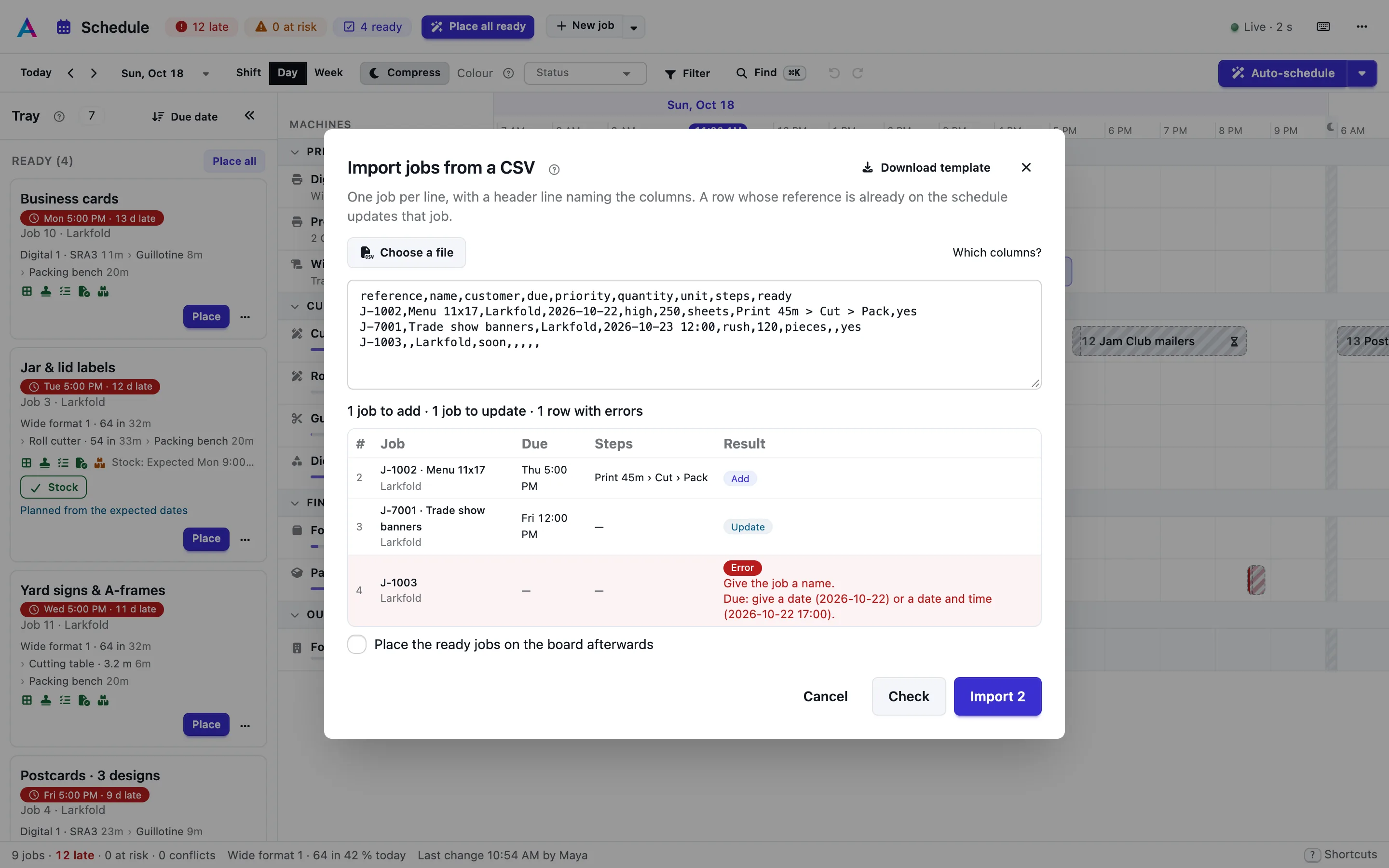
The columns, in any order (names are matched without case; spaces and dashes count as underscores):
| Column | Also accepted | What it is |
|---|---|---|
| reference | ref, job, job_number, job_no, number, id, order | Your own job number. A row whose reference is already open updates that job. |
| name | title, job_name, description | The job's name (required). |
| customer | client, account | The customer. |
| due | due_date, due_at, deadline, due_on | When it is due: a date (2026-10-22, the shop's end of day) or a date and time (2026-10-22 17:00). |
| priority | prio, urgency | rush, high, normal or low (or 1 to 4). Normal when empty. |
| quantity | qty, amount | How much work, in the unit next to it. |
| unit | units, qty_unit | pieces (default), sheets, m2, plates or impressions. |
| sheets | Sheets, when a row gives quantities by column instead of quantity and unit. | |
| pieces | pcs | Pieces, by column. |
| m2 | sqm, area, area_m2 | Square metres, by column. |
| plates | Plates, by column. | |
| route | workflow | The route to use, by name. Empty: the route that fits a manual job (normally Any job). |
| steps | route_steps, machines, operations | The steps instead of a route: capabilities or your machines' names in order, separated by >, each with an optional time, such as Print 90m > Zünd 1 > Pack. |
| not_before | release, release_at, start_after, earliest, not_before_date | The job may not start before this date or time. |
| ready | ready_to_run, stock_in | yes: tick the job's manual ready checks (stock, die, your own) so it can be placed at once. |
| notes | note, comment, comments, remarks | Notes for the job panel and the station. |
| inks | spot_inks, spot_colours, spot_colors, pms | Spot inks, separated by commas or semicolons (PMS 485; Silver). Jobs that share them run without a wash-up. |
| stock | substrate, material, paper | The stock it runs on. Jobs on the same stock skip a stock change. |
| plate_set | plate_set_id, plate_number, sleeves, repeat_of | Its plates (a plate or sleeve set number). Jobs on the same plates skip a plate change. |
| die | die_number, cutting_die, tool | Its cutting die. Jobs on the same die skip a die change. |
| coating | varnish | Its coating. Jobs with the same coating skip a coating change. |
Some details:
- due and not_before take a date (
2026-10-22) or a date and time (2026-10-22 17:00) in your team's time zone. A date alone is due at your end of the day, and may start at midnight. - steps replaces the route. Separate steps with
>. Each one is a capability (Print, Cut, Fold…) or the name of one of your machines, which also makes it that step's preferred machine, and may carry a time:Print 90m > Zünd 1 > Pack (2h). A word that is neither becomes a capability of its own ("grommets"); the check warns when no machine has it yet. - quantity and unit (or the sheets, pieces, m2 and plates columns) time the steps.
- A row whose reference is already open on the schedule updates that job's details, not-before time, notes and quantities. Its steps stay as the planner left them, and the check says so.
- A separator other than a comma (a semicolon or a tab, as spreadsheets export them) is recognised from the header line. At most 500 jobs per import.
With Place the ready jobs on the board afterwards ticked, the placing preview opens once the import is done.
Inks, plates and stock: batching similar jobs#
A job added by hand can say what the press needs set up for it, so the scheduler can run it with jobs that share that setup and skip a wash-up or a change (an imposed job takes these from its imposition):
- Spot inks: the spot colours it prints, such as
PMS 485, Silver. The inks other jobs on the board use are one click away under the field, so the same ink is typed the same way. Process (CMYK) and house inks need no wash-up. - Plate set: its plate or sleeve set number. Jobs on the same plates skip the plate change.
- Stock, Die and Coating: jobs on the same stock, die or coating skip that change.
The minutes each change costs are set on the machine (see Machines and capabilities); the board shows
the result on each bar (see The board). Change them later with Edit the job. In a CSV the
columns are inks (separated by commas or semicolons), plate_set, stock, die and coating; through the API,
the fields of the same names.
From your own system#
An MIS, web shop or order system does the same through the API: POST orders/ adds one job, with the same fields as
the dialog, and updates it when it sends the same reference again; POST orders/import/ takes the CSV text or a
list of rows, with a dry run first. See Schedule API and Schedule API.
Edit a job#
The pencil in the job panel's header opens Edit the job. For a job that isn't imposed you can change its name, reference, customer, due date, priority and quantities (the steps that haven't started are timed again), and its inks, plates and stock (the plan is repaired with the new changeovers). For every job you can set Not before and its Notes; an imposed job's other details belong to the imposition job.
Edit the route#
Edit route at the top of the panel's Route tab turns on the controls on every step that hasn't started:
- the arrows move a step earlier or later in the job's route (started steps stay first);
- the pencil renames it, gives it a Duration by hand (empty: the machine's estimate; Use the estimate on an edited step puts it back) and a Wait after before the next step may start;
- the lock is Only this machine;
- the bin removes the step: it is skipped and takes no time.
Add step adds one with what it does, an optional name and time, the machine it should use, and where in the route it goes. Change route re-expands the job on another route: steps with the same key keep their machines and places, and steps you added stay. The machine of a step is still Move to… (see Placing and re-planning), and a step's time can also be dragged on the board (see Placing and re-planning).
Job tickets and scan codes#
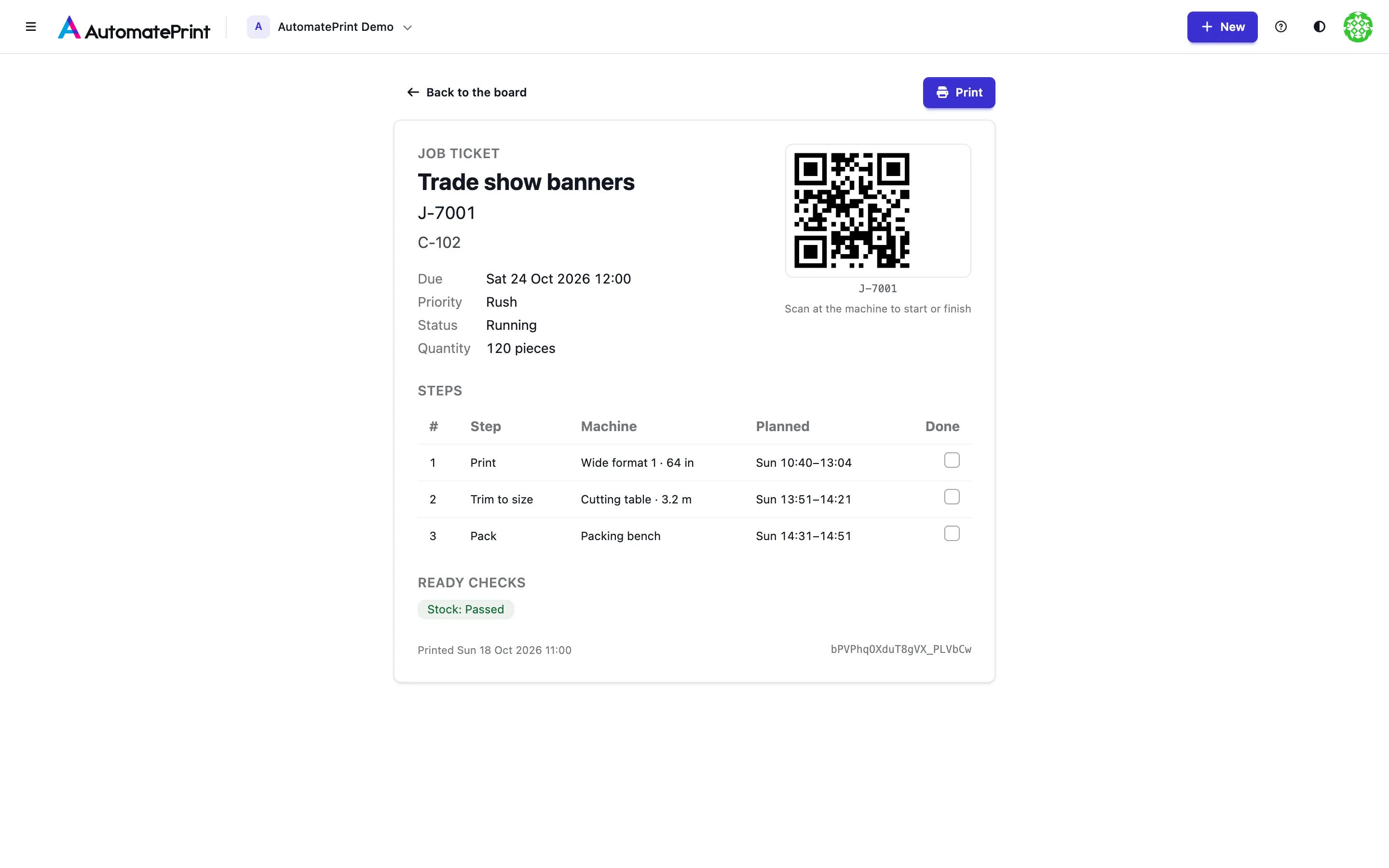
Print ticket in the job panel opens a printable ticket: the job, its reference, customer, due date and notes, its steps with their machines and planned times, its ready checks, and a QR code. At the machine, the operator scans the code (or types the reference) in the station's Scan job box: the first scan starts the job's step on that machine, the next one finishes it. See The station.
If your own system already prints job tickets with the job number as a barcode, those scan too: the Schedule finds the job by its reference. You only need to add the job with that reference (by hand, from a CSV or through the API).