

You don't need to impose anything here to plan with the Schedule. Any job you can describe in a line, a job from a spreadsheet, or a job your own system sends through the API goes on the board like an imposed one, gets timed on your machines, and is started and finished at the machine, by a tap or a scan. This page gets a shop from nothing to a running board in five short steps. You need the Production plan (or its trial) and a team admin for the first two steps.
1. Add your machines#
Open Schedule under Production in the sidebar. The first time, the four-step guide is waiting; it is also on Setup › Machines & hours.
- If you already describe your presses, printers, guillotines and cutting tables in Equipment, Import … from Equipment adds them all at once, and their steps are timed exactly as the imposition report times them. See Machines and capabilities.
- Otherwise, or for everything else (die cutters, folders, laminators, a packing bench, a vendor), Add a machine: pick its kind, give it a setup time and a speed, and it is ready to be loaded. See Machines and capabilities.
Every machine becomes a row on the board. Each one can do what its kind does (a folder folds), and you can add capabilities of your own, such as "grommets", so your routes can name them.
2. Set the hours#
In the guide's second step, or on Setup › Machines & hours › Shop hours, pick 8–5 weekdays or set your own times. Check the time zone it says they are in. A machine that works other hours gets its own on its card. See Shop hours and downtime.
3. Bring in the jobs#
Jobs reach the tray in four ways, and you can mix them:
| Way | When to use it | Where |
|---|---|---|
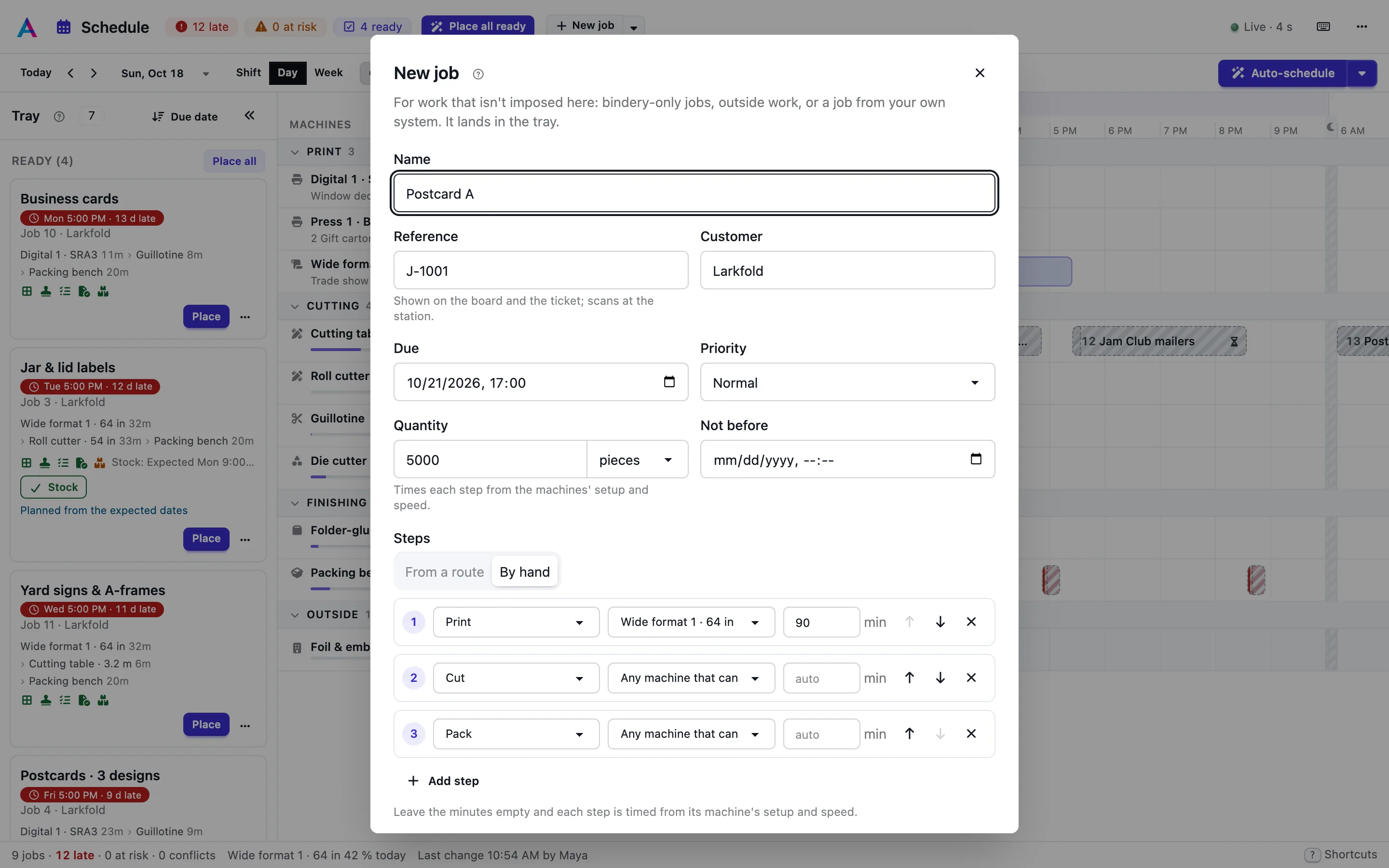
| New job | One job, now: bindery-only work, an outside job, something your MIS already imposed. | New job at the top of the board. See Adding and editing jobs. |
| Import jobs from a CSV | The day's or the week's jobs from a spreadsheet or an export of your system. Re-import the same file later and the jobs update. | New job › Import jobs from a CSV…. See Adding and editing jobs. |
| The API | Your MIS, web shop or order system sends jobs as they are won, and updates them by their reference. | POST orders/ and POST orders/import/. See Schedule API. |
| Imposition | Jobs you impose here: their steps, plates, sheets and times come from the solution. | Choose a solution; the job arrives by itself. |
Give every job you add a reference: your own job number. It is what the board, the ticket and the station show, and what a scan at the machine looks for. A job's steps come from the route that fits it (normally Any job: Print › Cut › Pack), or you write them yourself ("Print 90m › Zünd 1 › Pack"). A quantity (pieces, sheets or square metres) lets each machine time its step from its setup and speed; a time you type wins over the estimate.
4. Place and adjust#
Tick Ready to run on a job (or Stock arrived on its card) and it is ready. Place all ready puts every ready job on the board after a preview you can apply or discard; Place on a card does one job. See Placing and re-planning.
Then make it yours:
- Drag a bar to another machine or another place in a queue. The tip says when it would finish there and whether the job stays on time. Hold ⇧ while dropping to pin it at that time.
- Drag a bar's right edge to give a step more or less time by hand.
- Click a bar to open the job panel. Edit route there renames, re-times, reorders, removes or adds steps; the pencil edits the job's details.
The Schedule works the times out after every change, keeping each machine's order, so two steps never overlap on one machine. After a lot of changes, Re-plan runs the scheduler over the whole board again, after a preview. See Placing and re-planning and Adding and editing jobs.
5. Run it on the floor#
Open a machine's station on a tablet next to it (the tablet icon by the machine's name). Operators tap Start, Pause, Done and Problem, or scan: Print ticket in the job panel gives every job a QR code, and a ticket your own system prints with the job number as a barcode works just as well. One scan starts the step, the next one finishes it. See The station and Adding and editing jobs.
The board follows within seconds, says which jobs are late or at risk, and tells planners when a machine goes down.
Where next#
- The board: reading the board, colours, the job panel, keys.
- Routes: the steps each kind of job gets, and machines a step must use.
- Ready checks: what must be done before a step may start.
- Schedule API: driving all of it from your own system.