

A route is the list of steps a kind of job goes through, in order: for example Plates › Print › Cut › Pack. When a job arrives in the Schedule it gets the steps of the route that fits it best, and each step finds the machines that can do it. Routes are on Schedule › Setup › Routes; only team admins can change them.
Ready-made routes#
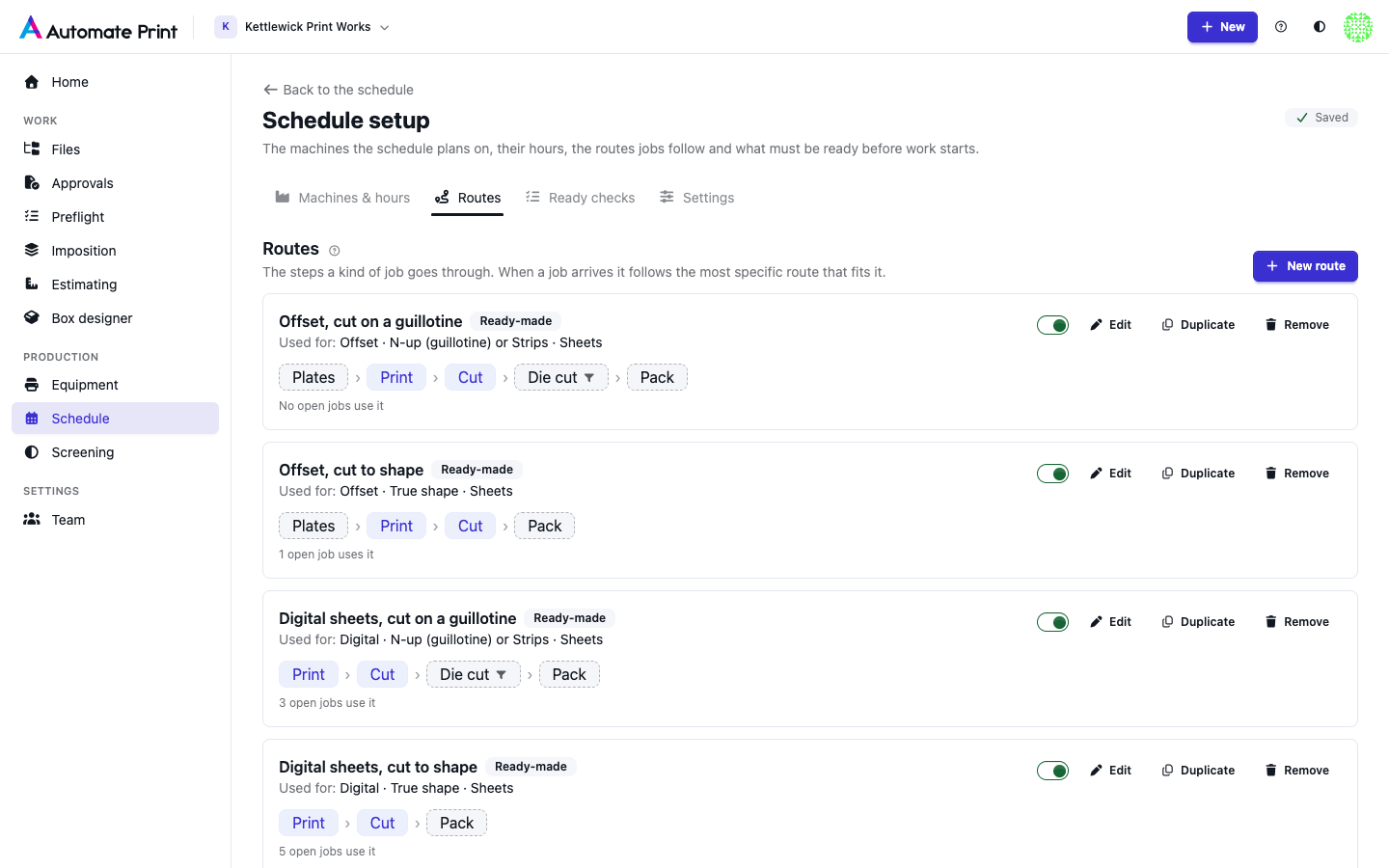
Your team starts with Ready-made routes for offset and digital sheets (cut on a guillotine or to shape), rolls, and Any job, the default for everything else. They include optional steps, such as plates, die cutting and packing, drawn dashed on the route card. An optional step joins a job only once you have a machine that can do it, and the ready-made Die cut step only joins a job whose items name a die (their die property). A step no machine can do yet says "No machine can do this step yet" in the job panel, with Add one. Change the routes, Duplicate one, or add your own with New route, when your shop works differently.
Which route a job gets#
Each route card says what it is used for, such as "Used for: Offset · N-up (guillotine) or Strips · Sheets". A route can match on:
- the run type (offset or digital);
- the method (N-up, strips, true shape);
- the media (sheets or a roll);
- whether the job is printed.
A job gets the most specific route that matches, so a route for "Offset · N-up sheets" wins over one for "Offset". Among equally specific routes, the one higher in the list wins. A job nothing matches gets the default route. A job that isn't printed (cut only) never gets a print step.
A route's steps#
Edit on a route card opens the route: its name, what it is Used for (choose nothing in a row for any), then its Steps, in order.
A step has:
- Needs: the capability, such as Print or Fold (see Machines and capabilities). Any machine with that capability can take the step. Must have: adds a feature the machine needs, such as "Coater".
- Machine: Auto, or one machine it should prefer.
- Only this machine: the step never moves to another machine (see below).
- Wait after: minutes to wait after the step before the next one starts, such as glue curing. Drying after printing is set on the press or printer instead (Wait before the next step), because it depends on the machine.
- Optional and Only when:: an optional step is added only when the job needs it: Has coating, Has die, Two-sided or Printed.
- Waits for:: the ready checks that hold this step back.
The arrows move a step earlier or later, and Add step adds one. A route has 1 to 12 steps, each after the one before. Save route keeps it.
Preferred machine#
A step prefers the machine the job was imposed for: the press, printer, guillotine or cutting table chosen in Imposition, when that machine is in the Schedule. Otherwise it prefers the route step's machine, if the step names one. The Schedule agrees with Imposition unless you choose otherwise, and Place all ready uses another machine only when it finishes the step sooner.
Only this machine#
A step with Only this machine stays on its machine. It is on by default for:
- offset print steps, because the plates and passes were planned for that press;
- any step whose machine was chosen on the imposition job itself.
It is off for guillotines, finishing and digital printing without a chosen press, so those steps can go wherever they finish first. The job panel shows it as a lock on the step. To run such a step on another press, choose that press for the job in Imposition; a press other than the one the job was imposed for is marked ≈ (see Machines and capabilities).
Editing a route#
Each job keeps its own copy of its route's steps. Editing a route never changes jobs already in the Schedule: the route card says how many open jobs use it ("3 open jobs use it"). New jobs follow the route as you saved it.
Test with a job#
Planned: Test with a job
Test with a job… picks an imposed job and shows which route it would get, its steps, every machine that can take each step with its time, and the machines that can't, with the reason (for example "Sheet 720×1020 mm is larger than this press (520×740 mm)"). The job's panel will also let you add a step, skip one, or change the job's route, and Apply to open jobs… will update the jobs already using a route after a preview. Switching Only this machine off on one job's step moves to the job's panel too.