

Every booklet gets its bindery marks without any work: crop, fold and collating marks, registration targets, a colour bar and a slug line, set under Marks in the settings (see Press sheets and bindery marks). Anything else on the sheet comes from your mark sets, the same sets Imposition uses: a job ticket line, a QR code, a registration target in a particular place. The Marks editor puts them on the press forms, lets you move or change any mark by hand, and asks where a change to a set should go.
Open the marks editor#
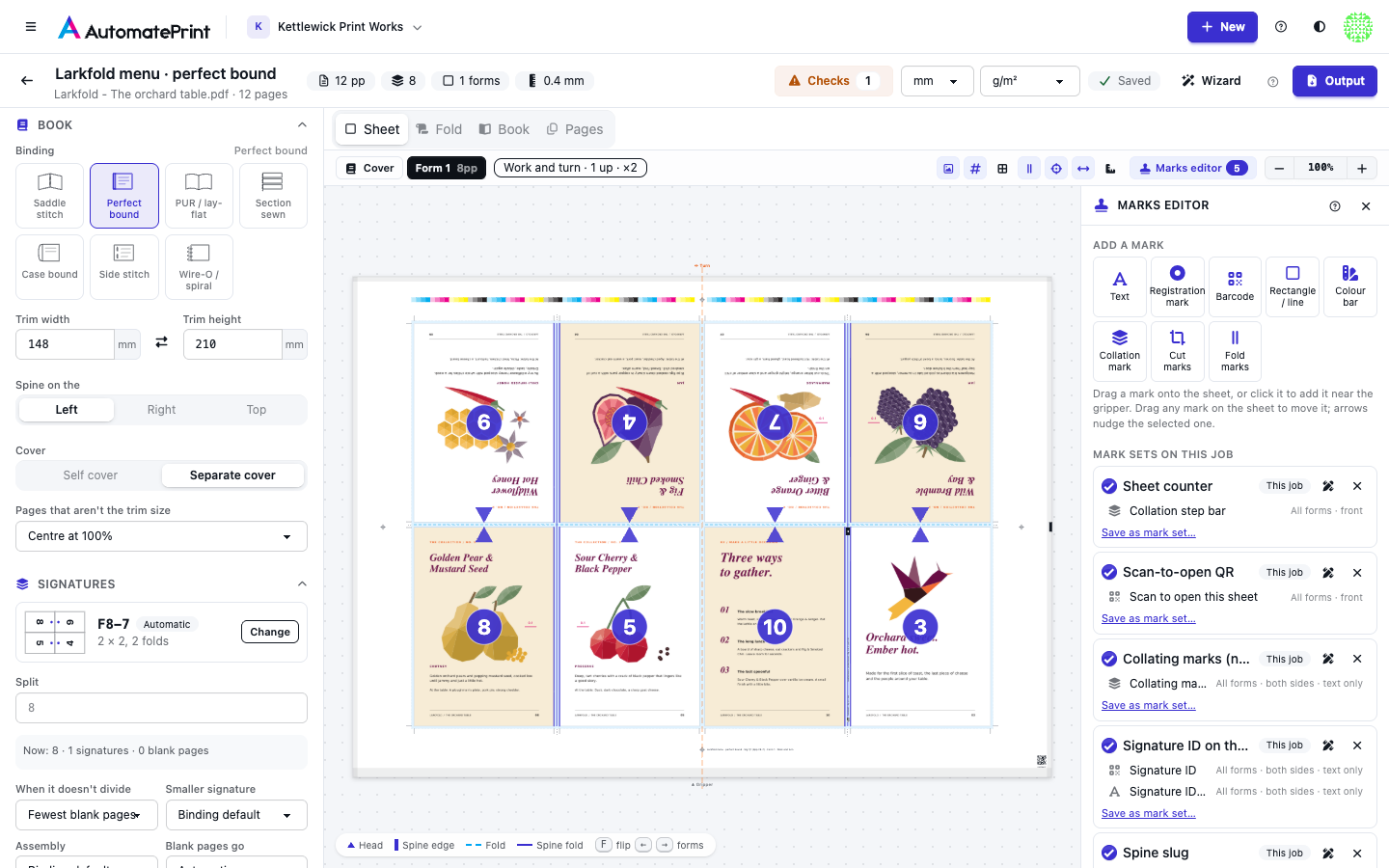
On the Sheet view, click Marks editor in the toolbar. The panel opens beside the press form; the number on the button counts the sets printing on this job. The marks draw over the sheet as they will print, with this job's real data (sample values only where the job has none yet). The Marks switch in the toolbar shows or hides every mark.
Mark sets on the job#
Mark sets on this job lists every set that prints, with where it comes from:
- Press: a default set of the job's press (see The booklet marks editor).
- Booklet rule: a set your team applies to every booklet with this binding (see The booklet marks editor).
- Added: a library set added with Add a mark set…, which lists your mark sets, the booklet presets and the other built-in presets. A preset is added as a copy for this job (Preset, this job).
- Customized for this job: a library set you changed for this job only. It stands in for the library set here; Save to the library set makes your changes the set's next version, and the ↺ button goes back to the set.
- This job: marks you dropped on the sheet.
Untick a set to leave it off this job. The pen opens any set in the marks designer, where every setting of every mark can be changed. Under each set are its marks: click one to select it.
Add and move marks#
Drag a mark from Add a mark onto the sheet: Text, Registration mark (a target on the four process plates), Barcode (a QR code by default), Rectangle / line, Colour bar, Collation mark, Cut marks or Fold marks (on every cut or fold line, see Booklet mark presets). Or click one to place it inside the printable area near the gripper. New marks go into the job's own marks (This job) and print on the side you dropped them on, on every form. A mark dropped on a spine attaches to every signature's spine, one dropped on a page attaches to that page, a collation mark always goes on the spines, and cut and fold marks on every line (see Booklet marks on signatures, pages and lines).
- Move any mark by dragging it on the sheet. Hold Shift to keep it level or upright, Alt to place it off the 0.1 mm steps.
- With a mark selected, the arrow keys nudge it 0.5 mm (5 mm with Shift), Delete removes it and Esc deselects it.
- Marks you drop stay exactly where you put them: they don't move out of the way of pages or other marks.
A dropped mark is measured from the nearest corner or edge of the sheet (the third of the sheet you dropped it in), so it keeps its place from that corner on a sheet of another size.
Save a change to a set#
Changes to the job's own marks and its customized copies save as you go. When you change a mark of a library set, the change shows on the sheet at once and the panel asks where it goes:
- This job only: a copy of the set, customized for this job, takes its place here. Other jobs keep the set as it is.
- Update the set: the change becomes the set's next version, for every job and press that uses it (the next time their PDF is made).
- Save as new set…: a new set in your marks library, named as you like, used on this job instead of the old one. Tick Apply it to every booklet printed on … to make it a default of the press.
- Discard drops the change.
The job's own marks and customized copies have Save as mark set… too, to put them in the library.
Edit the selected mark#
Click a mark on the sheet or in the list to edit it. The panel says which set it belongs to, and the sheet outlines what it is attached to: each page, signature or band, or each spine, fold or cut line it prints on.
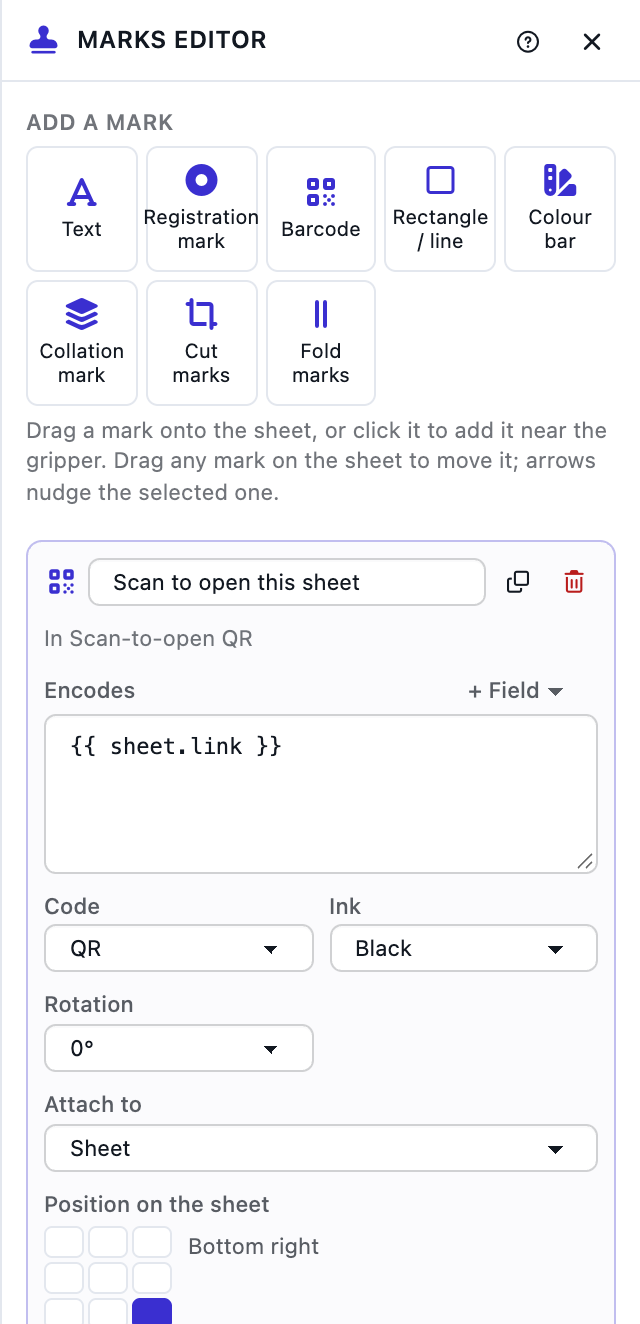
- Text or Encodes: what the mark prints. + Field inserts a field: the job name, the form (
Form 2, orCover), the form number and count, the side and its letter, the work style, the booklet's name, pages and binding, the signature's number, count, name, pages and gathering number, the page number and leaf, the fold kind, your team, and the date and time. Fields are written as{{ sheet.label }}; see Booklet marks on signatures, pages and lines and Order data in marks for the rest. - Size, Code (QR, Data Matrix, Code 128), Shape, Width and Height, depending on the mark.
- Ink: registration (every plate; lines and shapes only), process (solid on the four process plates), black, the darkest ink, or your team's marks spot colour.
- Rotation: 0°, 90°, 180° or 270°.
- Attach to: the Sheet, its Gripper edge or Side guide, or each Signature, Page, Spine, Fold line or Cut line (see Booklet marks on signatures, pages and lines).
- Position: the 3 × 3 grid picks the corner or edge the mark is measured from (on the sheet the mark stays where it is), and the two fields set the distances in your unit. On a signature or page the grid reads head / foot × spine / face; on a line, three buttons pick its Head end, Middle or Foot end. Cut and fold marks have no position: a Length and a Gap from the trim instead.
- Repeat on every: once, or every signature, page or line, with a filter (first, last, odd, even, outer, inner or numbers).
- Prints on: All forms, only the form shown, or Choose… to type forms:
1-3,7,odd,even,first,lastorevery:2. Then Front, Back or Both sides; with both sides, Mirror left to right on the back puts the back's mark behind the front's, as the sheet turns over (marks on the sheet only). Signatures and Cover or text limit it further. - Advanced: overprint, a paper knock-out behind the mark, clipping, fixed in creep, and Only when….
The separate cover's form gets the marks set to All forms. A set made for Imposition sheets prints on the front of every form unless its marks say otherwise.
Apply sets by press#
A press's default sets go on every booklet printed on it, on top of the booklet's bindery marks. Change the job's Press and its sets change with it. Turn a set on or off for the press in two places:
- the Every booklet on … switch under a library set in the marks editor;
- the Marks section of the press in Equipment › Presses, which also says whether the sets apply to booklets made before they were added, and narrows each set to some bindings or forms with Which booklets.
Apply sets by binding#
A rule applies a library set to every booklet of your team that matches it, whatever its press: the Signature ID on the spine on every perfect-bound book, collating marks on everything that is gathered. A rule has:
- Bindings: the bindings it applies to (all ticked: every booklet). Bindings, trims and creep lists them.
- Prints on: Cover and text, Text forms only or Cover only (the separate cover's form). A mark of the set that names its own cover or text choice keeps it.
Make or change a rule in two places:
- the Every … booklet switch under a library set in the marks editor (Every perfect bound booklet): it adds or takes out this job's binding;
- Apply to booklets… in a set's ⋯ menu in the marks library, with every binding and Prints on.
A set a rule applies shows as Booklet rule in Mark sets on this job; untick it to leave it off one booklet.
A press's default sets narrow the same way (see The booklet marks editor). With the API, a rule is a default with
target booklet (or press), bindings and part (any, text or cover): see
Marks API.
In the PDF#
Press forms PDF prints the sets after the bindery marks, in the same Marks layer, with the job's real data.
Marks from the JDF template set to Instead of these marks replaces the generated bindery marks only: the sets
still print. Download with ?marks=0 (API) to leave every mark out.