

Booklets turns the PDF of a book into press forms. It folds every signature the way a folding machine would, puts each page in its place with the right head and spine, allows for the bindery's trims, grind-off, lip and creep, and adds the marks the bindery works to. You get one PDF with every form, front and back, ready for the press.
Booklets is part of Imposition: open Imposition in the sidebar and pick the Booklets tab. New → New booklet starts one from anywhere.
What you need#
One PDF with every page of the book in reading order, at its finished (trimmed) size with bleed. A trim box tells Booklets where each page's trim is; without one, the crop box is used. The first page sets the trim size, and you can change it. Pages that aren't the trim size are centred on it (or scaled to fit, if you choose).
Start from the Booklets page or the wizard: Upload a PDF of up to 200 MB (or drop one), or Choose from Files to use a PDF already in Files. Uploads are kept in Files, in a Booklets folder. From Files itself, choose Make a booklet on a PDF (see Files). Lengths and paper weight show in the unit you pick (see Units and measurements).
Two ways to work#
- The wizard asks what you need to know and picks the rest: see Booklets.
- The Advanced editor shows every setting at once and redraws the forms as you change them: see Booklets.
Both work on the same booklet, so you can start in the wizard and fine-tune in the editor.
The wizard#
- Booklet. Pick the binding (saddle stitch, perfect bound, PUR, section sewn, case bound, side stitch or Wire-O), which edge the spine is on, and whether the cover is printed with the text or separately.
- Paper. Give its weight and finish. The wizard estimates its thickness, which sets the creep, the spine and the largest signature the paper folds well.
- Equipment. Pick every press the job could run on, the folder and the guillotine. They come from Equipment: the press gives the sheet size and its gripper and side margins, the folder the largest signature it folds.
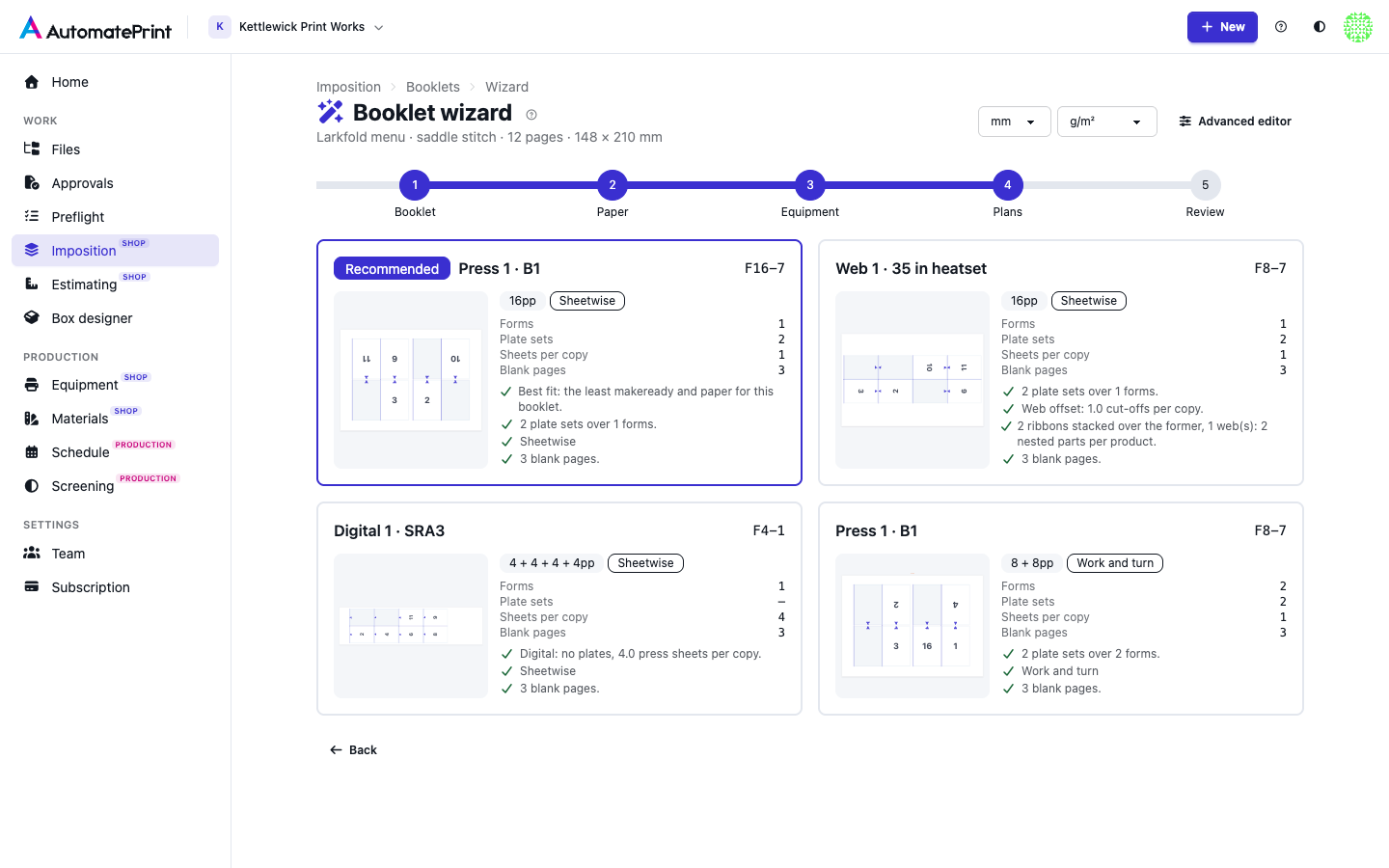
- Plans. The wizard plans the booklet on each press with each usual folding scheme and ranks the results: on offset, fewest plate sets first, then the fewest press sheets per copy, then the fewest blank pages. Each card says why it ranks where it does and shows its first form.
- Review. Check the first form and the checks, then download the press forms or open the Advanced editor.
The Advanced editor#
The settings are on the left, grouped as the job moves through the shop: Book, Signatures, Trims and bindery, Paper and creep, Press and sheet and Marks. A setting you changed is tinted; Default puts it back. Every change redraws the plan at once and is saved a moment later.
The preview has four views (keys 1 to 4):
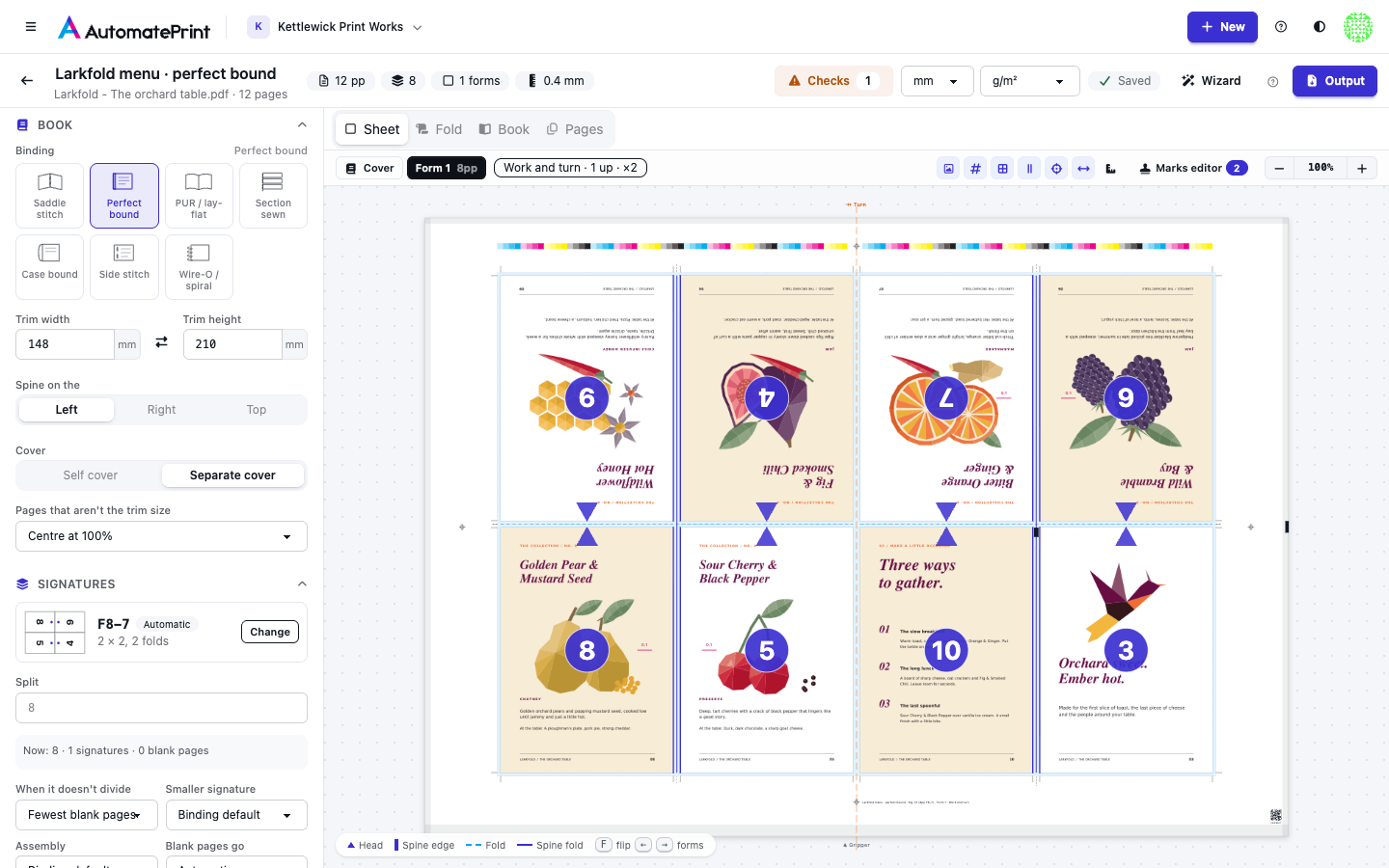
- Sheet. Each press form, front and back (or both side by side). Every page shows its artwork, its number, a marker at its head and a line on its spine edge. Bindery zones colour the head, foot and face trims, the grind-off and the lip, with their sizes; folds are dashed and the spine fold is solid. Hover a page for its signature, rotation and creep. Measurements (the ruler button, or M; off until you turn it on) labels the sheet size and its gripper, tail and side margins at the sheet's edges, and calls out one page in full: its trim size, head, foot and face trims, grind-off, lip and bleed. The labels follow every change, so you can watch what a setting does. F flips the sheet; the arrow keys step through the forms.
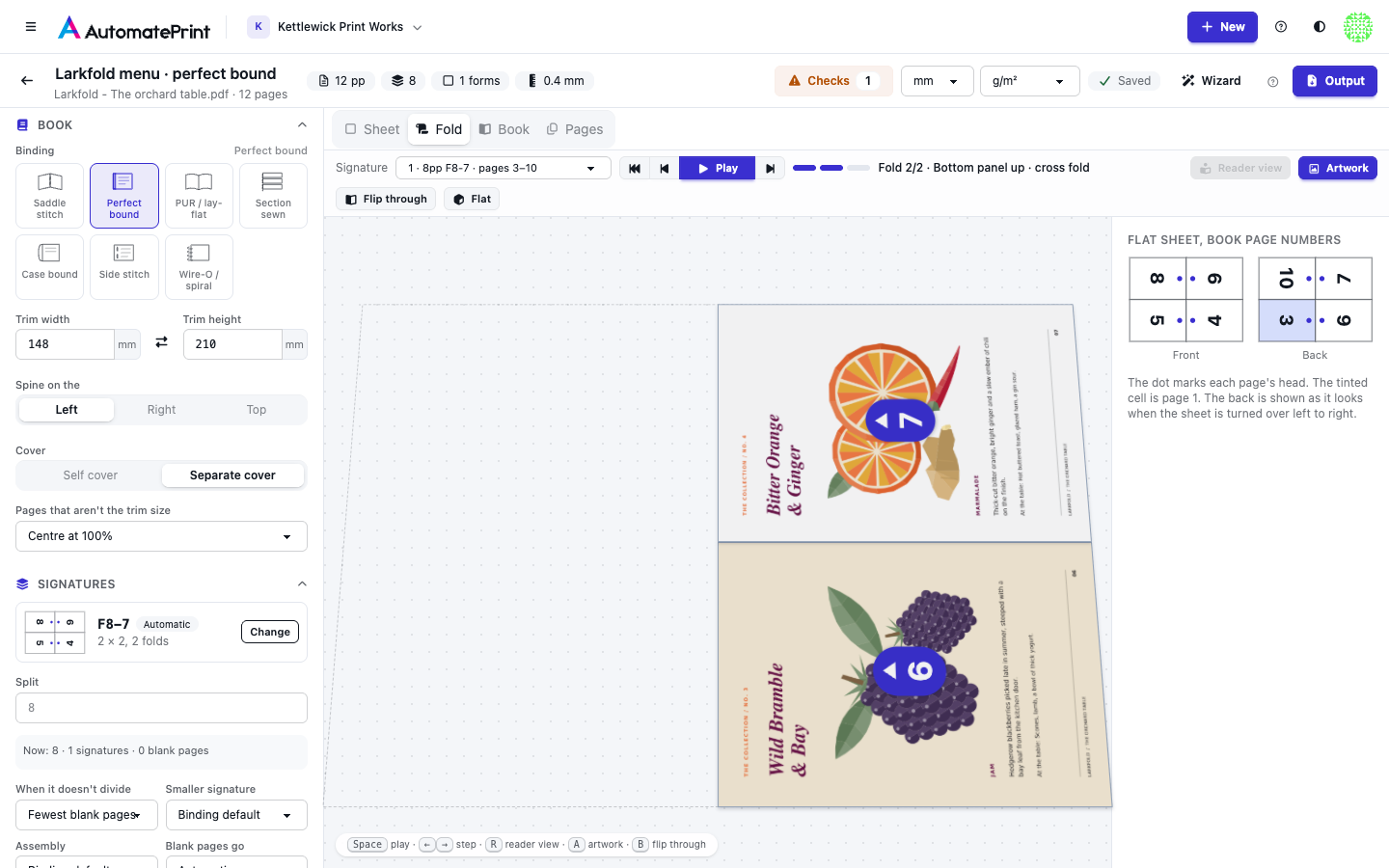
- Fold. One signature folding from the flat sheet into the finished signature, fold by fold. Artwork (key A, on by default) shows each page's artwork on its panel, head up the way it is printed, with the book page number as a badge, so you can watch the real pages fold into place; turn it off to see numbered panels instead. Reader view (key R) turns the result the way a reader holds it: head up, spine on the left, page 1 on top. Flat looks straight down on the sheet. Flip through (key B) opens the finished book, cover to cover: turn its pages with the arrows, the arrow keys or Space, or jump with the slider. Each page shows its artwork, and blank pages show where they fall (Added blank for those the plan added to fill a signature).
- Book. How the signatures nest and gather, seen from the head, and the spine with its collating marks. A table lists every signature with its scheme, pages and creep.
- Pages. The book in reading order, grouped by signature. Drag a page to move it, or add and remove blanks. See Signature schemes and pagination.
Checks in the header lists problems and advice, worst first. Output downloads the forms as PDF or as a JDF package for your RIP, with file names from your naming convention: see Booklet output: PDF and JDF.
Checks#
| Code | Severity | Message |
|---|---|---|
| `blank_pages` | info | {count} blank pages were added ({policy}). |
| `saddle_too_thick` | warning | The book is {thickness} mm thick: saddle stitching works best up to about {limit} mm. |
| `spine_too_thin` | warning | The spine is only {thickness} mm: perfect binding needs about {limit} mm or more. |
| `not_saddle_ready` | error | Signature {signature} ({scheme}) has leaves that aren't joined at the spine, so it can't be saddle stitched. |
| `signature_too_thick` | warning | Signature {signature} has {pages} pages: that is a lot of folds for this paper. |
| `block_too_big` | error | Form {form} doesn't fit on the press sheet. |
| `work_style_fallback` | warning | Form {form} can't print work and turn or work and tumble on this press and sheet, so it prints sheetwise. |
| `closed_head` | info | 16-page and larger signatures have a closed head: a head trim of {suggested} mm is safer than {trim} mm. |
| `creep_exceeds_bleed` | warning | Creep moves artwork up to {creep} mm, more than the {bleed} mm bleed. |
| `grain` | warning | The grain runs across the spine on at least one form. |
| `small_signature_last` | info | The small {pages}-page signature is last: binders prefer it in the middle. |
| `cutter_too_narrow` | warning | The press sheet is wider than the {width} mm guillotine: cut it down first. |
| `lip_digital` | info | A {lip} mm lip is set for a digital press: inline booklet makers don't need one. |
| `cover_too_big` | info | The {w} × {h} mm cover spread doesn't fit on the cover sheet. |
| `cover_ups_short` | info | Only {fits} covers fit on the cover sheet, not the {ups} asked for. |
| `template_marks_missing` | warning | The marks PDF of the folding template {template} is no longer in Files, so its marks aren't drawn: give the template its marks PDF again. |
| `web_folder` | warning | The {folder} folder doesn't make {scheme} signatures: choose one it makes, or another folder. |
| `web_cut_band` | warning | The {band} mm plate gap at the cut is wider than the {room} mm of paper there without artwork: bleed would be lost. Use a larger trim at the cut. |
| `web_scheme_gap` | info | Automatic chose {chosen}, not {wanted}: the {band} mm plate gap at the cut is wider than the {room} mm of clear paper {wanted} leaves there. That takes {cutoffs} cut-offs per copy instead of {wanted_cutoffs}. For {wanted_pages}-page signatures, use a plate gap of {room} mm or less, larger head and foot trims, or a longer cut-off; or choose {wanted} and accept the gap in the trims. |
| `web_roll_spare` | info | A {needed} mm roll is enough for these forms: the {roll} mm roll trims the rest off its edges. |
| `web_roll_range` | warning | The {roll} mm roll is outside what the press takes ({low} to {high} mm). |
| `web_ribbons_short` | warning | Only {fits} of the {ribbons} ribbons to stack fit across the roll: they need a {needed} mm roll. |
| `web_cut_spare` | info | The pages are short for the cut-off: {spare} mm of every {cut_off} mm cut-off is trimmed off at the cut. |
| `page_size` | warning | Pages {pages} aren't the trim size: they are centred, not scaled. |
Limits#
- Pages are placed whole: Booklets doesn't split a spread that crosses the spine. Put spreads on separate pages.
- The cover, when separate, comes as two spread pages (outside and inside) in the same PDF; it isn't imposed on the text's press sheets.