

A camera cutter finds the print by reading registration marks, and many read a barcode that tells them which cut file to load. Marks takes care of both: the marks you print and the cut file you export agree to a hundredth of a point, and each sheet's cut file carries the name its barcode points to.
Set up the cutter#
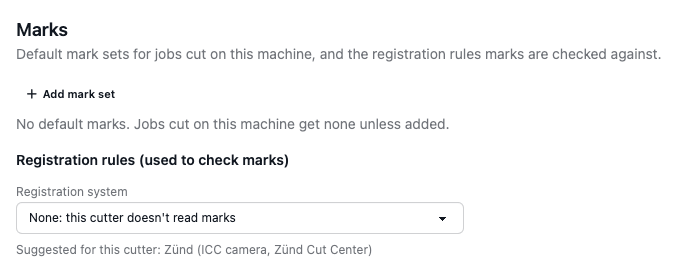
Open the cutter under Equipment › Cutters. Its Marks section, below the settings, has:
- Add mark set: the sets every job cut on this machine gets, for new jobs only or for existing ones too.
- Registration rules: the cutter's Registration system. The rules (mark sizes, spacing, the edges the camera can reach, the name of the registration layer, which barcode it reads and how cut files are named) are used to check your marks. Each value shows where it comes from; values marked as our default are worth checking against your machine.
| Registration system | Who draws the marks | Registration layer | Job code |
|---|---|---|---|
| Zünd (ICC camera or OCC overview camera, Zünd Cut Center) | We do | Register | QR |
| Kongsberg (Esko i-cut nested layout, i-cut Vision Pro) | We do | Regmark | Code 39 |
| Kongsberg (underside camera) | We do | Regmark | QR |
| Summa F-series flatbed | We do | Register | Code 39 |
| Colex, iECHO, other camera cutters | We do | Register | QR |
| Summa S-series (OPOS), Roland VersaWorks, Mimaki FineCut, Graphtec ARMS | Your RIP | none | none |
When your RIP draws the marks, the margin it needs stays clear and only the cut lines are sent. Slug lines and labels still print. None means the cutter doesn't read marks.
The printer has a Marks section too: default mark sets for jobs printed there, and its Non-printable edges, which are reported when a mark lands in them.
Registration marks in the cut file#
Every mark with Cut turned on is written into the PDF, DXF and CF2 cut files on the registration layer of the
job's cutter (Register for Zünd, Regmark for Kongsberg), at the position it was printed. The export menu says how
many: "Includes 8 registration marks for the cutter." A job whose set needs a particular cutter and has none says
"This mark set needs a Kongsberg cutter on the job." and doesn't export until you choose one.
Sheet codes and cut-file names#
The first time a layout is exported, each sheet gets a sheet code: eight letters and digits, unique in your team,
such as 0K3F9A07. Re-exporting the same layout reuses its codes; running again gives new ones. Marks print it with
{{ sheet.key }}, usually as a barcode the cutter scans.
A cut file that holds one sheet (a roll, a single sheet, or Sheet N only in the export menu) is named from the
sheet's {{ sheet.cut_file }}, which follows the cutter's naming rule:
- Zünd: the sheet code first, then the job and the sheet number, so Zünd Cut Center matches the file by its code.
- Kongsberg: the sheet code alone, in upper case, exactly as the Code 39 barcode reads.
- Colex and iECHO: the sheet code alone, so it fits in the QR code the cutter scans.
- Others: the job, the layout and the sheet number.
A roll kept within beds can also be downloaded as a PDF with one page per bed; when it is named by the sheet code it keeps that name, with no suffix. A cut file with several sheets keeps the job's name, as before.
Warning: Check with your cutter
How Zünd Cut Center matches a scanned code to a file name, and which lengths older camera firmware reads, vary between versions. Print a test sheet and scan it before the first production run.
Scan to open#
{{ sheet.link }} is a short link, https://app.example.com/m/0K3F9A07/. Printed as a QR code (the Scan-to-open
QR preset), it lets anyone in your team scan a sheet on the shop floor and land on that job and sheet. It needs a
sign-in and team membership; the code itself is not a secret and carries no password.