

When a PDF arrives in Files, Files can set its die for you. It tries your team's rules in the order you put them, and the first rule that finds a die wins: for example "a stroke in a spot ink whose name contains Die", then "a layer named Cut", then "the trim box". The die is stored exactly as if someone had set it in the 1-up editor, so Imposition, Estimating and your other apps use it straight away, and you can still change it in the editor.
Turn it on#
Open Files settings (the gear in the Files header) › Automation and switch on Set the dieline automatically. It is on for a new team, with the default rules below. Every member can see the rules; only team admins can change them (see Files).
Files sets the die of the first page of each new PDF version. It leaves alone:
- drops of more than 200 files (use Detect dieline again on the files you need);
- images and other kinds of file;
- print-ready files saved from the editor, and files brought in by the Files import;
- a new version of a file whose die someone set in the editor: it gets that die through Prepare new versions automatically instead.
A new version of a file whose die was found by the rules is read again with the rules, so the die follows the new artwork. Finding a die takes a few seconds in the background after the file is ready.
The rules#
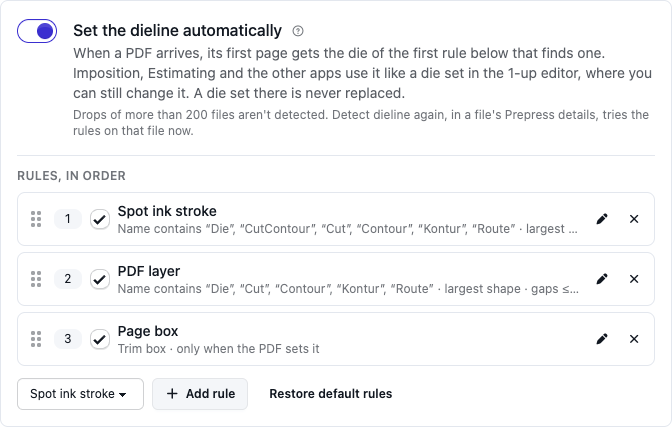
The list under Rules, in order is tried from the top. Drag a rule by its handle to move it, untick it to skip it, press it to change its options, or press the cross to remove it. Add rule adds a rule of the kind you choose at the end. Restore default rules puts back the rules a new team starts with. Every change is saved at once.
| Rule | Finds a die from | Options |
|---|---|---|
| Spot ink stroke | Strokes in a spot ink whose name matches, for example "Die", "CutContour" or "Cut" | names, match, shape, gap closing, minimum size |
| PDF layer | Strokes on a PDF layer (optional content) whose name matches, for example "Dieline" | names, match, shape, gap closing, minimum size |
| Stroke colour | Strokes of one colour, for example process magenta (#EC008C), within a tolerance | colour, tolerance, shape, gap closing, minimum size |
| Page box | The trim box, the art box or the crop box of the page, as a rectangle | box, only when the PDF sets it |
| Artwork bounds | The rectangle around everything printed on the page, grown or shrunk | offset, minimum size |
| Stop: no die | Nothing: rules below it aren't tried, and the file gets no die | none |
The options:
- Names and A name matches when it: names separated by commas. contains one of these matches "Die Line" for the name "Die"; is one of these needs the whole name. Case never matters. When several inks or layers match, the names are tried in the order you typed them.
- Shape: Largest closed shape, with its windows (when the strokes draw several separate shapes, the largest is the die) or Outline only, no windows (the outer edge alone).
- Close gaps up to (mm): open ends of the strokes this close together are joined with a straight line, so a die drawn with small breaks still closes. 0.5 mm suits most files; up to 10 mm.
- Shorter side at least (mm): a shape smaller than this doesn't count (a registration target drawn in the die ink, for example), and the next rule is tried.
- Only when the PDF sets this box: without it, a PDF with no trim box uses its crop box, so every PDF matches.
- Grow by (mm, negative shrinks): for Artwork bounds, from −50 to 50 mm. Crop marks and other marks on the page count as artwork.
A rule that finds nothing, or strokes that don't close even with gap closing, passes to the next rule. When no rule finds a die, the file is left as it was: nothing is prepared.
The default rules are Spot ink stroke with "Die", "CutContour", "Cut", "Contour", "Kontur" and "Route" (contains, largest shape, gaps up to 0.5 mm, at least 10 mm), PDF layer with "Die", "Cut", "Contour", "Kontur" and "Route" (the same options) and Page box with the trim box, only when the PDF sets it. A team can keep up to 12 rules.
These names cover the usual names of a cut ink that the app maps to Cut (see Inks and line types), so a shaped sign whose contour is in a "Route" or "Thru-cut" ink gets that contour as its die. If your own rules leave such an ink out, the trim box becomes the die while the contour is still cut, and the cut file cuts both: add the ink's name to the Spot ink stroke rule.
Note: Overprint
Rules can't yet match a stroke by whether it overprints. Use the spot ink, layer or colour of the die instead.
See the die in Files#
The file's Prepress block (the Details tab, see Files and images) shows the die of each page with its outline, its size and how it was found, for example "Die from spot “Die”, gaps closed ≤ 0.5 mm", "Die from the trim box" or Set in the 1-up editor. The Dieline line higher up in Details then says Set (see Prepress) rather than None found: that line only looks for an ink named like a cut line, so a die found by a layer, a stroke colour or a page box would otherwise go unnoticed there. The file's Activity has a Detected the dieline entry for each try, with what was found.
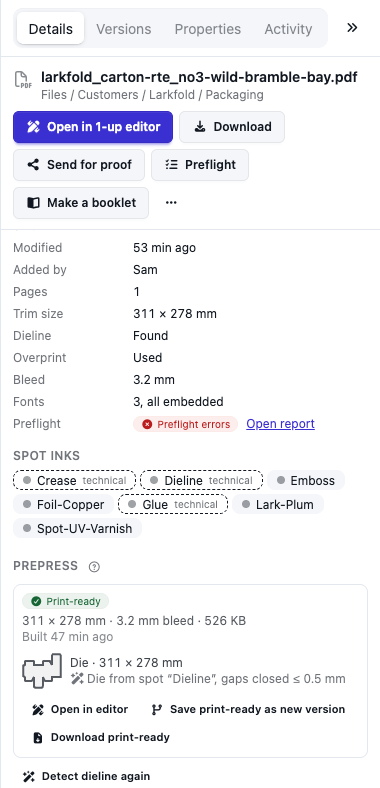
Detect dieline again tries the rules on the current version now, whether or not the switch is on: use it after you change the rules, or for a file from a large drop. If someone set the die in the editor, Files asks before it replaces that die.
Change the die in the editor#
Press Open in editor: the Die & lines tab says "Set automatically:" with the rule that found the die, and links back here. Change the die like any other (see The die). Once you choose another die there, the line goes and the die is yours: new rules and Detect dieline again never replace it unless you say so, and new versions of the file get it through Prepare new versions automatically. A die the rules closed with gap closing keeps that gap closing when you pick its paths again.
Imposition, Estimating and the other apps read the die when they take the file from Files (see Jobs and artwork). A job that already has the file keeps its own copy: send it a die you changed with Apply to jobs in the editor (see Files and images).