

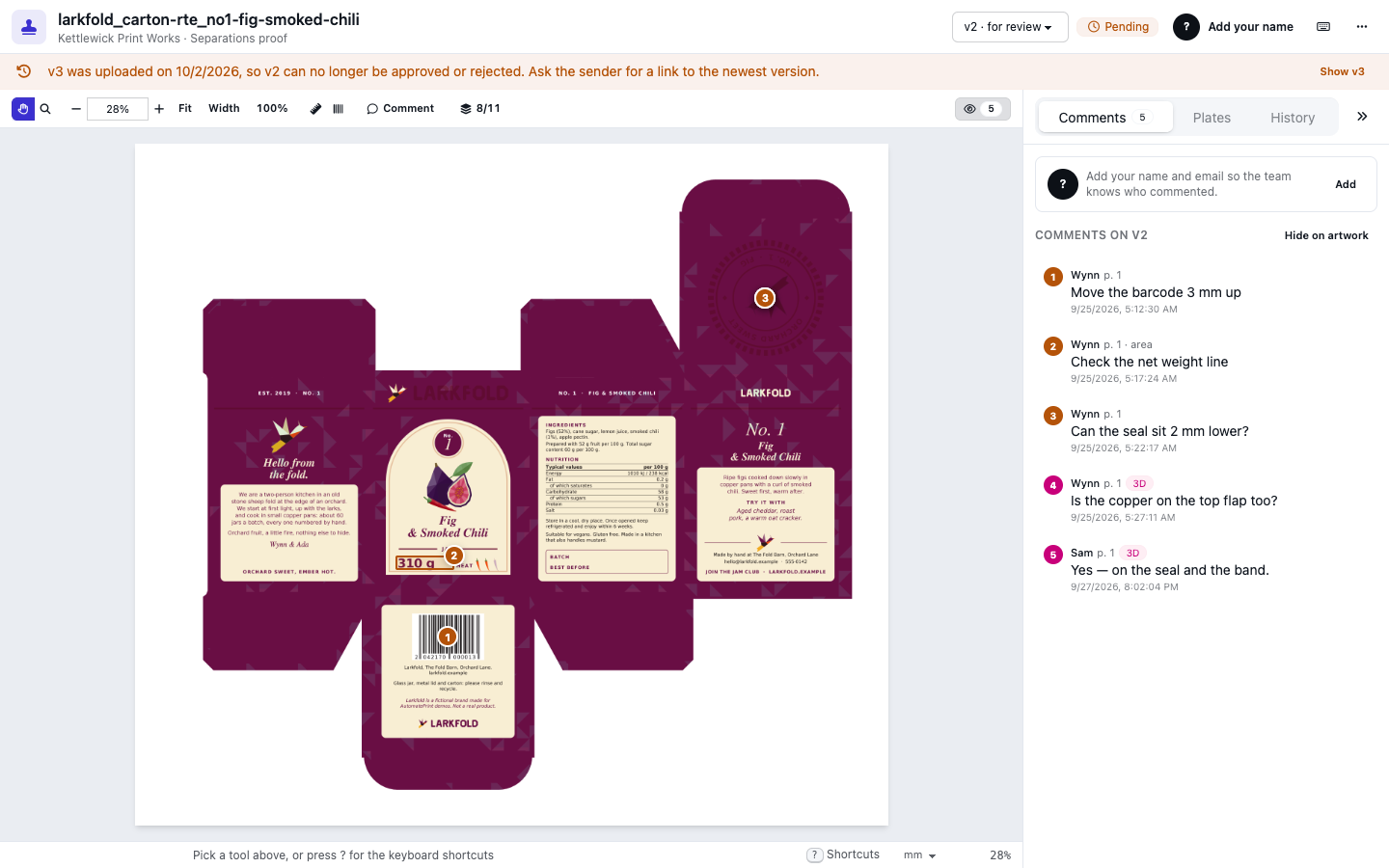
Comments tell the shop exactly what to change and where. Each one is pinned to a spot or an area of the artwork, or to a spot of the 3D carton, and numbered, so "3: move the barcode up" can't be misread.
Add a comment#
- Pick Comment in the toolbar, or press A.
- Click the spot the comment is about, or drag a box around an area.
- Type your comment in the box that opens. The first time, enter your email address (and your name, if you like) too, so the shop knows who wrote it.
- Choose Save, or press ⌘ Enter (Ctrl+Enter). Esc cancels.
A comment can be up to 5,000 characters. It belongs to the page you made it on and to the version the link asks you to review: to comment, show that version (see Artwork versions).
You can comment at any time, also after the artwork is approved or once a newer version exists: comments never change a decision.
Where a comment sits#
| Comment on | Where the pin sits |
|---|---|
| Flat | A spot or an area of a page of the flat proof. |
| 3D | A spot on the 3D carton. It also shows on the flat proof when that spot is part of the artwork. |
In 3D, choose Comment in the 3D toolbar (or press A) and click the carton where your note belongs; Esc stops commenting. See 3D proofs in approvals.
A comment made in the approve or reject dialog is a general comment: it is about the whole artwork, so it has no pin.
Read the comments#
The Comments tab lists the comments on the version you are looking at, numbered like their pins, with who wrote them, the page, area for a box and 3D for a 3D comment. Click a comment to jump to its pin, on its page or on the carton.
The eye button in the toolbar, with the number of comments, shows or hides the pins on the artwork (or press M). Hiding them doesn't delete anything; it just clears the view.
Edit, move and delete your comments#
Only the browser a comment was written from can change it. On your own comments:
- Edit: the pencil next to it in the list, or a click on its pin. Change the text and Save.
- Move: drag your pin, or your box, to another spot.
- Resize: drag the handle on your box.
- Delete: open it for editing and choose Delete.
Other people's comments can't be changed, not even by your team. If you forgot who you are on this browser (Not you?), your old comments stay but you can't edit them from here any more (see Reviewers: invitations and identity).
A comment that couldn't reach the shop because of a connection problem stays in the list as Not saved. Choose Retry to send it again, or Discard to drop it.
Who sees which comments#
- Reviewers see the comments made on the link they opened, and their own comments on other links of the same artwork. Other reviewers' email addresses are masked (see Reviewers: invitations and identity).
- Your team sees every comment on every version and link of the artwork, with full addresses: on the proof page while signed in, in the history, and in the API.
The dashboard shows how many comments an artwork has, and the approve dialog tells a reviewer how many comments the version has before they approve it (see Decisions, locking and reset).