

A cutting table cuts a file in the order the file is written, unless its software re-orders it. CAD exports are rarely written in a good order: the knife changes tool at every part, crosses the sheet and back, and can cut an outline before the holes inside it. Cut sequence, in the Tools & dies tab of Equipment, shows you that order on your own cutter, works out a better one and writes the faster file.
Tip: Free on every plan
Cut sequence is free on every plan, including Free, in the app and through the API. You need an AutomatePrint account and a team. Only Save onto the die and Save as a new die… need a plan that includes the die library.
Load a cut file#
- Open Equipment, choose the Tools & dies tab, then the Cut sequence sub-tab.
- Drop a CF2 / CFF2, DXF, PDF or ZCC (Zünd Cut Center job) file on the page, or click to choose one (up to 20 MB). You can also open the file of one of your dies from Or open a die's file, or start from a die's page.
- The file is read like Import die file: each line is typed (thru-cut, kiss-cut, crease, score, perforation, partial cut) by your line-type profile and the usual names. Lines that aren't cut (dimensions, text, bleed) are left out. If none of the file's lines is typed as a cutting line, the page says so and opens Line types under the drop area: choose what each layer, ink or line type is cut as, and the file is read again.
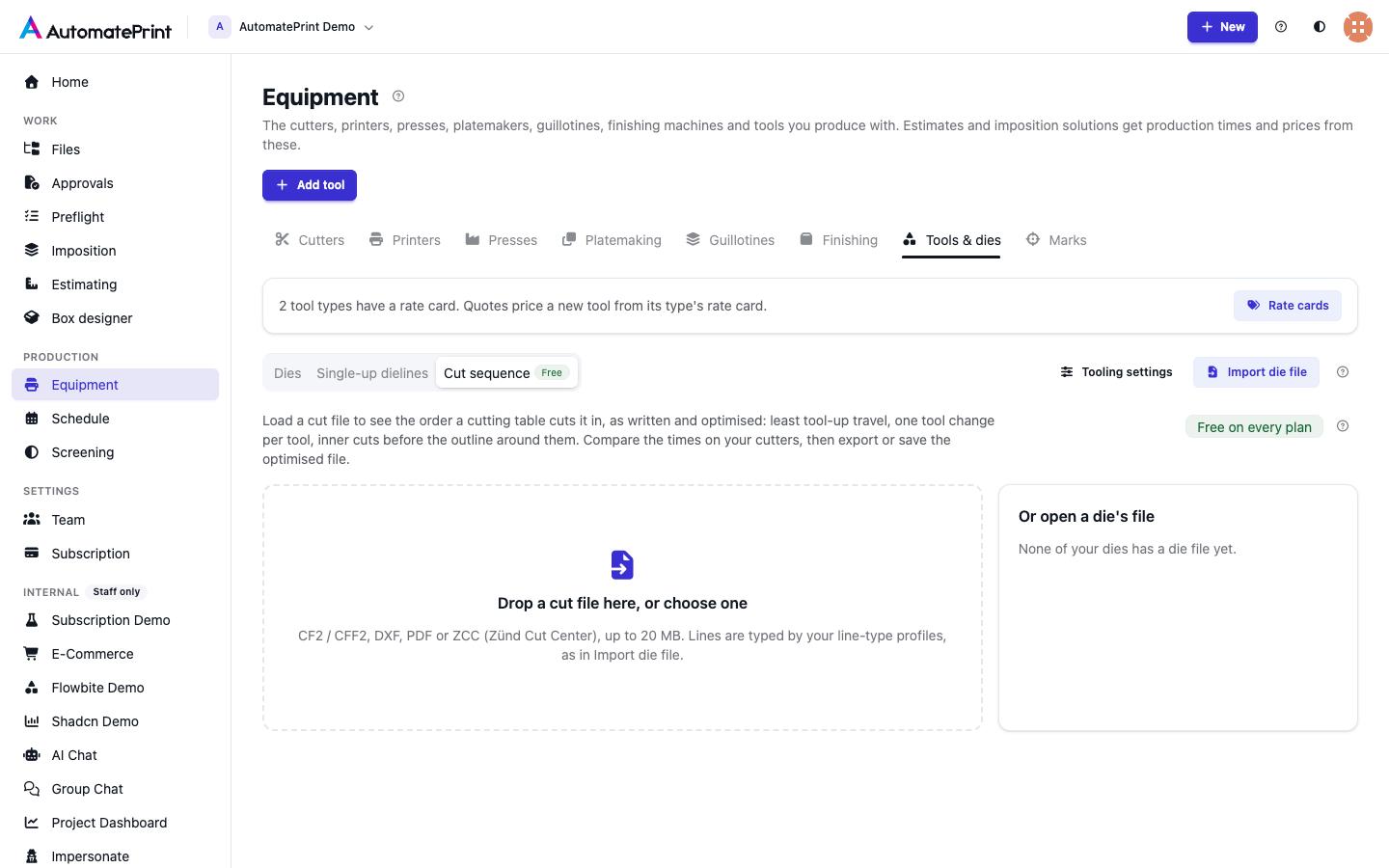
The upload goes into Files (Tools & dies / Die imports), like a die import; unsaved uploads are cleared after a day.
Files too complex to sequence#
Working out the order means splitting every line where it meets another, so the work grows with the number of places lines touch or cross, not with the size of the file: a cross-hatch of a few hundred lines crosses itself tens of thousands of times. A file whose cutting lines touch or cross more than about 50,000 times, or that splits into more than 50,000 pieces to order, is refused with "This file's lines touch or cross too often to sequence". The same goes for lines drawn on top of each other many times when Keep the file's shapes is on or Remove double cuts is off (each copy is then a path of its own). Split the file into smaller ones, or take hatching, fills and textures off the cutting layers (or map those layers to Not cut in Line types).
See the order and play it#
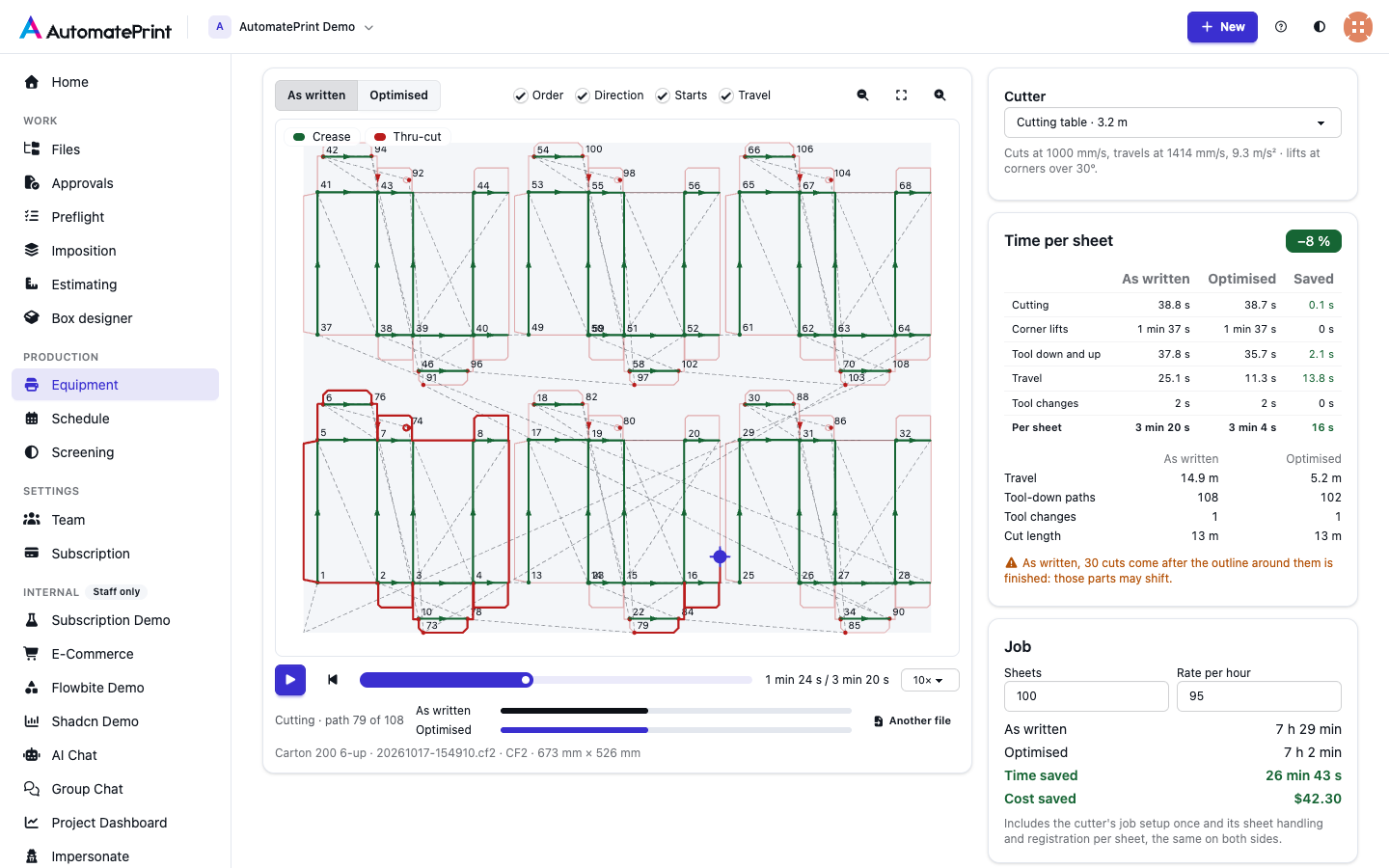
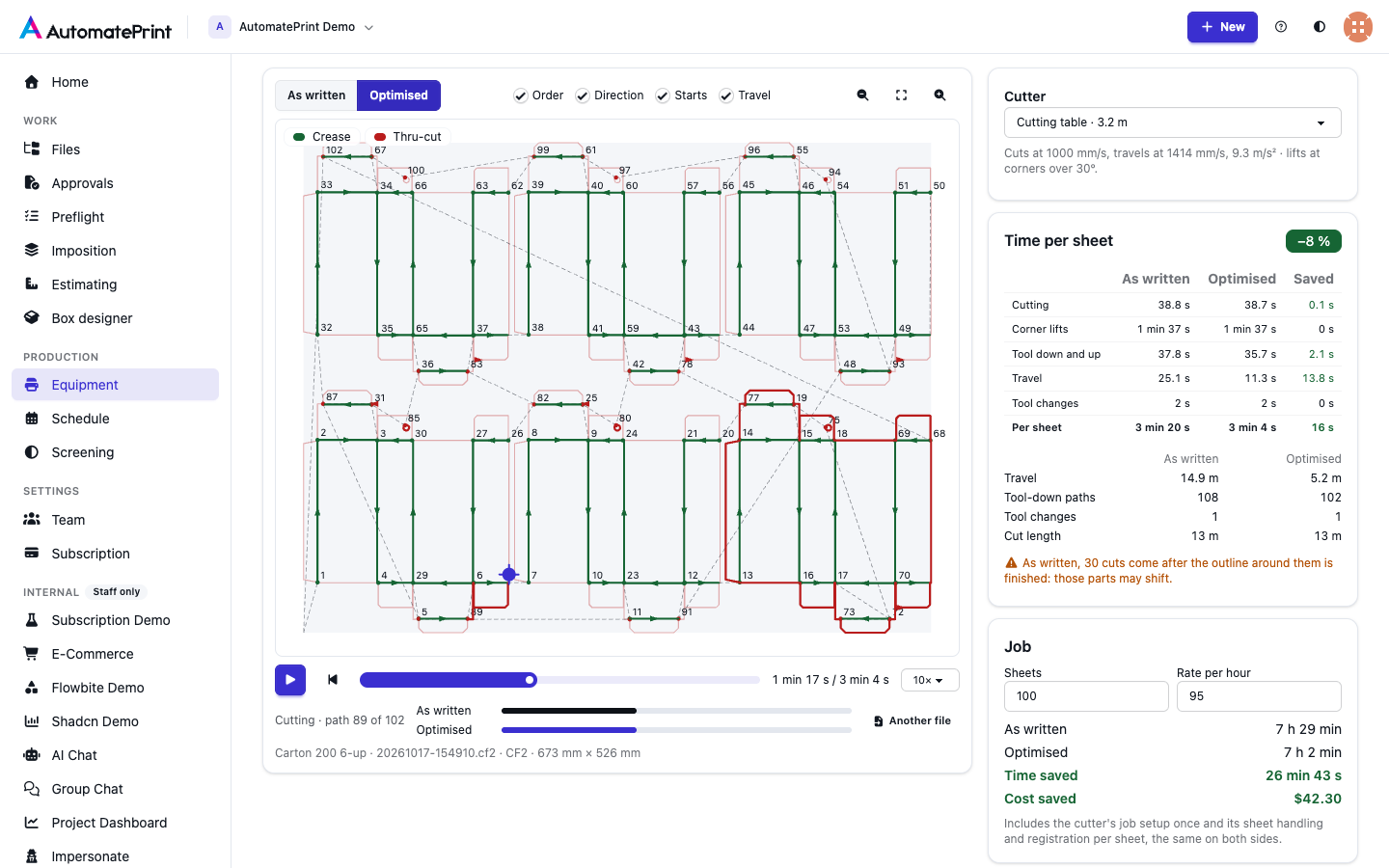
The canvas draws every line in its line type's colour. As written shows the order of the file; Optimised shows the new one. Order numbers each path where the knife goes down, Direction shows which way it runs, Starts marks the start points and Travel draws the tool-up moves as dashed lines. Scroll to zoom at the pointer, drag to pan, double-click to fit.
Press play to watch the head cut the sheet: lines are drawn as they are cut, at your cutter's speeds. Choose the playback speed (1× to 100×) or drag the time line. The two bars underneath race both orders on one time scale, so you see where the optimised order finishes.
Choose the cutter#
Cutter lists your cutters from the Cutters tab first, then every model with published specifications. The time comes from the cutter's cutting speed, travel speed, acceleration, corner lifts of a tangential knife, plunge and lift-off times, overcut and efficiency factor: the same model as the test cut, plus the cutter's Tool change time (s) for every change of tool. A team without cutters starts on a published model. A warning shows when the file is larger than the cutter's working area.
Compare the times#
Time per sheet splits both orders into cutting, corner lifts, tool down and up, travel and tool changes, with what each saves. Below it: the travel distance, the number of tool-down paths, the tool changes and the cut length. A tool change is the head switching between tools, from the creasing wheel to the knife and back: each switch costs the Tool change (s) time. A file that alternates creases and cuts makes the head switch every time the line type changes, if the cutter follows the file line by line; the optimised order cuts every crease first, then every thru-cut, so it switches once per tool. Most cutter software already runs one method (tool) at a time, so by default As written means the file's order with each tool's lines together, and both sides change tool once: the saving is the travel, the start points and the order inside each tool. Choose Compare with "the file's order exactly" for a cutter that follows the file line by line. A warning counts the cuts the file makes after the outline around them is finished: those parts are already loose and may shift.
Job multiplies it out: enter the Sheets and the Rate per hour (your cutter's hourly rate to start). Both sides include the cutter's job setup once and its sheet handling and registration per sheet, so the difference is the cutting order alone.
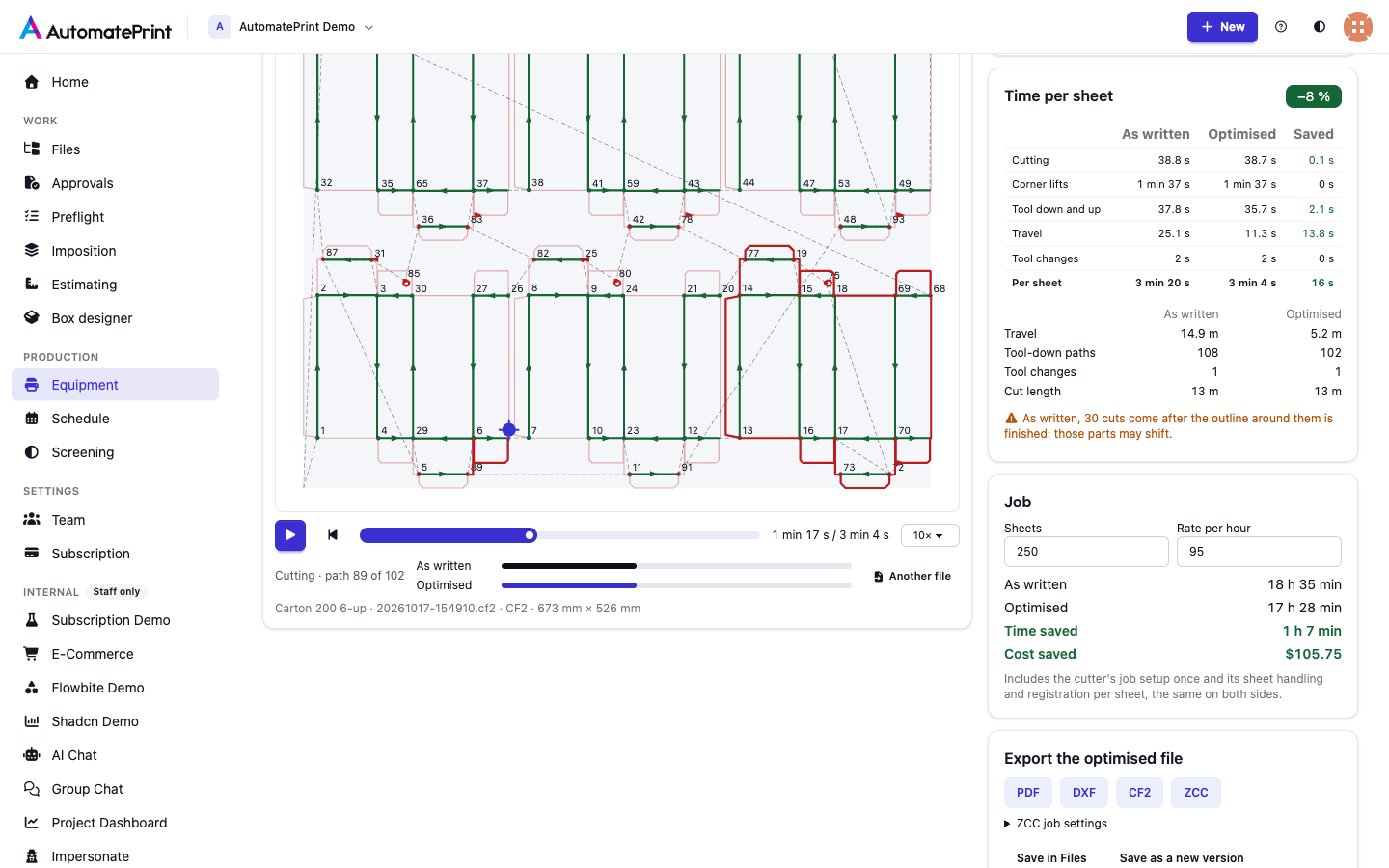
For example, a generic 6-up jar carton die (CF2), on a flatbed cutting at 1000 mm/s and travelling at 1414 mm/s with 9.3 m/s², a 2 s tool change: 2 min 25 s per sheet as written (each tool together), 2 min 11 s optimised (9.8 % less), with travel down from 8.1 m to 3.2 m. Over 250 sheets that is 59 min. Cut in the file's exact order, the same die changes tool 11 times and takes 2 min 44 s. Your files and cutter give their own numbers.
Optimisation settings#
- Start and park: the corner the head starts from and returns to (front left by default).
- Compare with: the file's order with each tool's lines together (the default: what cutter software that runs one method at a time does), or the file's order exactly, line by line. The optimised order is the same either way. A ZCC job is always compared method by method, in its own method order, because that is how Cut Center runs it.
- Keep the file's shapes: only the order, start points and directions change; nothing is joined, split or removed. Double cuts stay. A ZCC job keeps its curves, bridges and register marks (see ZCC jobs).
- Remove double cuts: when two shapes share an edge and both are drawn whole (two squares side by side), the shared edge is cut once. Same line within (mm) sets how close two lines must be to count as one (0.01 mm by default, at most 0.05 mm). Turn it off to keep every drawn line.
- Tool change (s): the time to switch between tools already in the head. Leave it empty to use the cutter's Tool change time (published models: an estimated 2 s on a flatbed, 1 s on a roll cutter); type a value to try another without changing the cutter. A manual tool change takes minutes.
- Units of a CF2 or DXF without them: for a file that doesn't say whether it is in millimetres or inches.
- Line types: what each layer, ink or CF2 line type of the file is cut as. Change one to re-run the comparison.
Export or save the optimised file#
PDF, DXF, CF2 and ZCC download the optimised file. Each line keeps its line type: a spot colour and layer per method in PDF (your cutter's thru-cut and kiss-cut names), a layer per method in DXF (millimetres, R12), a line type in CF2 (1 cut, 2 crease and score, 3 perforation, 4 partial and kiss cut), a Zünd method in ZCC. Only the cutting lines are written, except when a ZCC job keeps its shapes.
- Save in Files keeps the optimised file in Files, in the Tools & dies folder.
- Save as a new version adds it as the next version of the file you loaded, in the same format; the earlier versions stay in its history.
- Save onto the die (when you opened a die's file) makes the optimised file the die's file.
- Save as a new die… opens Import die file with the optimised file.
Zünd Cut Center (ZCC) jobs#
A ZCC file is read with its outlines (lines, arcs and curves), methods, material, copies and grain. Its methods become line types: Thru-cut, Route and Bevel-cut are thru-cuts, Kiss-cut a kiss-cut, Crease a crease, Score a score, V-cut a partial cut; register marks, Draw, Engrave, Punch and Drill aren't cut lines. Two methods of one type (a Thru-cut named "Frame") stay apart: each is cut in one go, in the job's method order.
The ZCC button writes a Cut Center job with every cutting method marked custom-ordered, so Cut Center cuts in the file's order instead of re-sorting it. Without that mark Cut Center sorts each method's outlines itself, so the As written time of such a job is the file's own order, not Cut Center's.
- With Keep the file's shapes on, a ZCC job is rewritten in place: its outlines in the new order, closed ones starting at one of their own nodes, open ones maybe reversed, with their curves, bridges, groups, register marks, copies and action steps as they were. An outline with bridges is never turned. This is the way to update the cut sequence of a ZCC you already use.
- Otherwise the optimised paths become a new job (curves as fine straight segments), with a ZCC job's material, copies, grain and method colours carried over.
ZCC job settings next to the button replace the job's own when you fill them in: Job name (barcode), Material (the name your Cut Center's material database knows), Thickness (mm), Copies, Cutting mode (standard, quality or speed) and Grain / flute (along x or y). The job name is also the file name: make it what the Zünd job QR code or barcode on the sheet says (the Zünd marks profiles put the cut-file name in that code), so scanning the sheet at the cutter opens this job. A ZCC with a new version or saved in Files stays a ZCC. The die import doesn't read ZCC files.
A ZCC that declares a DOCTYPE or XML entities is refused as unreadable (Cut Center jobs don't use them). Names the job gives itself (the job, material, creator and methods) are read up to their first 200 characters. A subpath that ends within 0.01 mm of its start is a closed outline, both in the preview and when the job is rewritten.
Imposition, estimating and nesting cut files are written in the optimised order too (see Cutting files and registration).
How the optimiser works#
The optimiser looks for the order, direction and start point of every path that gives the least tool-up travel time, under production rules:
- Tools in order. Creases and scores first while the sheet is whole, then perforations, partial and kiss cuts, thru-cuts last: one tool change per tool.
- Parts never move. Everything inside an outline (holes, windows, slits, nested parts) is cut before that outline is finished.
- Fewer tool downs. Lines are split where they meet and joined into long runs, so the knife goes down less often. Double cuts are removed when that setting is on.
- Least travel. A nearest-neighbour start, then the best start point of every closed shape and direction of every open line for that order, then 2-opt and Or-opt moves (reversing and moving runs of paths), each checked against the rules above, until a round saves nothing. Travel is weighed in time (accelerate, cruise, brake), not distance.
Closed shapes keep their drawn direction; only their start point moves. The result is deterministic: the same file and settings always give the same order. A die with a few thousand paths takes a second or two.
Note: What the time does and doesn't include
The time per sheet is the motion model of the cutter's settings, calibrated by its efficiency factor. Camera registration, sheet handling and setup are added in Job, the same on both sides. A cutter whose own software re-optimises the order on import (route optimisation on) cuts its own order, not the file's.
Do it through the API#
The same four calls the page makes are in the equipment API, free on every plan. Authenticate
with your API key (Authorization: Api-Key $API_KEY, see the API overview) or a signed-in session;
the key's user must be a member of the team. All paths are under /a/<team_slug>/production/api/v1/cut-sequences/.
1. Upload the file. A multipart file field; the answer names the stored file version.
/a/{team_slug}/production/api/v1/cut-sequences/upload/
production_cut_sequences_upload ·
View in API reference
curl -sS -X POST -H "Authorization: Api-Key $API_KEY" \
  -F "file=@carton-6up.cf2" \
  "https://app.example.com/a/acme/production/api/v1/cut-sequences/upload/"
{"file_version": 42, "format": "cf2"}
2. Analyse it. Send the file_version and any settings: machine (m:<cutter id> from the machines list,
p:<preset key> from the machine presets, or leave it out for your default cutter), home (front_left,
front_right, back_left, back_right), original (by_tool, the default, or file), double_cuts, tolerance_mm,
tool_change_s (seconds; leave it out or send null for the cutter's tool change time), units, mapping
({"<source key>": "<line kind>"}, as in a die import; a ZCC method is zcc:<Type> or zcc:<Type>/<Name>) and
keep_shapes.
/a/{team_slug}/production/api/v1/cut-sequences/analyse/
production_cut_sequences_analyse ·
View in API reference
curl -sS -X POST -H "Authorization: Api-Key $API_KEY" -H "Content-Type: application/json" \
  "https://app.example.com/a/acme/production/api/v1/cut-sequences/analyse/" \
  -d '{"file_version": 42, "tool_change_s": 2, "double_cuts": true}'
The answer has the file (name, format, extent in mm), the machine it was timed on (speeds, bed, hourly_rate,
setup_s, per_sheet_s, registration_s, tool_change_s), fits_bed, the home point, the tools (index → name), the line-type
sources and the lines skipped, then original and optimized, each with:
totals:total_s,cutting_s,corner_lift_s,plunge_lift_s,travel_s,tool_change_s,tool_changes,cut_mm,travel_mm,pathsand the park move.paths:[tool index, closed (0 or 1), [x0, y0, x1, y1, …]]in mm, y up.steps: the cutting order,[path index, start, travel_s, tool_change_s, cut_s];startis a closed path's start vertex, or 0 (as drawn) / 1 (backwards) for an open one.original.late_cuts(cuts after the outline around them is finished) andoptimized.double_cuts_mm.
{"original": {"totals": {"total_s": 200.3, "travel_mm": 14917.8, "tool_changes": 1, "paths": 108}, "late_cuts": 30},
 "optimized": {"totals": {"total_s": 184.3, "travel_mm": 5181.7, "tool_changes": 1, "paths": 102},
               "double_cuts_mm": 0.0}}
The job sum is yours to make: machine.setup_s + sheets × (totals.total_s + machine.per_sheet_s +
machine.registration_s) for each side.
3. Download the optimised file. fmt is pdf, dxf, cff2 or zcc; the settings are query parameters
(mapping as JSON). For a ZCC: keep_shapes, and the job settings job_name, material, thickness_mm, copies,
cutting_mode (standard, quality, speed) and flute (x or y); left out, the job's own apply.
/a/{team_slug}/production/api/v1/cut-sequences/export/
production_cut_sequences_export ·
View in API reference
curl -sS -H "Authorization: Api-Key $API_KEY" -o carton-optimised.cf2 \
  "https://app.example.com/a/acme/production/api/v1/cut-sequences/export/?file_version=42&fmt=cff2"
curl -sS -H "Authorization: Api-Key $API_KEY" -o JOB-4711.zcc \
  "https://app.example.com/a/acme/production/api/v1/cut-sequences/export/?file_version=42&fmt=zcc&keep_shapes=true&job_name=JOB-4711&material=Board%201.2"
4. Or save it in Files. target is file (a new file, fmt optional), version (the next version of the
uploaded file) or die (the next version of a die's file, with tool; needs a plan with the die library).
/a/{team_slug}/production/api/v1/cut-sequences/save/
production_cut_sequences_save ·
View in API reference
{"file_version": 57, "name": "carton-6up · optimised.cf2", "number": 1, "url": "…", "tool": null}
Errors: 400 with {"code", "detail"} for an unreadable file, a file without cutting lines (no_cut_lines, with the
sources to map), units that can't be told or a drawing too complex to sequence (too_complex, see
Files too complex to sequence); 413 too_large for a file over 20 MB; 403 plan_required for
target: die without the die library; 404 for a file version of another team.