

Light shows what the finishes do: varnish and foil only shine when a light catches them. The Lighting section of the 3D tab sets the light, and Export and share saves what you see.
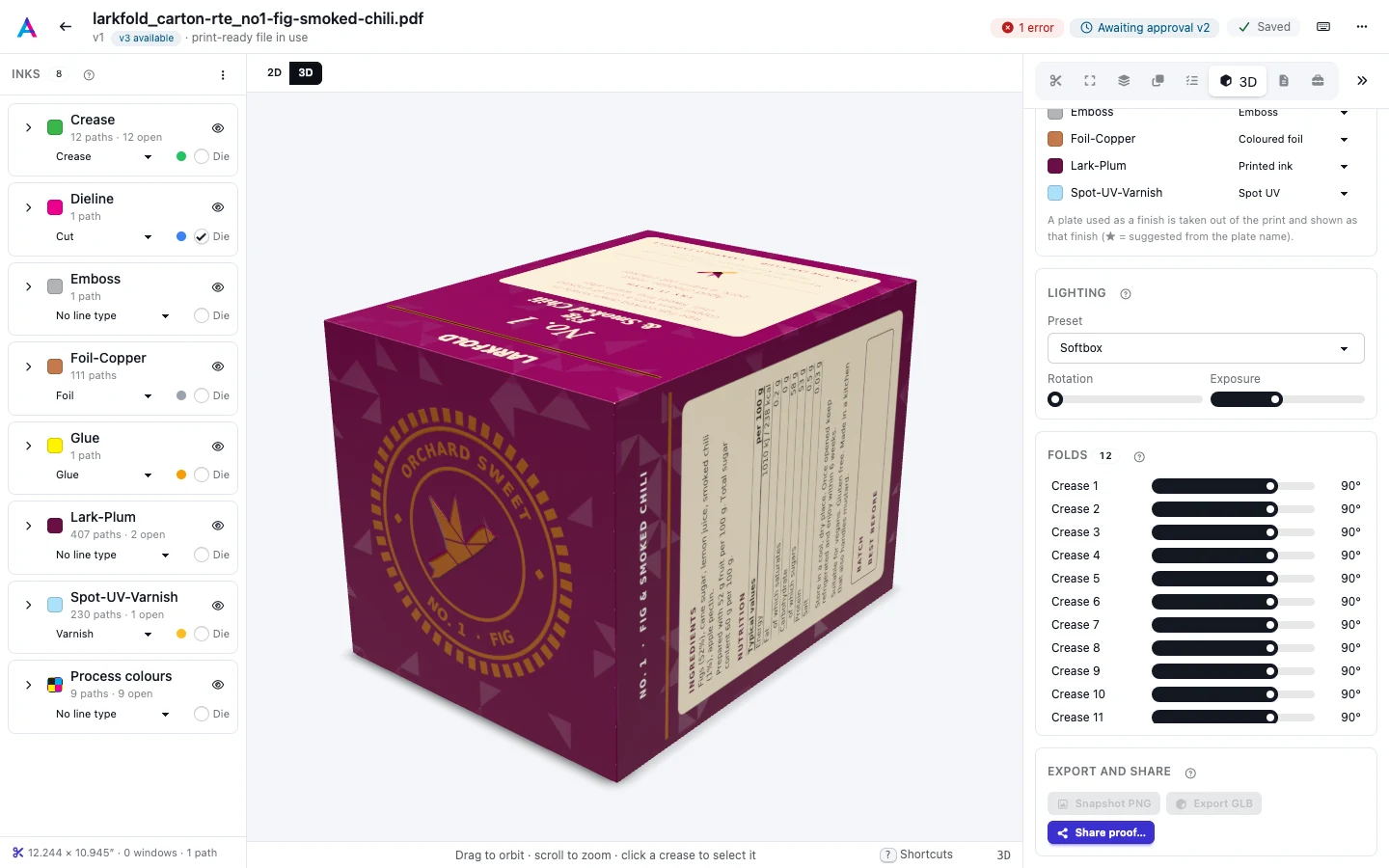
Lighting#
Choose how the carton is lit: a Preset sets the light, Rotation turns it and Exposure makes it brighter or darker.
The presets:
| Lighting | What it looks like |
|---|---|
| Studio | Even, neutral room light: the default, good for checking colour and layout. |
| Softbox | A dark studio with a large soft light overhead and strip lights: crisp highlights on varnish and foil. |
| Daylight | Bright, warm outdoor light from one side. |
| Retail shelf | Softer overhead light, like a store shelf. |
Rotation turns the light around the carton, so a highlight moves across a foil or a varnish. Exposure makes the whole scene brighter or darker. Lighting saves with the carton and is what reviewers see first on a 3D proof, where they can turn the light too (see 3D proofs and comments).
Snapshot PNG#
Snapshot PNG saves the view as it is on screen, at twice the screen's resolution, as a PNG file named after the artwork. Use it for a quick mock-up image in an email or a presentation. The 3D view must be open.
Export GLB#
Export GLB saves the carton as a GLB file (binary glTF), the common format for 3D models on the web: its panels at their current fold, at real size in metres, with the artwork, the board and the finishes. Open it in a 3D viewer or 3D software to place the carton in a scene.
Finishes travel as material maps: gloss, clearcoat, metal, iridescence, sheen and transparency. Viewers that support the glTF material extensions show them; others show a plainer surface. The lighting isn't part of the file, so a viewer's own lights make the carton look different from the editor.
Turntable#
Reviewers of a 3D proof can switch on Turntable, which turns the carton slowly. The editor itself has no turntable, and recording a video of it is not offered.