

Normally everyone you email a proof to is asked at once, and the proof is approved when all of them have approved. A staged approval asks in order instead. A typical one: your prepress operator checks the file first, and only when they approve does the customer get the proof. You always see which stage an approval is at.
Using stages is a choice per proof. Leave Everyone at once selected in the Share dialog and nothing changes.
How a staged approval runs#
- Stages run in order. Only the approvers of the current stage are emailed and can decide. The approvers of later stages hear nothing until it is their turn.
- Each stage has a rule. Everyone must approve waits for every approver of the stage. One approval is enough moves on as soon as one of them approves, which suits a group where anyone can sign off.
- Approving the last stage approves the proof. Until then its status stays Pending.
- A rejection holds the approval at that stage and the proof shows as rejected. Upload a corrected version, or have the reviewer change their decision to continue.
- Approvers are email addresses. They can be your own team members (internal approvers) or anyone outside your team, such as your customer. Nobody needs an account: each approver gets a personal link by email, exactly like any other reviewer (see Reviewers: invitations and identity).
On a staged approval only the named approvers can decide. Anyone else who opens the link can still look and comment.
One approval is enough, without stages#
You don't need stages to let one person of a group sign off. In the Share dialog, keep Everyone at once and change Everyone must approve to One approval is enough, then enter the reviewers and send. All of them are emailed together, and the first approval approves the proof. A rejection before that still holds it.
Such a proof gets its own link, and only the reviewers you entered can decide on it, so a forwarded link cannot be used to give the one approval.
Start one for a single proof#
- On the Approvals page, choose Share on the artwork's row. Open Approvals
- Under Email a link to reviewers, pick the viewer, then choose In stages.
- Fill in the first stage: a name such as "Prepress check", the rule, and the approvers' email addresses. Add a team member… puts a colleague's address in for you.
- Choose Add stage for each further step, up to six. An address can be in one stage only.
- Add a Message if you like, then choose Start approval.
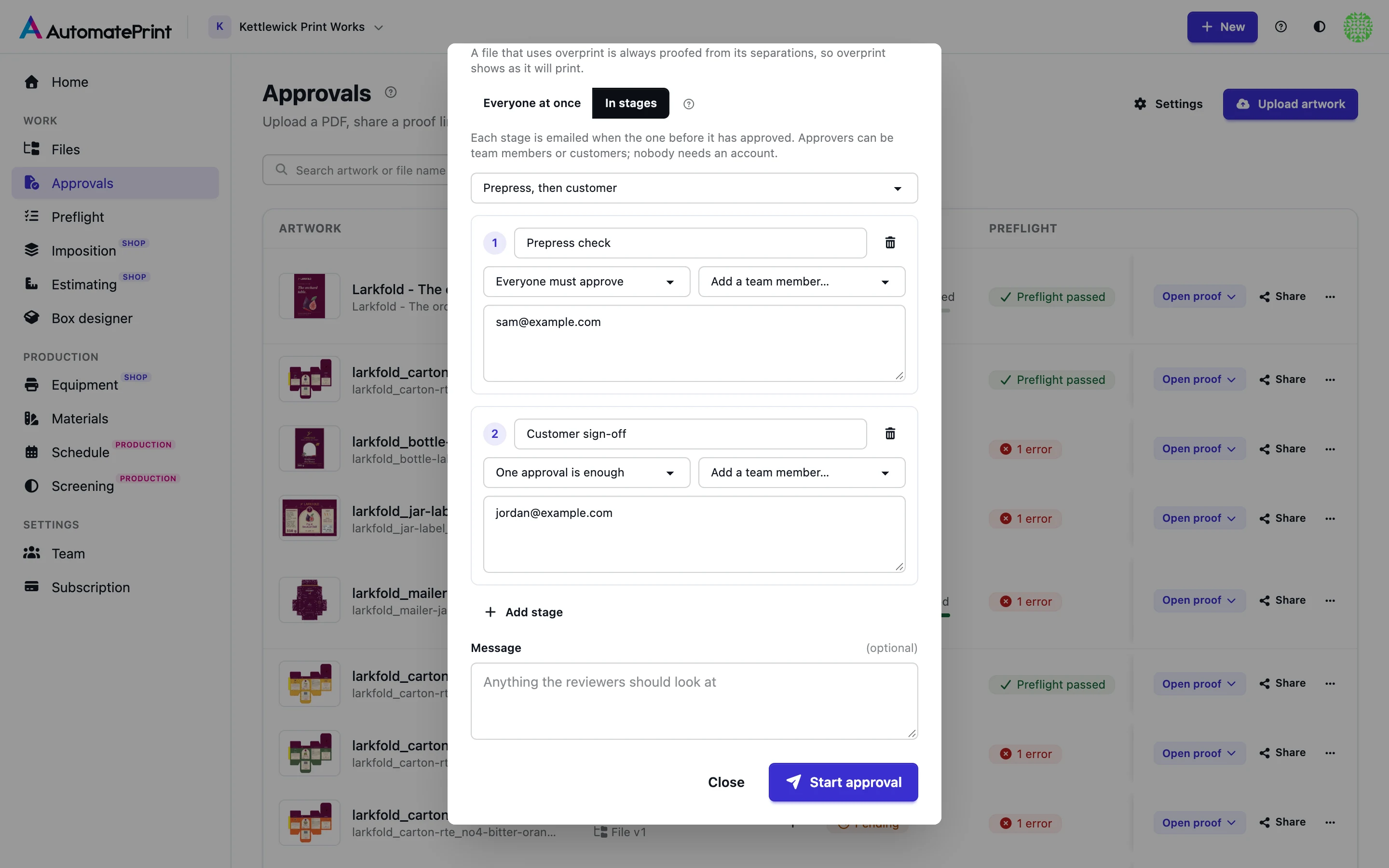
The first stage is emailed straight away. The approval gets its own link, which now shows in the Share dialog for that viewer.
Save stages as a preset#
If you use the same steps for most jobs, save them once. Team administrators do this under Approvals → Settings → Stages.
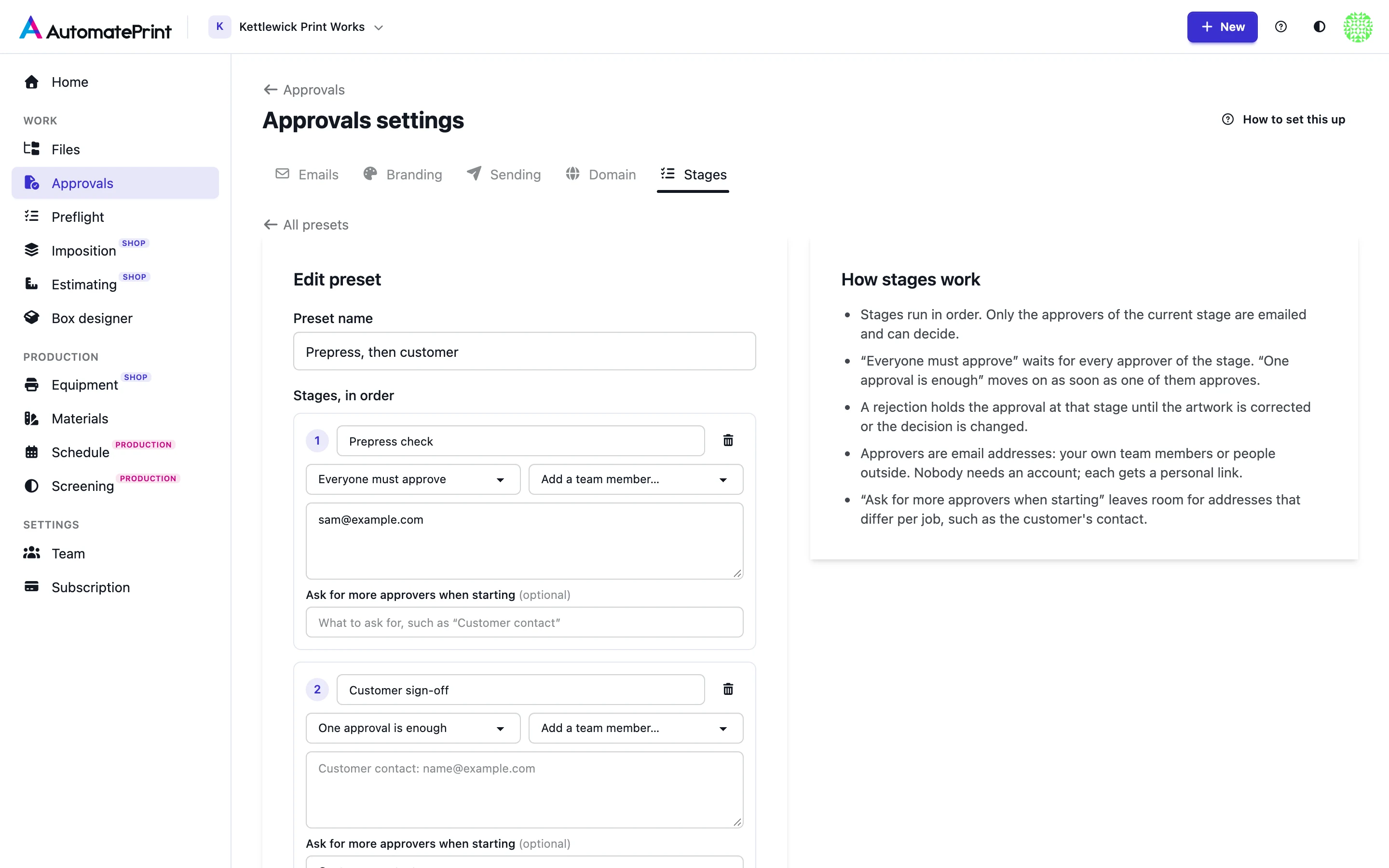
- Choose New preset and give it a name, such as "Prepress, then customer".
- Add the stages in order, each with its name, rule and approvers.
- For approvers that differ from job to job, leave the addresses out and fill in Ask for more approvers when starting: write what to ask for, such as "Customer contact". A stage can have fixed approvers, a question, or both.
- Choose Save preset.
To use it, choose In stages in the Share dialog and pick the preset from the list above the stages. Its stages appear filled in. Type the addresses a stage asks for (its box shows the question), change anything that differs for this job, and choose Start approval. Changes you make there apply to that one proof; the preset stays as it is. Editing or deleting a preset later does not change approvals already started with it.
See where an approval is#
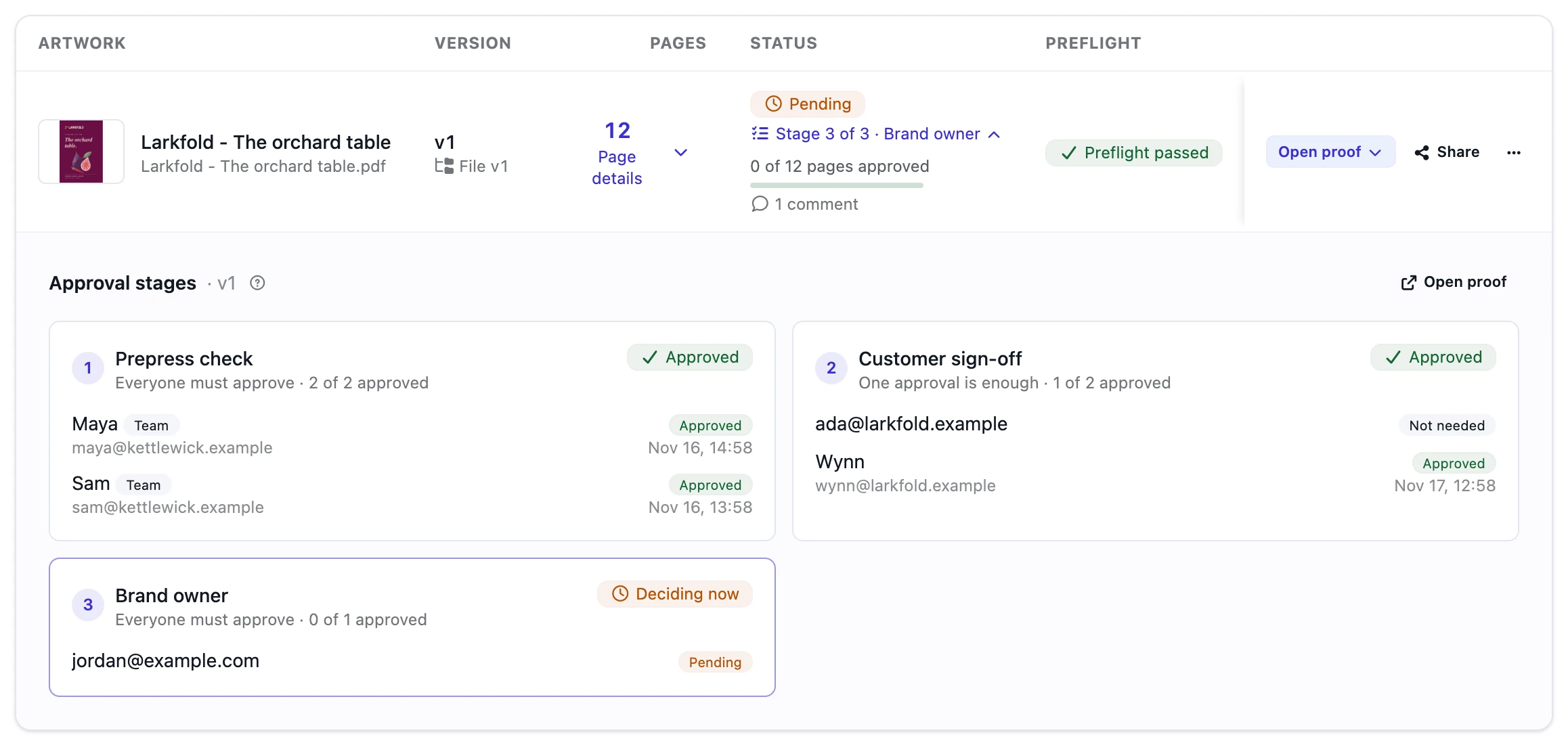
- Approvals page: under the status, the row shows the stage, such as "Stage 2 of 3 · Customer sign-off", or "Changes requested in stage 1 of 3". Click that line to open every stage below the row: its rule, whether it is waiting, deciding now or approved, and each approver with their decision and the time they made it. Your own team members are marked Team. Approvers of a stage that passed without them show Not needed.
- Copy unique approval link and Resend approval email: each approver has Copy unique approval link, which copies the personal link from their invitation, made only for them, for sending it some other way. Approvers of the stage deciding now who haven't decided yet also have Resend approval email, which sends them the approval request again with their link. The same person can be sent it again after a minute. Whoever holds a personal link can comment and decide as that approver (see Reviewers: invitations and identity).
- Proof page: the History tab lists every approver with their stage and decision. Approvers whose stage has not started show Waiting. Reviewers see the same list with other people's addresses masked.
- History: each stage that passes is an entry, Stage 1 of 2 approved, saying which stage started next (see History and notifications).
- Email: the email your team gets for a decision says whether the stage is still in progress or complete and which stage started. Each approver's invitation names their stage, such as "Stage 2 of 2: Customer sign-off."
New versions, resets and more approvers#
- A new version of the artwork restarts the approval on that version from the first stage, with the same stages and approvers, a few minutes after the upload. The first stage gets the New version email. Untick Email the new version to the previous reviewers in the upload dialog to add a version without restarting (see Artwork versions), or switch that email off under Settings → Emails if you prefer to start every round yourself (see Emails and branding). A version added in Files restarts nothing until you send it (see Proofs and Files).
- Reset to pending clears every decision and starts over at the first stage (see Decisions, locking and reset).
- Emailing the link to someone else from the Share dialog adds them to the stage that is deciding at that moment.
- Starting another staged approval for the same version replaces the one under way: the earlier link stops working for its approvers, and the dialog warns you first. An approval that is already approved is kept.
- Sending a newer file version from Files to its reviewers also starts the staged approval over on the new version, first stage first: the approvers are asked in their stages again, not all at once (see Proofs and Files).
What happens when#
| Situation | What happens |
|---|---|
| An approver of a later stage tries to decide early | They are told it is not their turn yet. They are only emailed their link when their stage starts. |
| Someone who is not a named approver opens the link | They can look and comment, not decide. |
| An approver rejects | The proof shows as rejected and stays at that stage. The next stage is not invited. Changing the decision to approve continues; so does a corrected version. |
| An approver reviews page by page | Their approval counts for the stage once every page is approved. One rejected page is a rejection. |
| A stage set to One approval is enough gets its approval | The stage passes. Its other approvers show Not needed and can no longer decide. |
| You email the link to someone else | They join the stage that is deciding now. In an Everyone must approve stage, the stage then waits for them too. |
| Someone holds one of the version's other links (its plain Simple or Advanced link) | They can look and comment there, but not decide while the staged approval is under way. Nobody can approve the version around its stages. |
| The last stage approves | The version is approved and every link of it is closed for decisions, as after any approval. |
| A team member chooses Reset to pending | Every decision is cleared and the approval starts again at its first stage. Later stages are invited again when their turn comes. |
| You start another staged approval for the same version | It replaces the one under way: the earlier link stops working. An approved one is kept. |
| You revoke the staged link, or it expires | Its approvers can no longer open it, stages that had not started are never invited, and the version's other links can decide again. |
| A new version is uploaded in Approvals | The staged approval starts over on the new version: see Artwork versions. |
| A new version of the file is added in Files | Nothing changes: the stages go on with the version they were sent. Files asks whether to send the new version; sending it to the same reviewers starts the stages over (see Proofs and Files). |
| A comment is written | The team member who sent the proof and the approvers of the stages that have started hear about it. Approvers still waiting for their turn do not. |
With the API#
Integrations can start a staged approval with one-off stages or with a preset, read which stage it is at, and manage presets: see Approvals API.