

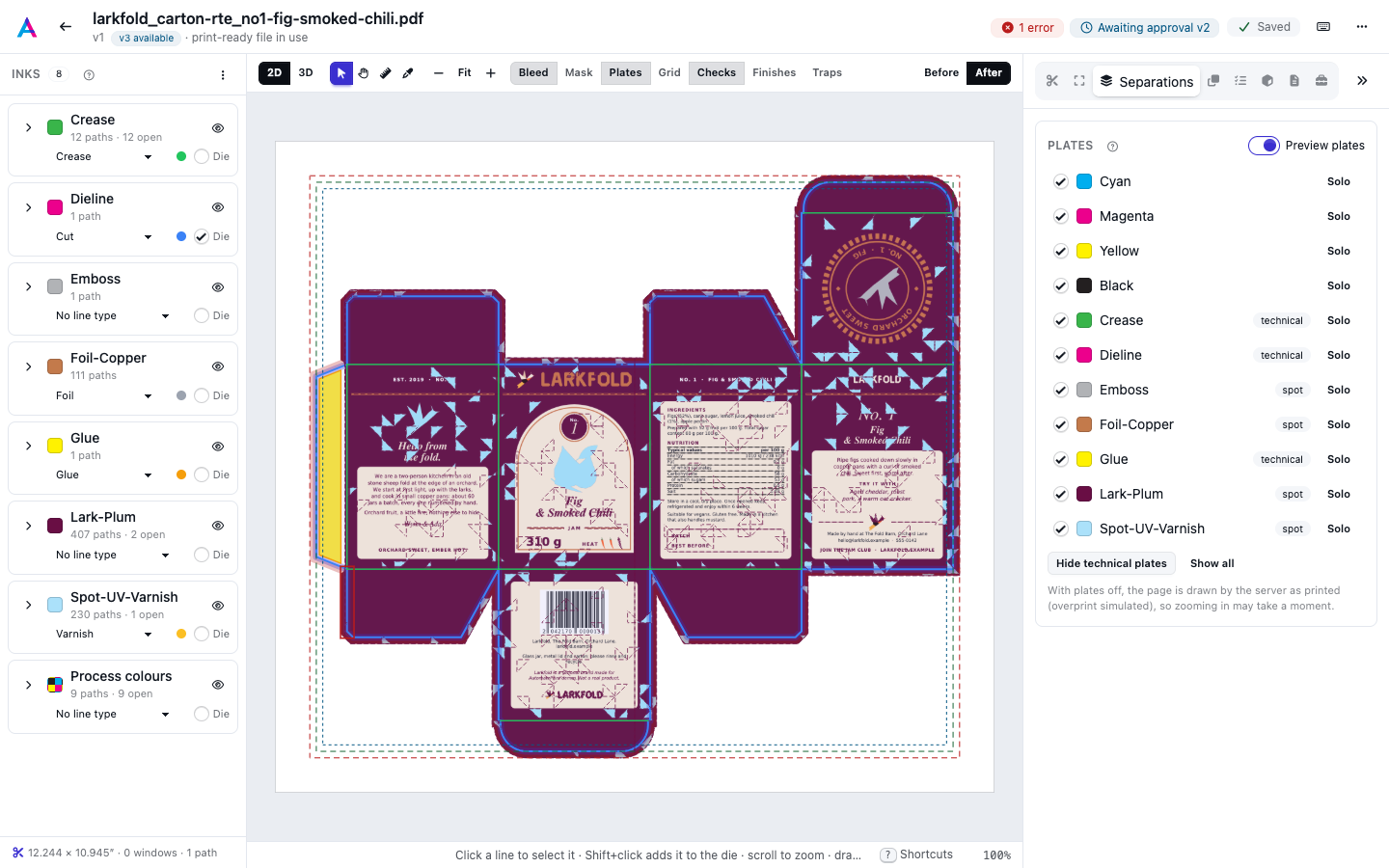
Each ink of the page prints from a plate of its own, its separation. The Separations sidebar on the left lists every plate of the page, process inks first and then the spot colours, so you can check what each one prints and whether anything knocks out or overprints the way it should.
Preview the plates#
The plate list loads when you open a PDF. If reading the plates fails, use Retry in the sidebar. Untick a plate or choose Solo to turn on its preview automatically. Use Preview plates (or S, or Plates in the toolbar) to compare with the full artwork while keeping your plate selection. On a small screen, open Separations from the toolbar.
- Untick a plate to switch it off on the page.
- Solo shows that plate alone; press it again to go back.
- Hide technical plates switches off the inks that never print (cut, crease, glue and the other technical line types, see Inks and line types) and switches every other plate back on.
- Show all switches every plate back on.
Spot plates carry a spot badge and technical plates a technical badge. A badge on the page says which plates are off, or which one is shown alone.
As printed#
With plates off, the page is drawn by the server as it will print: each plate separately, with overprint simulated. This shows what an ordinary PDF viewer may hide, such as a white object that knocks a hole in the plates under it, or a varnish that overprints. Zooming in asks for a sharper drawing, so it may take a moment to settle.
With every plate on, the page is drawn in your browser as usual.
The plates of the print-ready file#
The plates are those of the file on screen: the print-ready file when there is one, else the original. Use Before and After in the toolbar to compare. Spot inks renamed on the Tools tab show with their new names in the print-ready file (see The Tools tab).
To read the exact ink of every plate at one point of the page, and the total ink there, use Ink at a point on the Tools tab (The Tools tab).
Limits#
Plate visibility applies to the 2D PDF artwork. In 3D, use View in 2D in the sidebar before changing plates; the carton retains its normal material and finish preview. Images do not have PDF plate separations.
A page with more than 28 spot colours (besides CMYK) can't be separated here: the sidebar says the page uses more inks than can be rendered together. Server drawings are limited in size and in how often you can ask for them, so very deep zooms reuse the sharpest drawing instead of asking for a new one.