

Preflight checks a file before it goes to press: fonts, image resolution, colour spaces, ink coverage, bleed and more, against your team's preflight profile. The Preflight tab of the editor runs it on this artwork and puts every finding on the page. How preflight works, and what each check looks for, is in How preflight works.
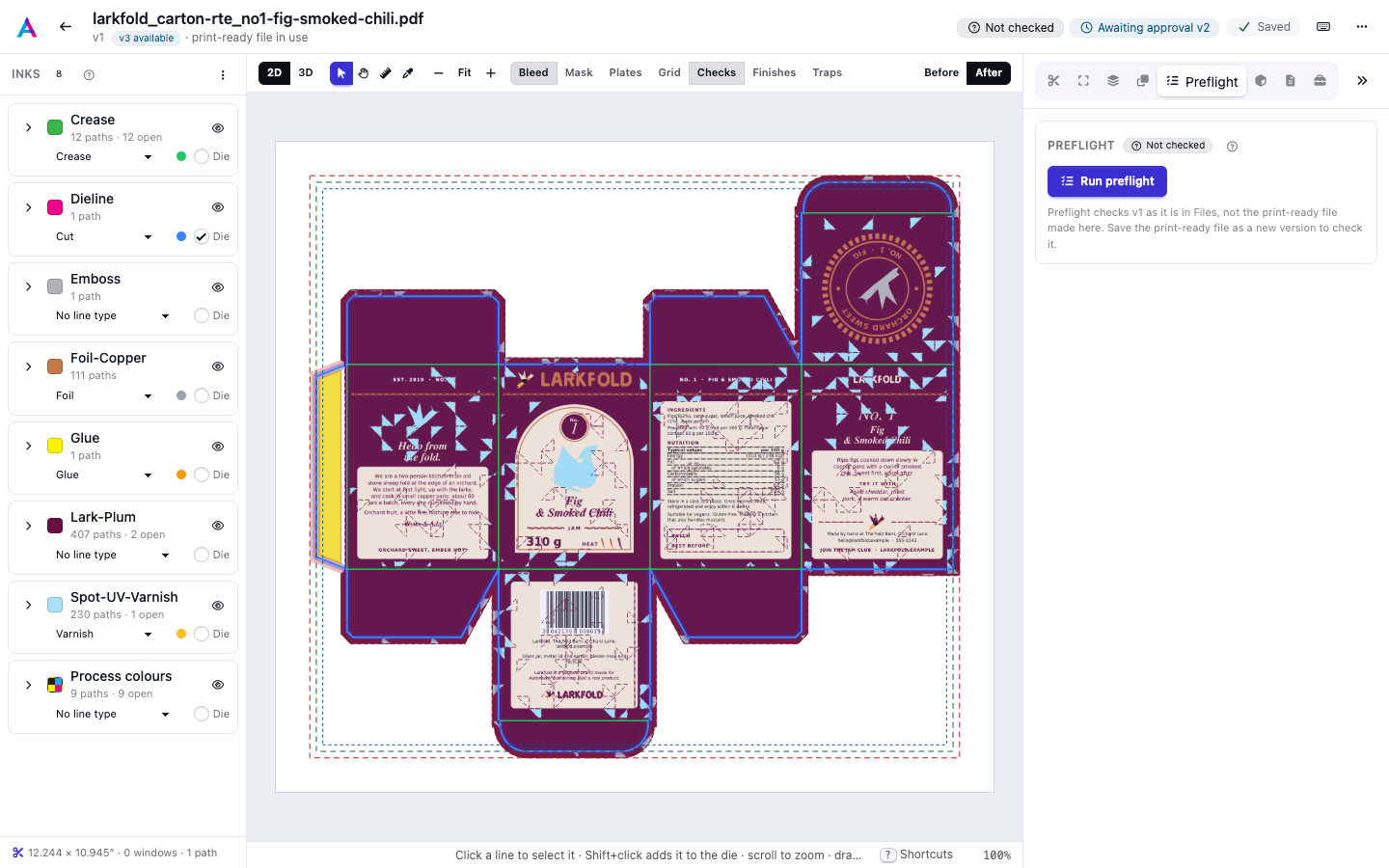
Run preflight#
For a file opened from Files, preflight checks the version as it is in Files, not the print-ready file you make in the editor (that one is checked once you save it as a new version). An image can't be preflighted in the editor: preflight reads PDFs. The Size section on the Tools tab shows the image's resolution against your team's preflight profile instead (see Size and resolution).
Press Run preflight (Run again once there is a report). The tab shows a spinner while it runs, and so does its icon in the panel, so you can keep working on another tab. When it's done, the chip next to the title (and the Preflight chip in the header) shows the result, and the time it finished shows beside the button.
Full report opens the whole report in a new tab, with every check and its details (see Reading preflight results).
Findings#
Findings lists what the report found, errors first, then warnings and notes, each with its page and how many times it occurs (×3). Nothing to fix. means the file passed.
Click a finding to select it; when it has a place on the page (show), the page zooms there and draws its box. The Checks switch in the toolbar (or P) draws the boxes of all findings at once.
When the report is older than the file#
A report checks one version of the file. When the file changes (a new print-ready file, a new upload), the tab says "This report checked an earlier version of the file". A new check starts on its own when the print-ready file changes (bleed, output tools, traps, revert), if the artwork was checked before. Otherwise press Run again. A file opened from Files is always checked as it is in Files, so its report stays current when you make a print-ready file.
Fix technical inks that knock out#
A cut or crease line drawn as a knockout punches a white line out of the artwork under it, which shows when the cut is slightly off. When preflight finds one, the finding has a Fix: overprint technical inks button. It switches on Overprint technical inks on the Tools tab and takes you there; press Apply to print-ready file to make the fix. See The Tools tab.