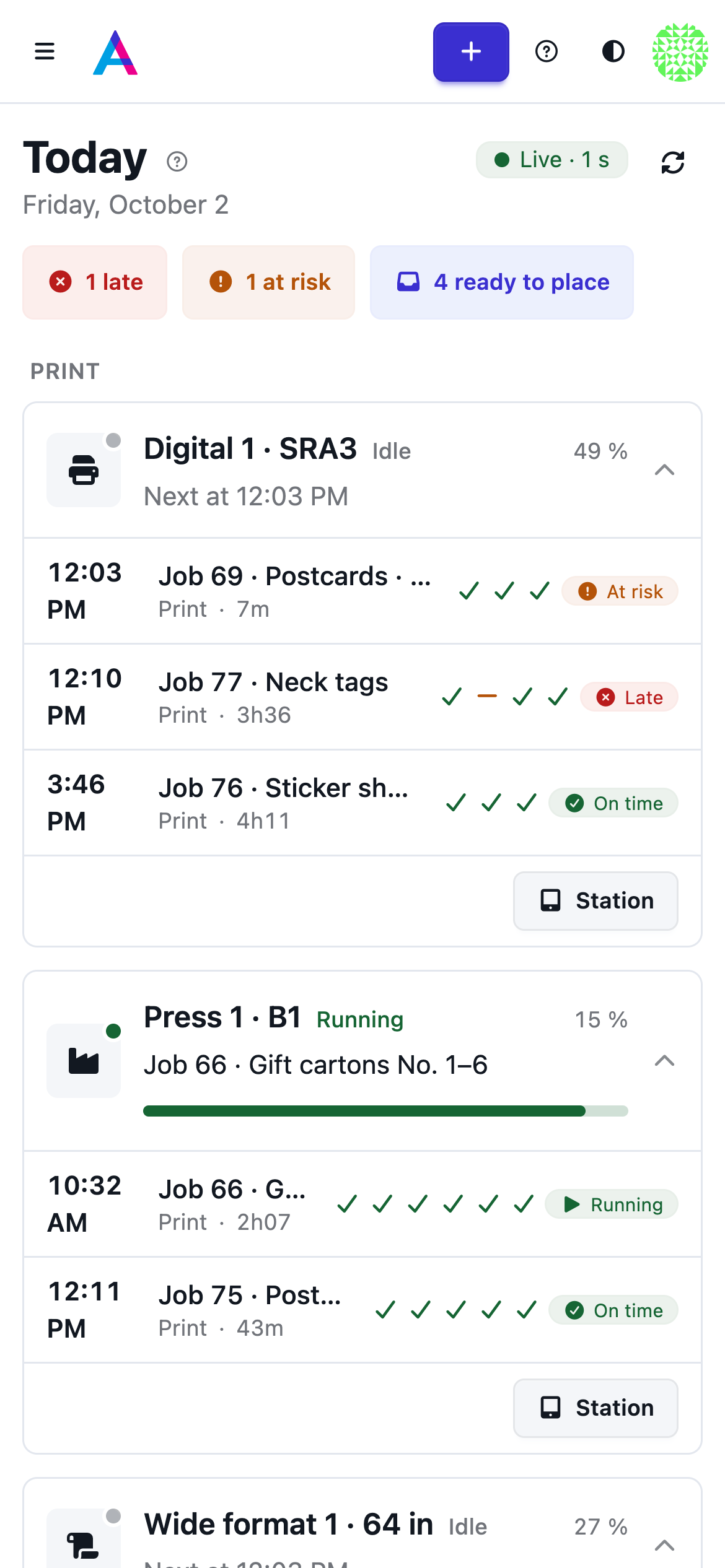
- The imposed sheet
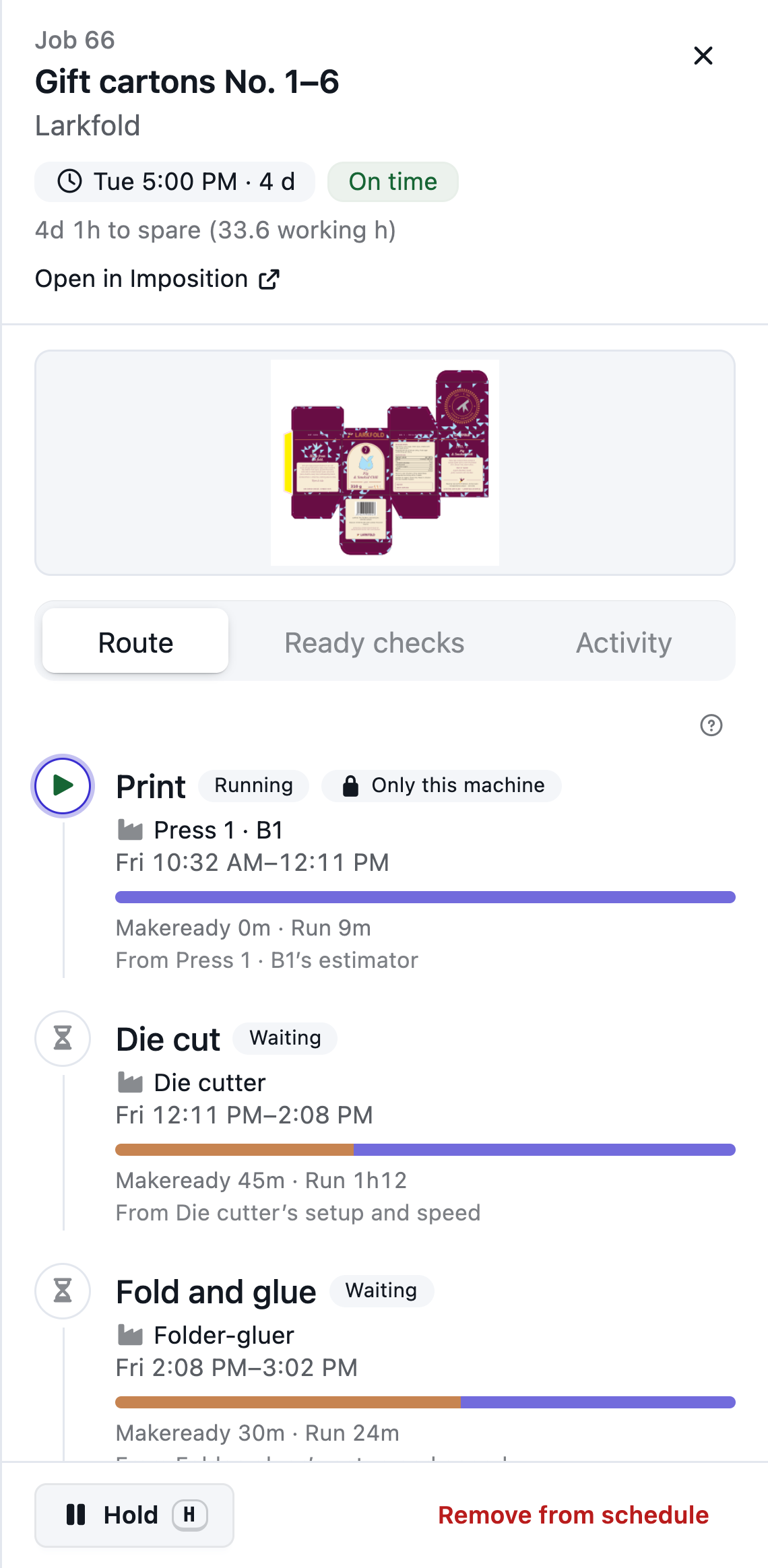
- Its route, step by step
The sheet and its route
The imposed sheet, then every step with its machine, its times and where they come from.
Run the floor Coming soon
Jobs you impose land in the tray with their press, cutting and finishing steps already timed from your own equipment. Place all ready puts them on the board in one click, never on top of each other, and your operators keep it true from a tablet at the machine.
In development — not available to customers yet.

Today
With AutomatePrint
Today: The plan lives on a whiteboard, and only one person can read it.
With AutomatePrint: One board in the office, a tablet at every machine and a Today view on your phone.
Today: Someone types start times and guesses how long each job will run.
With AutomatePrint: Times come from the imposed layout: the press's plates and passes, the knife program, the cut paths. Nobody types a start time.
Today: The press waits because the proof isn't approved or the stock isn't in.
With AutomatePrint: Ready checks hold a job until its proof, preflight, plates, stock or die are ready.
Choose a layout in Imposition and the job lands in the tray with every step timed. Put on the schedule, in the job's Export menu, adds it at once and opens it on the board.
See the plan before it happens: late and at-risk jobs before and after, and the makeready it saves. Apply or discard.
Operators start, pause, report a problem or hold for Done on the station. The board follows within seconds.
Makeready shows as a striped start on each bar, drying time holds the next step, and a step that is only an estimate carries a ≈. Start and finish times work themselves out from your shop hours.
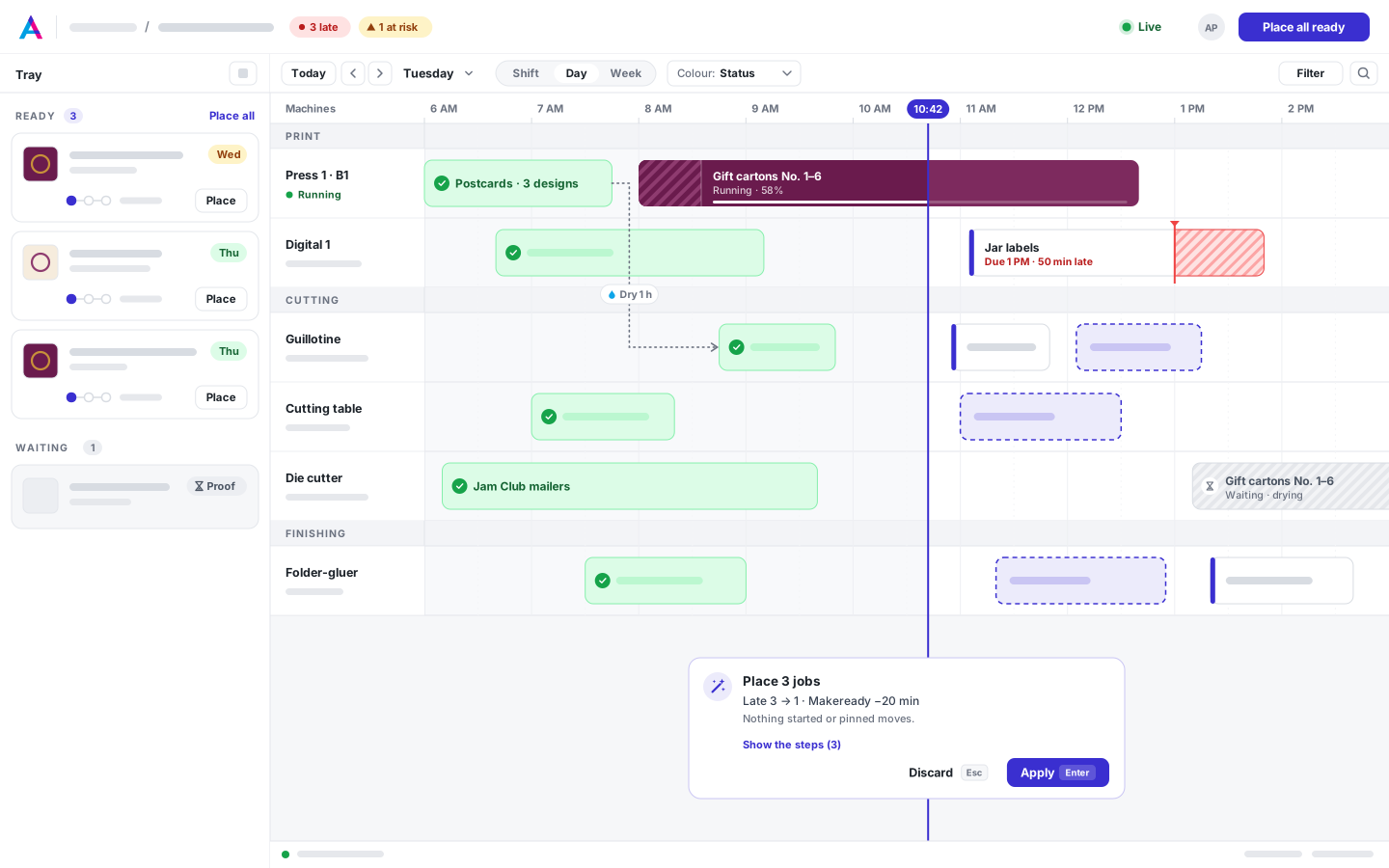
The imposed sheet, then every step with its machine, its times and where they come from.
Move a step to another machine and see when it would finish, and why a machine can't take it.
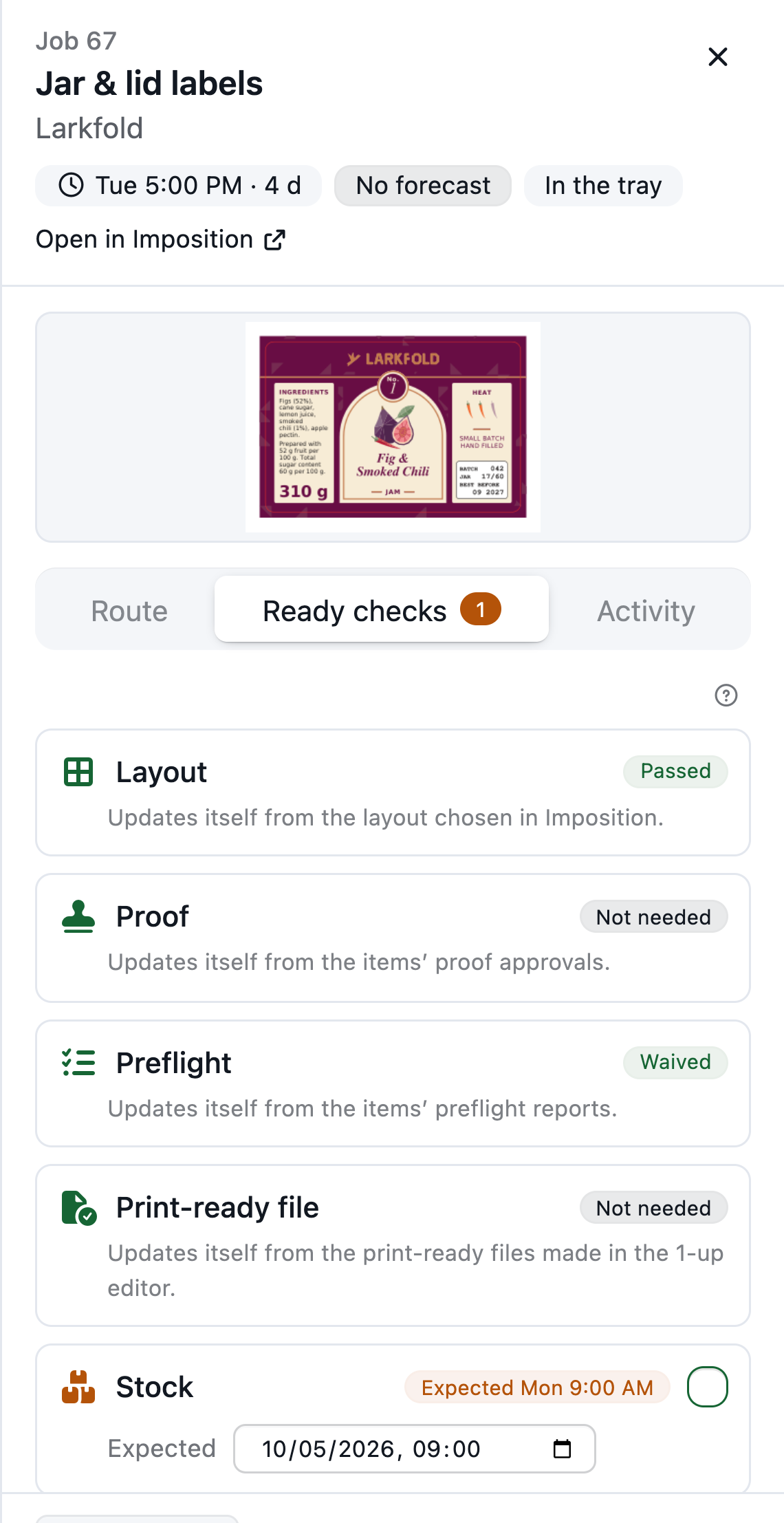
The proof is approved, preflight passes, the print-ready file is current: each check clears.
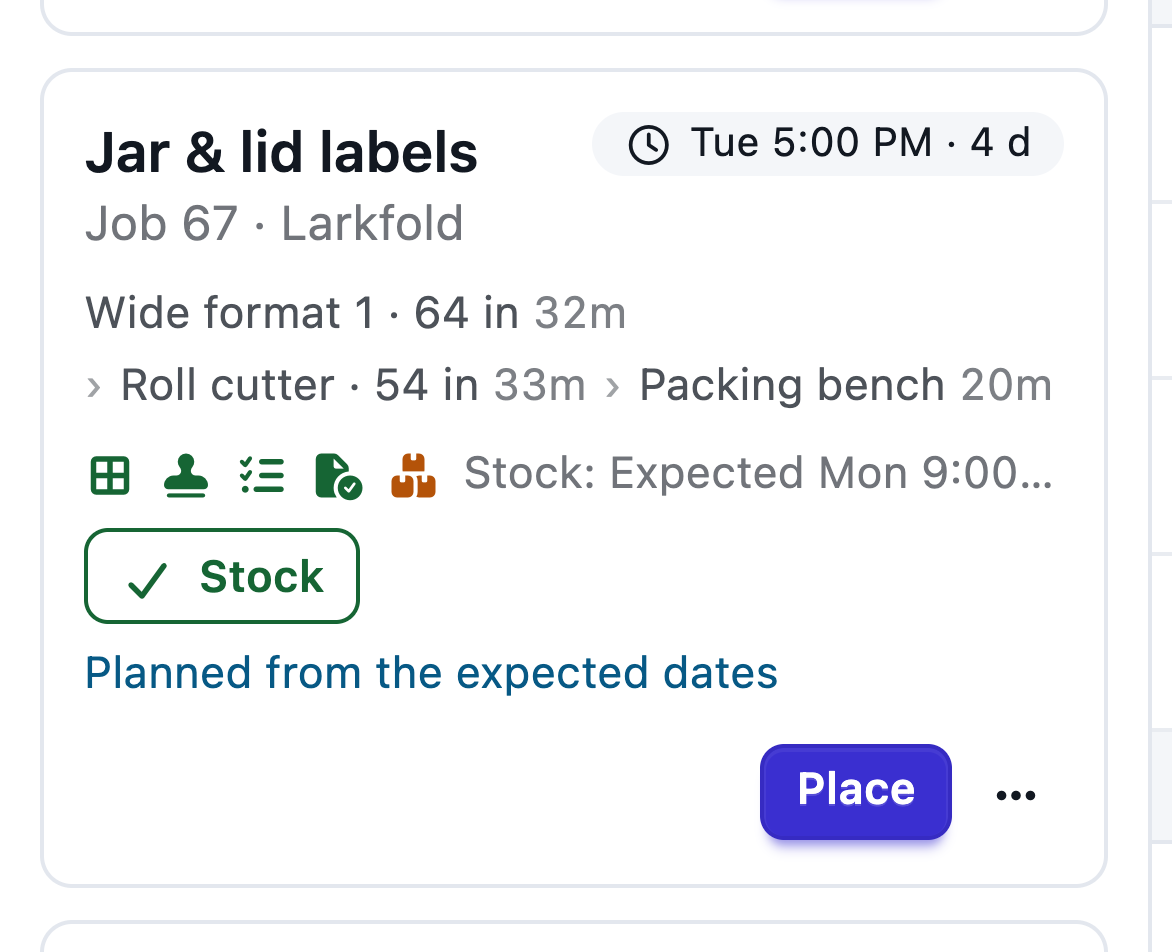
Each tray card shows its route, its due date and what it's waiting for.
Start, Makeready done, Pause with a reason, Hold for Done with good and waste counts, Problem and Machine down. Taps are kept if the Wi-Fi drops, and the planner sees them within seconds.
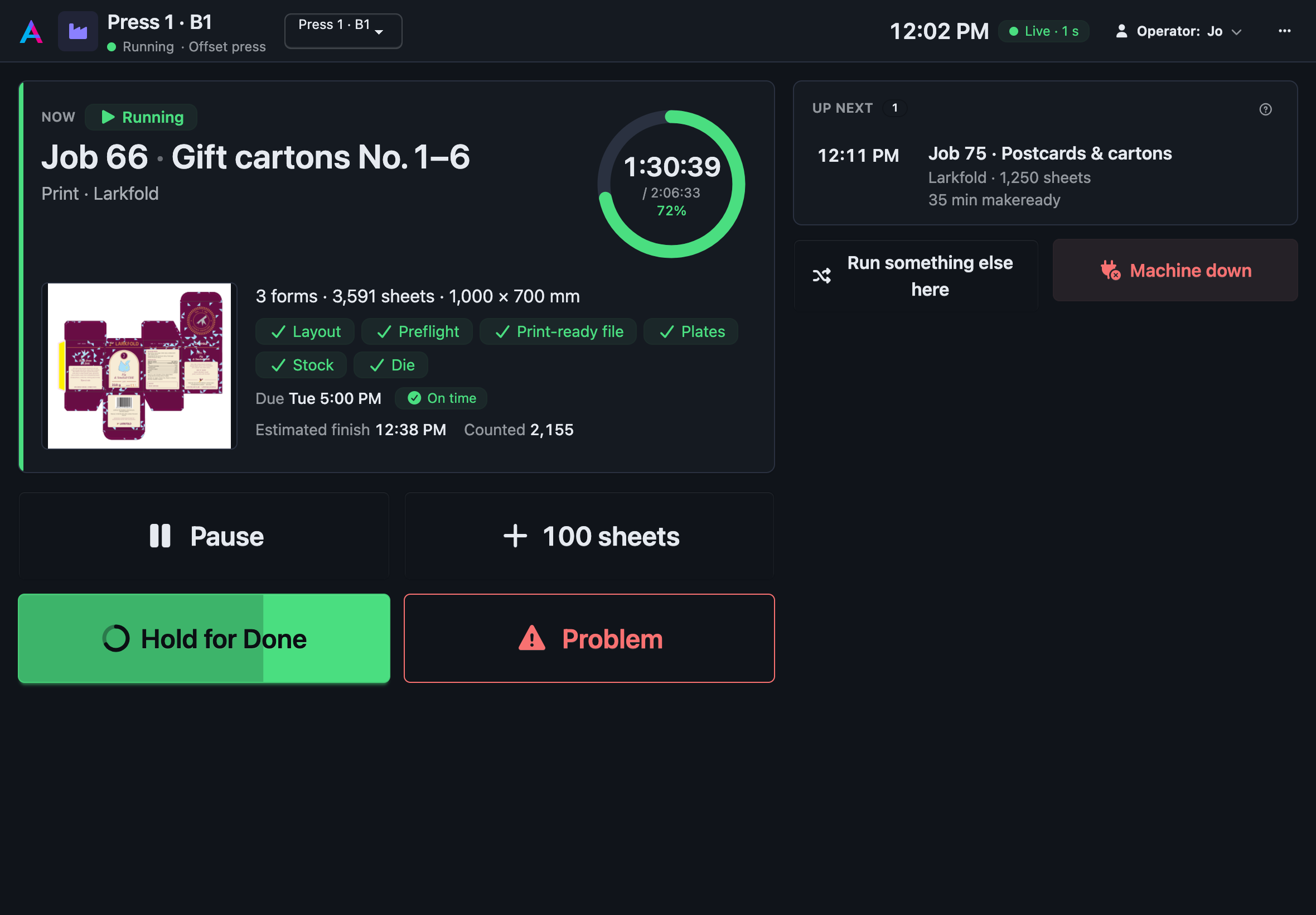
Mark a machine down with the time you expect it back. Later work moves right, each step that now finishes late says by how much, and the late count updates for everyone.
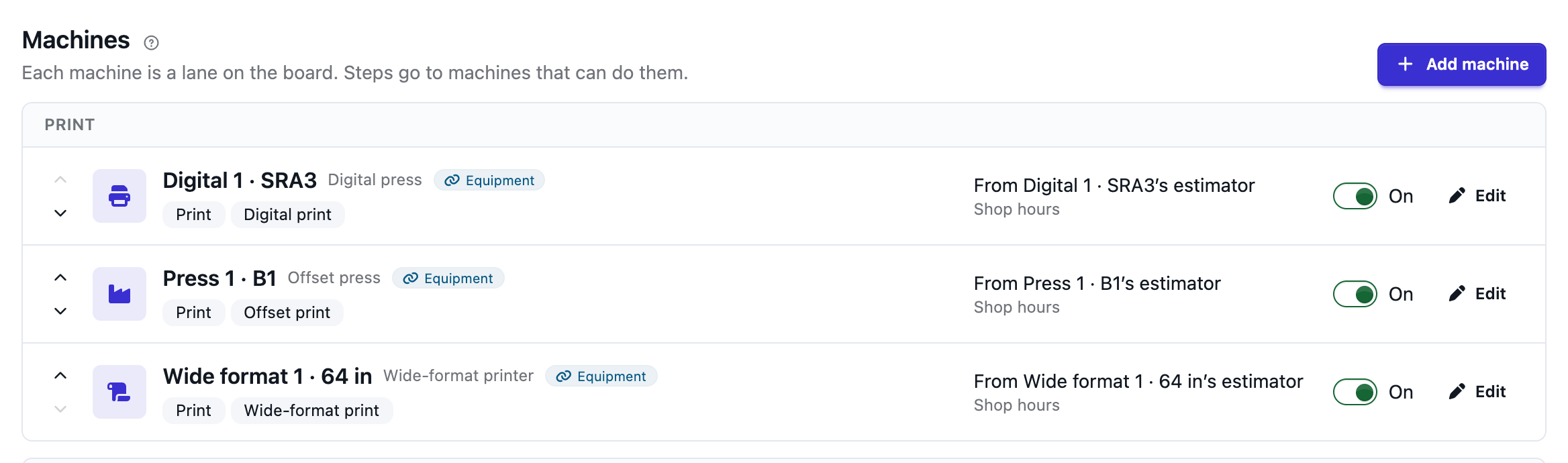
Import your machines from Equipment, set shop hours, then add finishing and outside vendors.
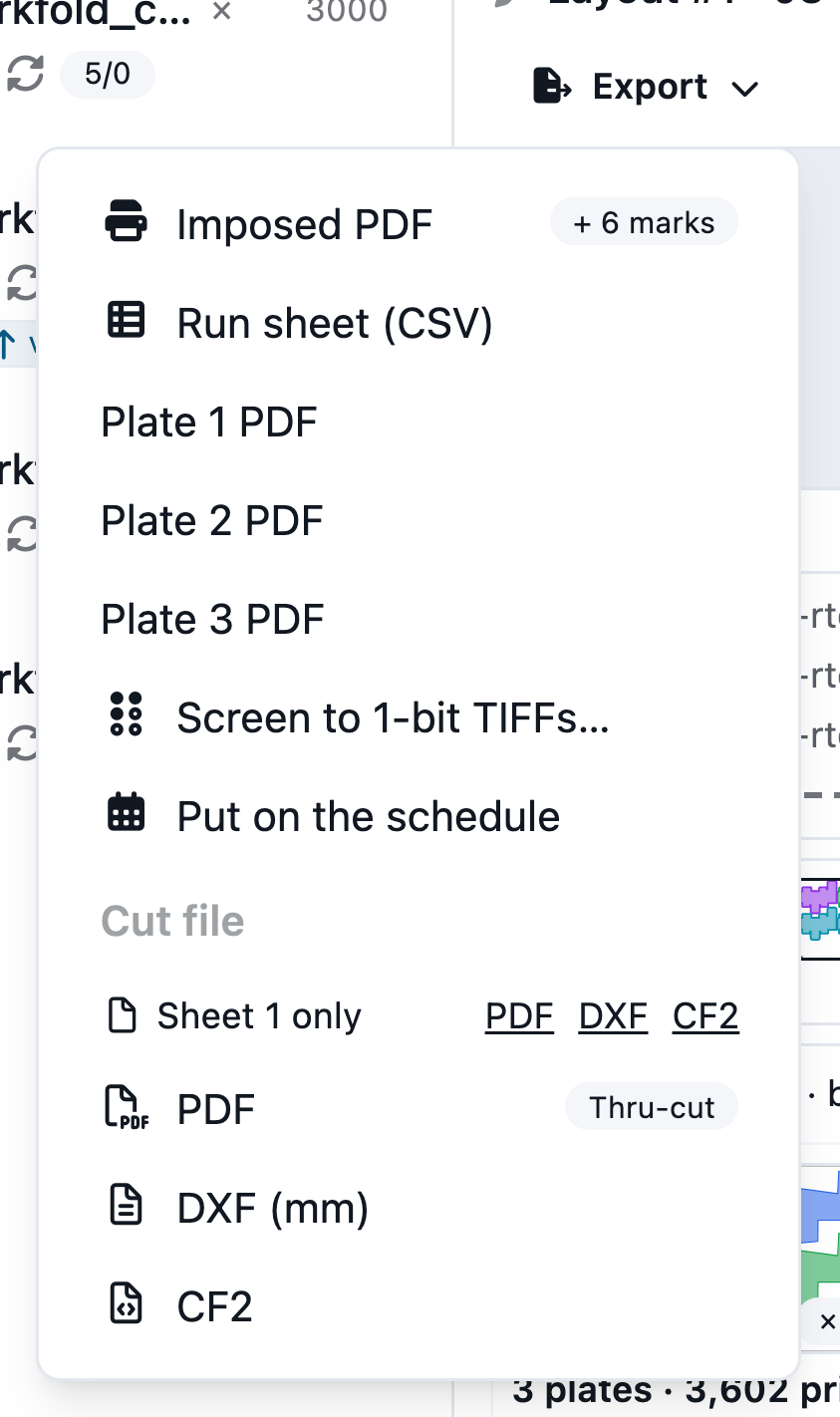
Send a job from Imposition with Put on the schedule in its Export menu.
Read the docs: SchedulePlacing and re-planningThe station
FAQ
Anything else? Email hello@automateprint.com and a person who knows print will answer.
No. You choose the order, or let Place all ready choose it; start and finish times are worked out from your shop hours, makeready, drying and ready checks.
No. Every Station tablet can run on one shared shop login, and the operator picks their name, so operators don't need seats of their own. Seats are for the people who plan and prepare work.
Not yet: drag and drop and Re-plan are coming next. Today you plan with Place all ready, Move to…, Pin and Hold.
Add them as machines with a setup time and a speed. Outside vendors get a usual turnaround and no queue: each step sent out takes the vendor's lead time, however many jobs are already there.
The job waits in the tray under Waiting, showing the check that holds it. When the customer approves, the check clears by itself.
It schedules production. Keep your MIS for invoicing and purchasing, and connect it through the API. It works in the same app as your imposition, so no MIS or JDF integration is needed to start.
Start free, with 14 days of every Production feature. No card, and your customers review for free.
Allow Google Analytics cookies to measure visits to our public website? Your team workspace and private proofs are excluded. Essential cookies always stay on. Privacy policy