

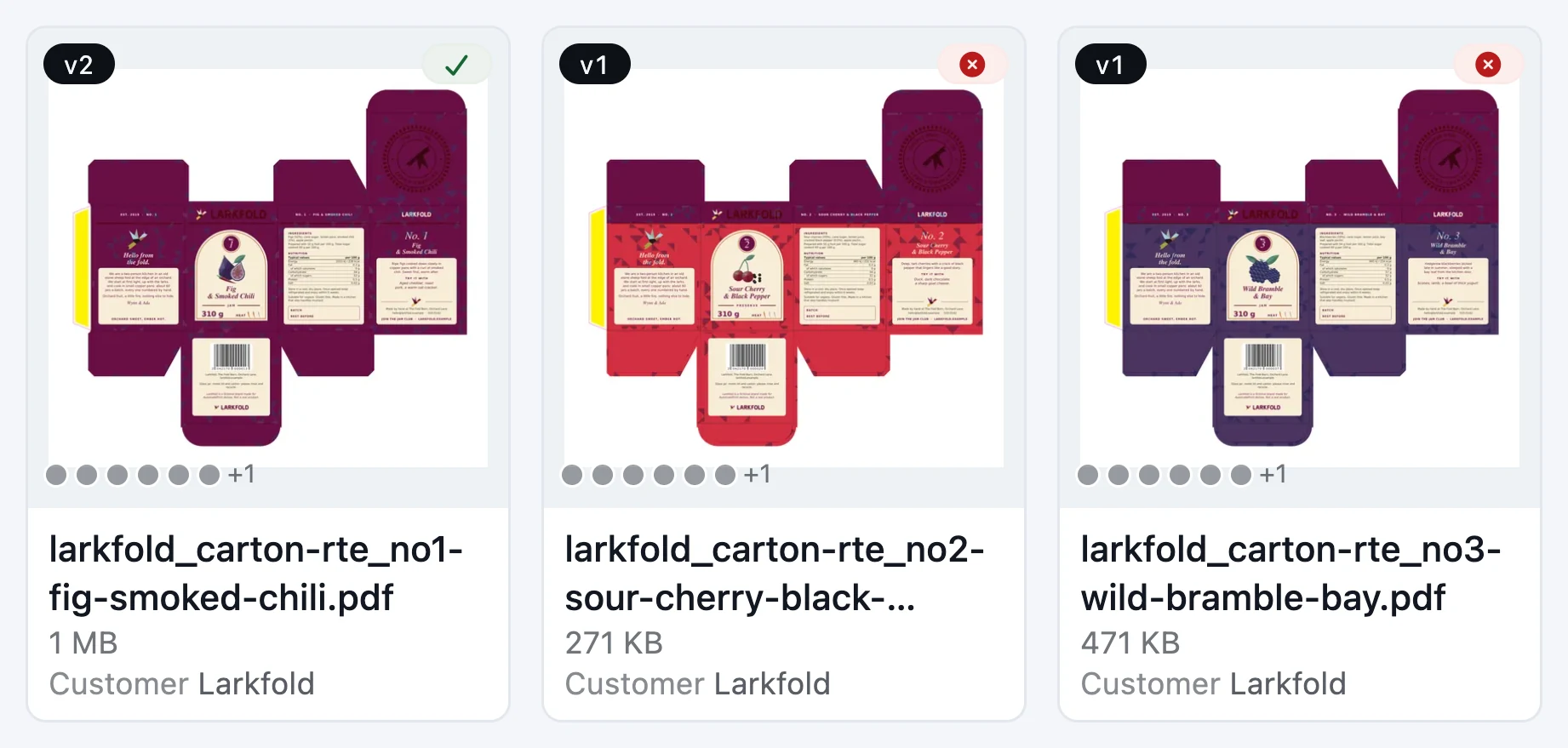
- Version badge
- Spot inks read on arrival
- Customer: Larkfold
The card says what's inside
Version, preflight result, spot inks and the properties your team chose to show.
Files & artwork
Drag in whole folders from your file server. A re-upload becomes the next version, identical files are stored once, and every file is read on arrival — pages, trim size, spot inks, dieline and resolution — so you know what it is before you open it.
On every plan
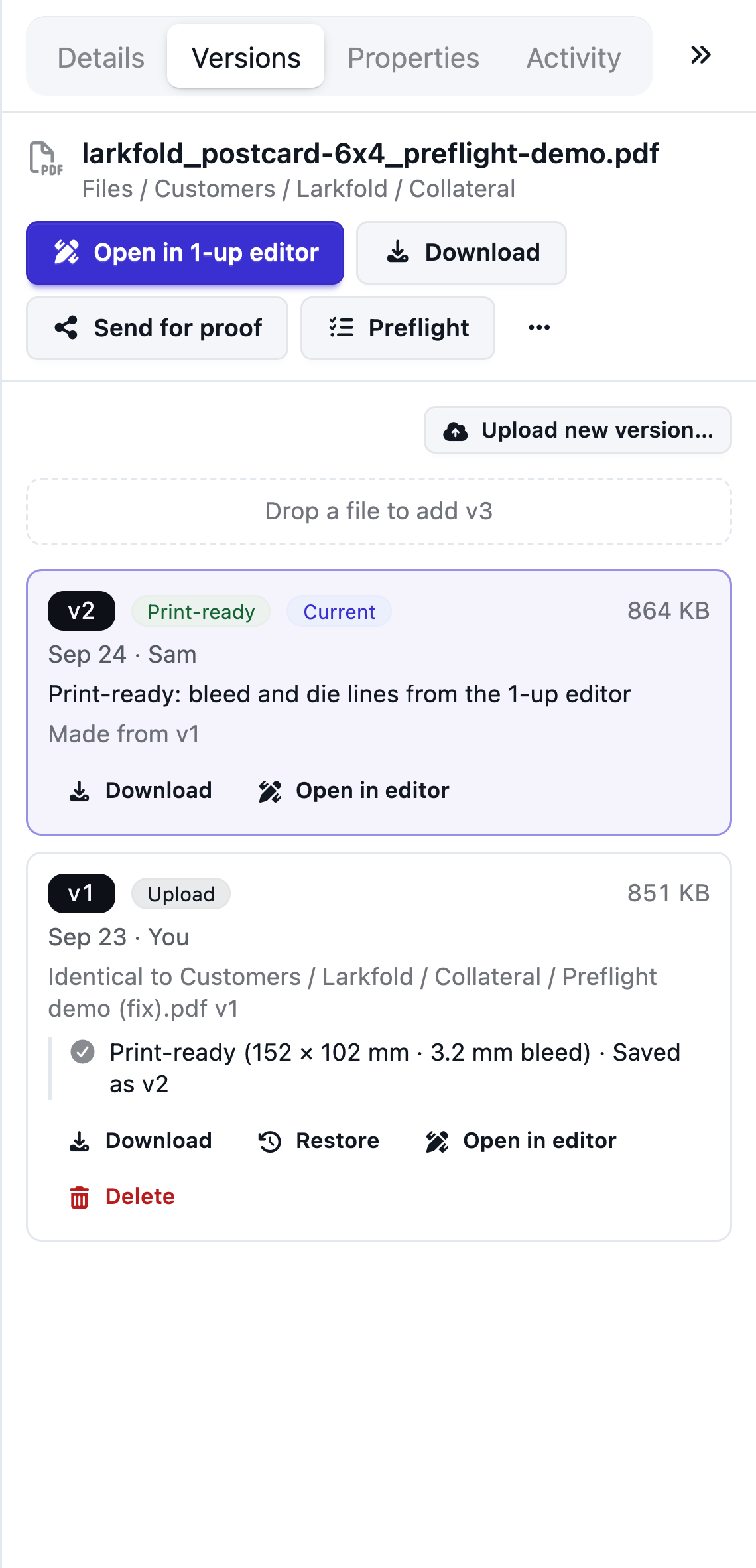
Today
With AutomatePrint
Today: “final_FINAL_v3.pdf” on the shared drive.
With AutomatePrint: The same name uploaded again becomes the next version; restore any version in one click.
Today: “Which file did we print last time?”
With AutomatePrint: Where used and Activity show every proof, job and preflight a file touched.
Today: Open every PDF to check its size and inks.
With AutomatePrint: Pages, trim size, spot inks, dieline and resolution are read on arrival and shown with the file.
Drag whole folders from your file server into the browser, or run the sync script against the Files API overnight. The folder structure comes with them.
Pages, trim size, spot inks, dieline, overprint and resolution are read, previews are made and new PDFs are preflighted (a setting, on for new teams).
Send it for proof, open it in the 1-up editor, or pick it into a quote or an imposition job. Upload the same name again and it becomes the next version.
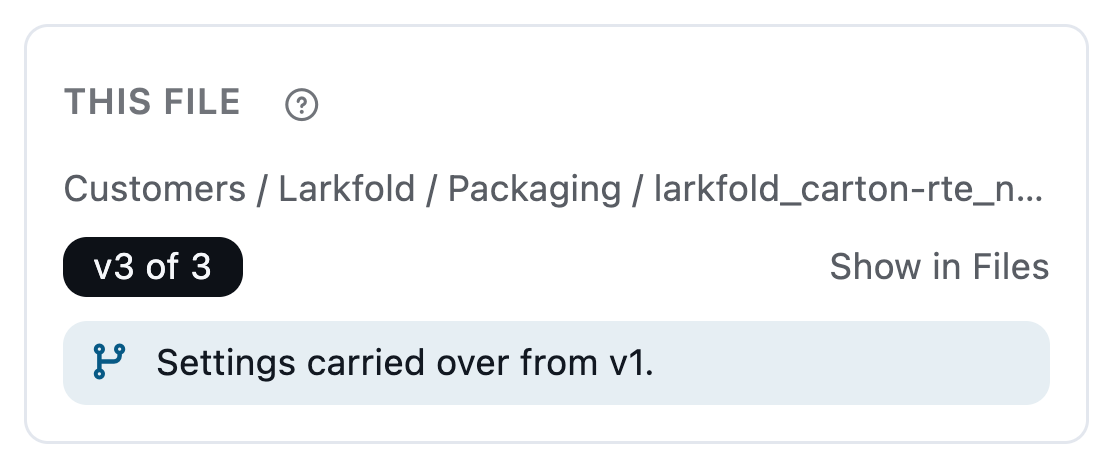
Cards carry a version badge, the preflight result and a swatch for each spot ink. Details show the pages, the trim size, whether a dieline was found, overprint and resolution.
Version, preflight result, spot inks and the properties your team chose to show.
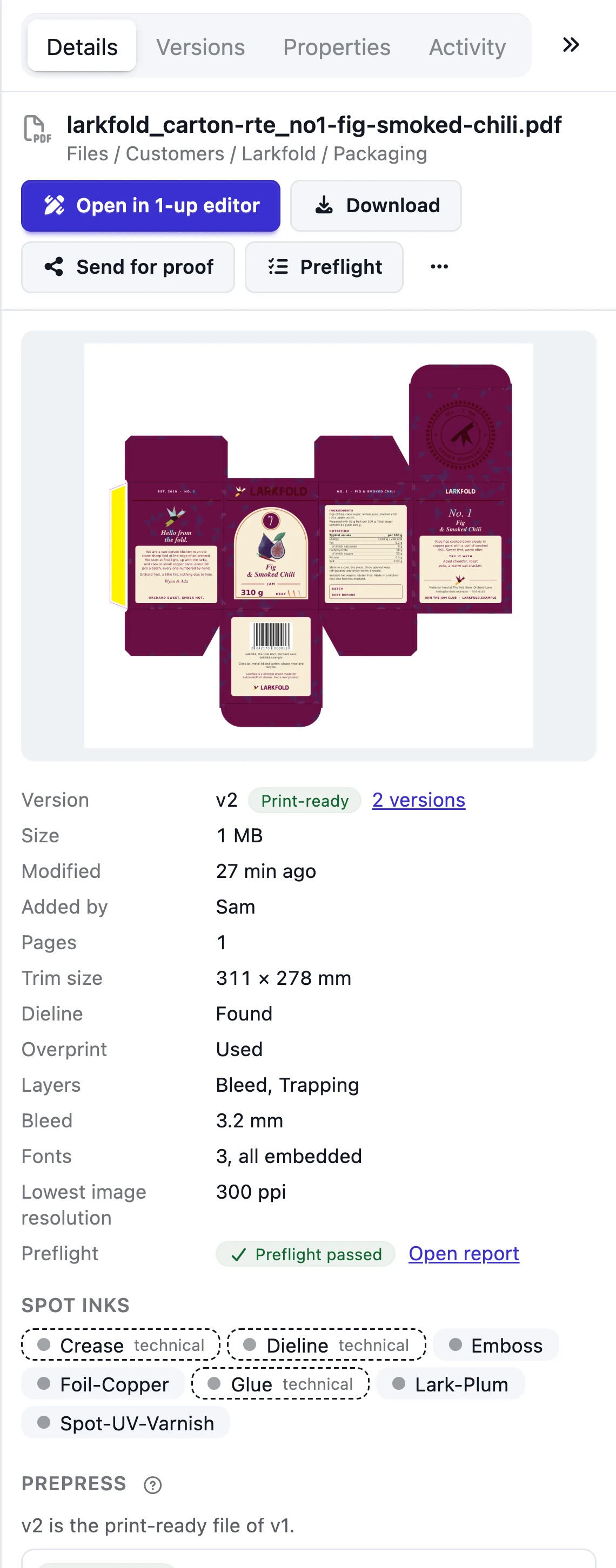
Pages, trim size, dieline, overprint, layers and spot inks, without opening the PDF.
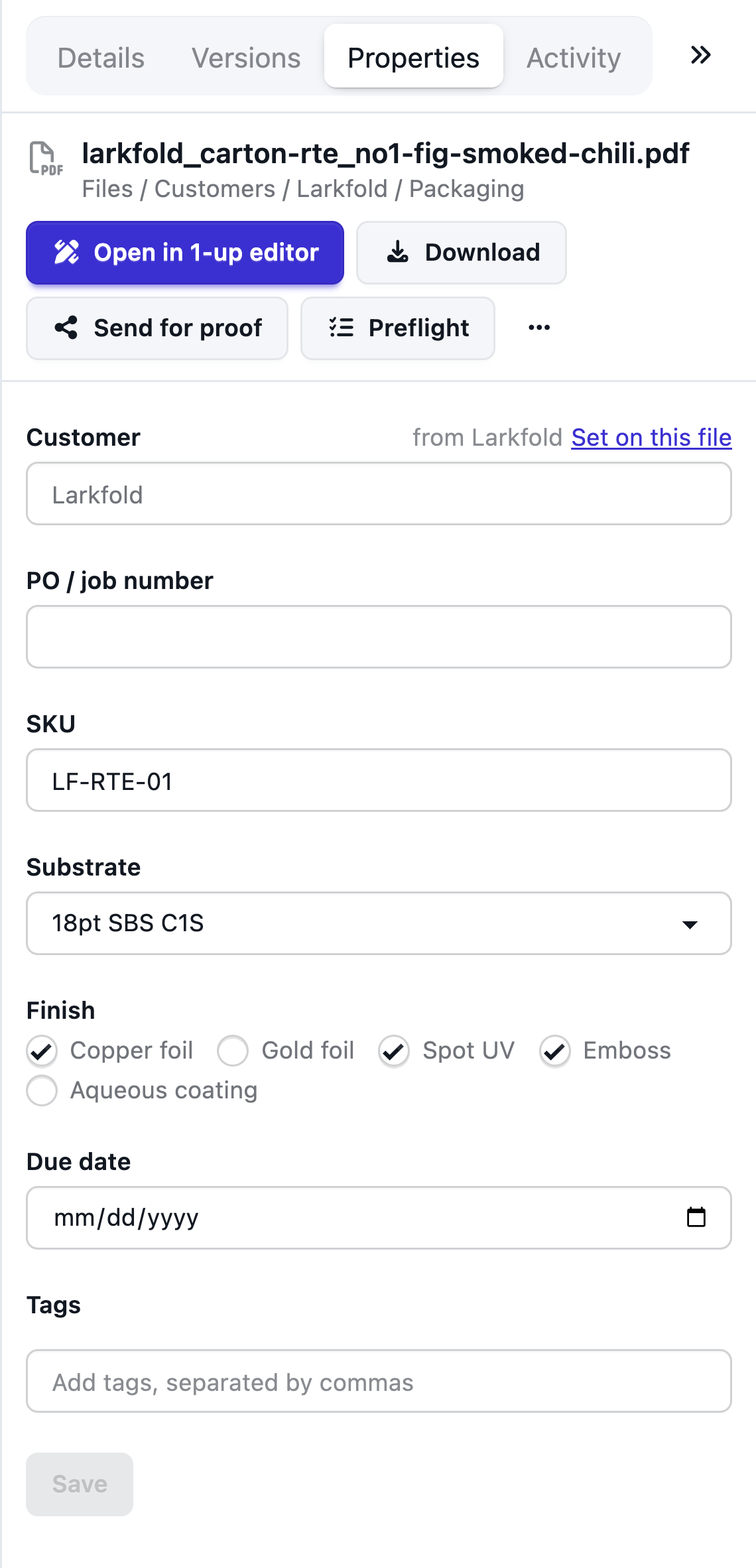
Customer, PO, SKU, substrate and due date — with folder defaults. Pick a file into an imposition job, a quote or a mark set; “v2 available” tells you when there's a newer one, and marks can print the file's customer.
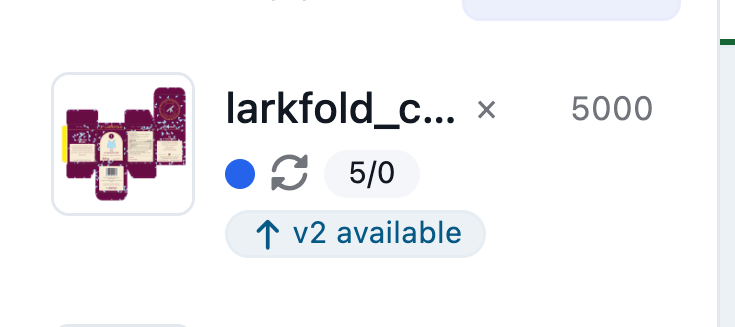
A job keeps the version it was given and says when a newer one is in Files.
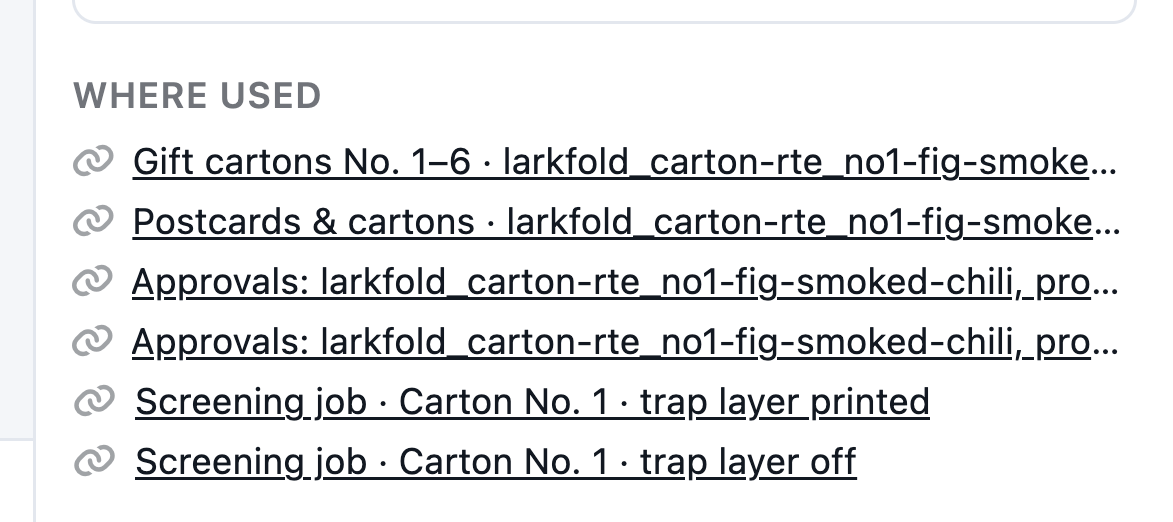
Every proof, job and screening run the file touched.
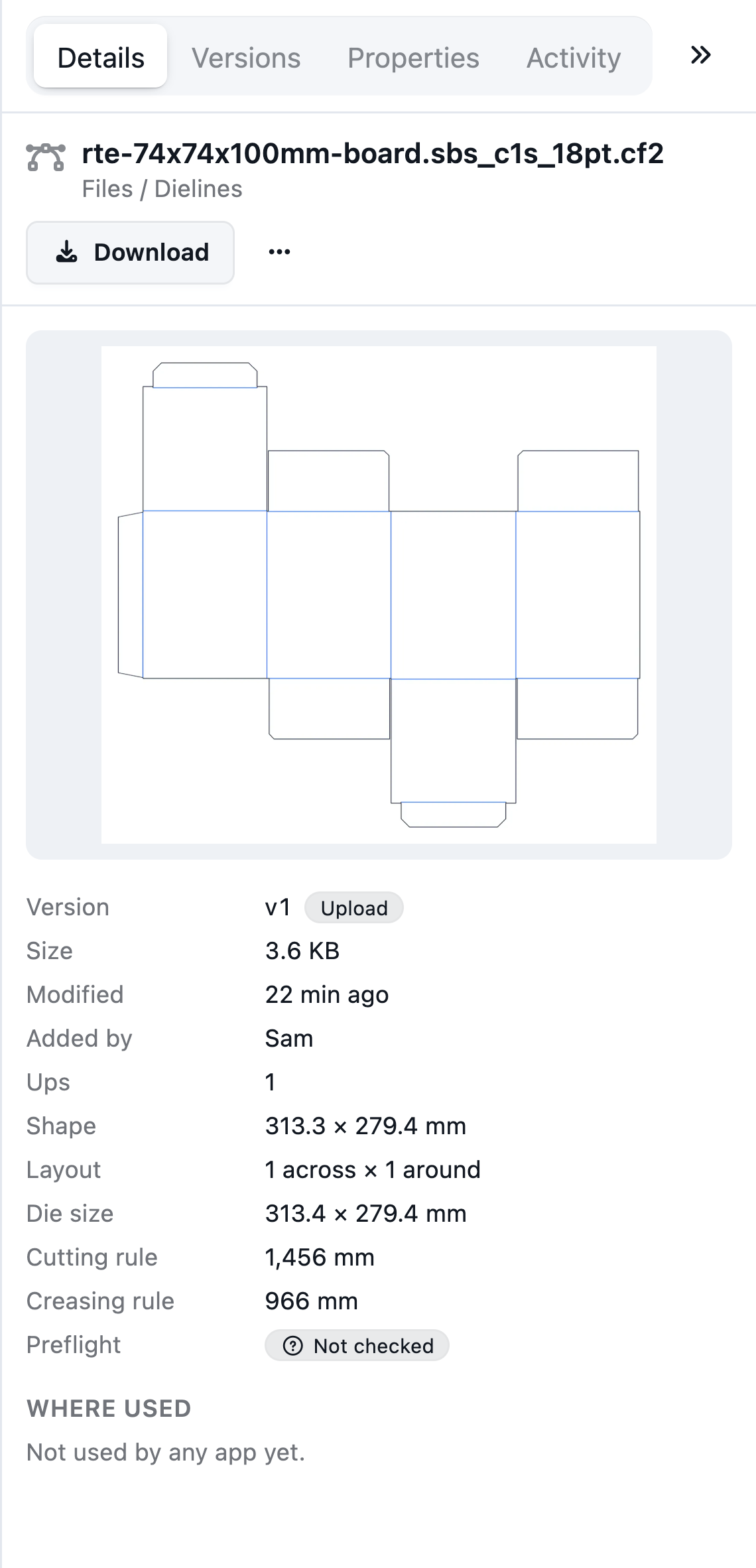
CF2 and DXF dies are drawn on arrival, with their ups, layout, die size and rule lengths.
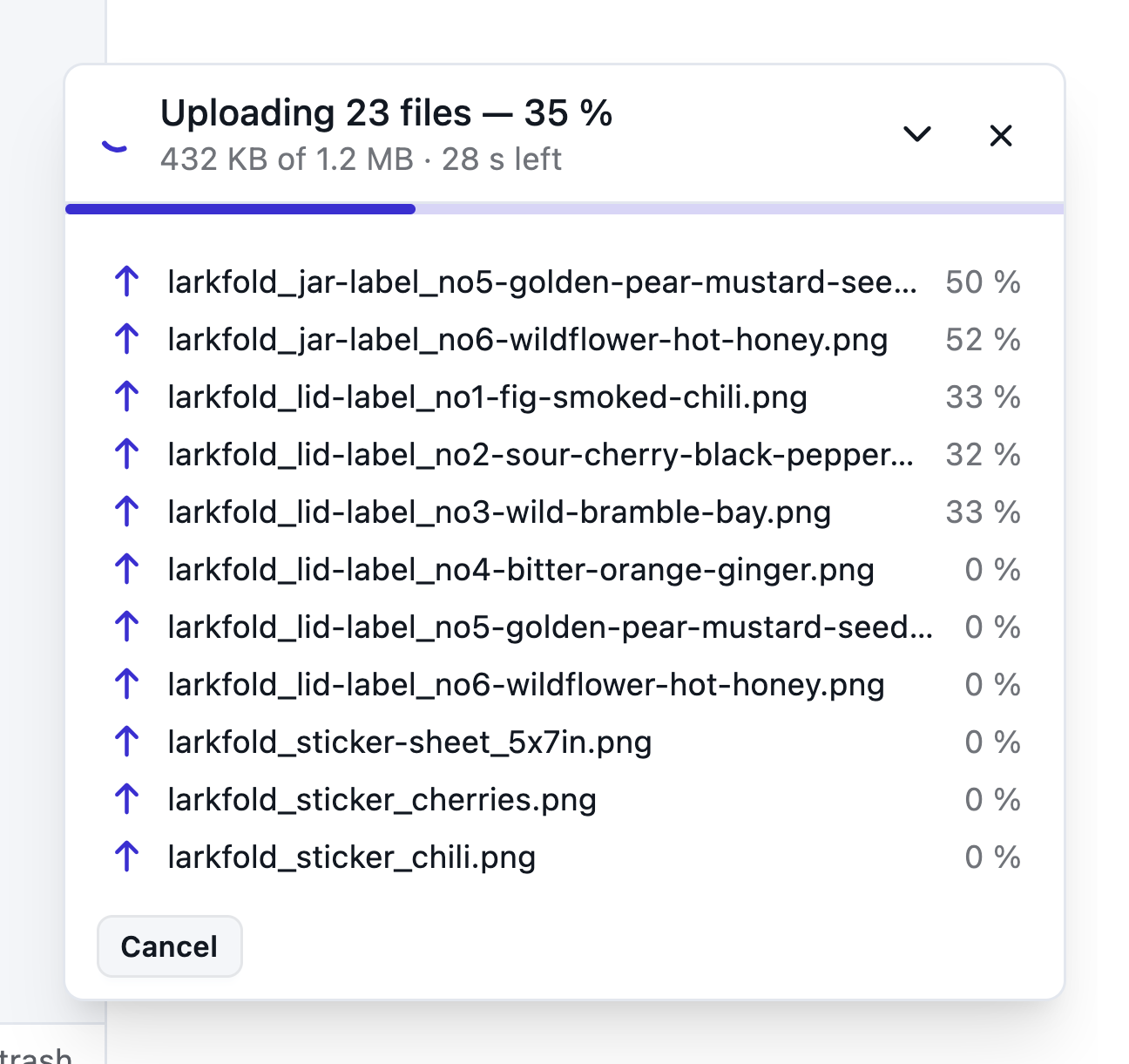
Drop a folder and its structure comes with it.
Press Space to see any file large without opening it.
Bleed, dies and traps on any version; the next version arrives prepared.
Read the docs: FilesVersionsMove your customer archive to the cloud
| Capability | Free | Shop | Production | Plant |
|---|---|---|---|---|
| Files storage | 5 GB | 500 GB | 2 TB | Custom |
| Folders, whole-folder drag and drop, facts on arrival, properties | Included | Included | Included | Included |
| Version history | Every version | Every version | Every version | Every version |
| Files API and API keys | Included | Included | Included | Included |
Files and the Files API on every plan: 5 GB on Free, up to 2 TB on Production.
FAQ
Anything else? Email hello@automateprint.com and a person who knows print will answer.
The distinct files you keep: every version, and trash until it is emptied. Identical files and copies count once, and previews are free. Free includes 5 GB, Shop 500 GB and Production 2 TB; paid plans can add 250 GB at a time.
Yes. Drag whole folders into the browser, or run the documented sync script against the Files API overnight; it's resumable and can set properties from a CSV.
It goes to the trash for 30 days, and files another app still uses are kept.
Not yet — request-files links are coming soon. Today your team uploads, or the API does.
Start free, with 14 days of every Production feature. No card, and your customers review for free.
Allow Google Analytics cookies to measure visits to our public website? Your team workspace and private proofs are excluded. Essential cookies always stay on. Privacy policy